
You are here:
Advanced Example of Ramp Deals for Groups
See an example of adding products to specific segments, dynamic configuration, varying rates, and asset management.
Required Editions
| Available in: Lightning Experience |
| Available in: Enterprise, Unlimited, and Developer Editions of Agentforce Revenue Management with the Revenue Cloud Growth, Revenue Cloud Advanced, and the Revenue Cloud Billing licenses. |
Introduction
Alex, a sales rep from SmartBytes, creates a quote for Acme that spans over 5 years based on the requirements shared in the opportunity record. Alex shares the quote with James from Bloomington Caregivers, a healthcare client who wants to transition from traditional learning methods to digital learning solutions.
After sharing the quote, Alex meets James and realizes that the requirements have more nuances. Alex updates and fine-tunes the quote based on his requirements.
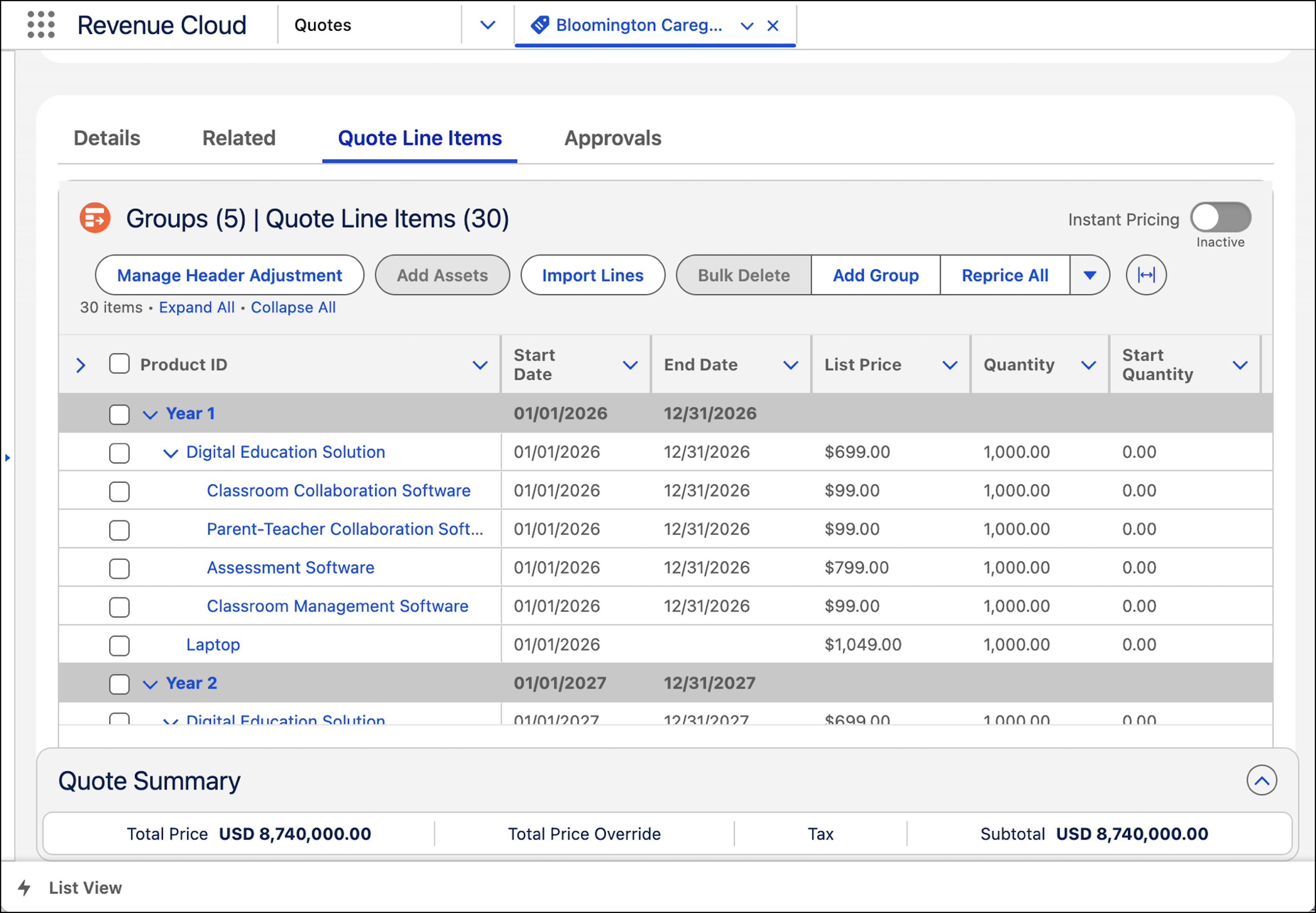
Configure Products
For the first year, James wants only a subset of the child products from each category in the Digital Education Solution.
- Collaboration Software
- Classroom Collaboration Software
- Parent-Teacher Collaboration Software
- Support Services
- Implementation Support
- Education Software
- Classroom Management Software
- Assessment Software
From the second year onward, James wants to include Email Application and replace Implementation Support with Maintenance Support.
Here’s how Alex updates the quote.
- Open the quote.
-
Click
 corresponding to Digital Education Solution in the Year 1 segment, and then
select Configure.
Product Configurator opens.
corresponding to Digital Education Solution in the Year 1 segment, and then
select Configure.
Product Configurator opens. - In the Collaboration Software section, select Classroom Collaboration Software and Parent-Teacher Collaboration Software.
- In the Support Services section, select Implementation Support.
- In the Education Software section, select Assessment Software and Classroom Management Software.
-
Save the changes.
Transaction Management updates the child products in the Year 1 segment and all the subsequent segments.
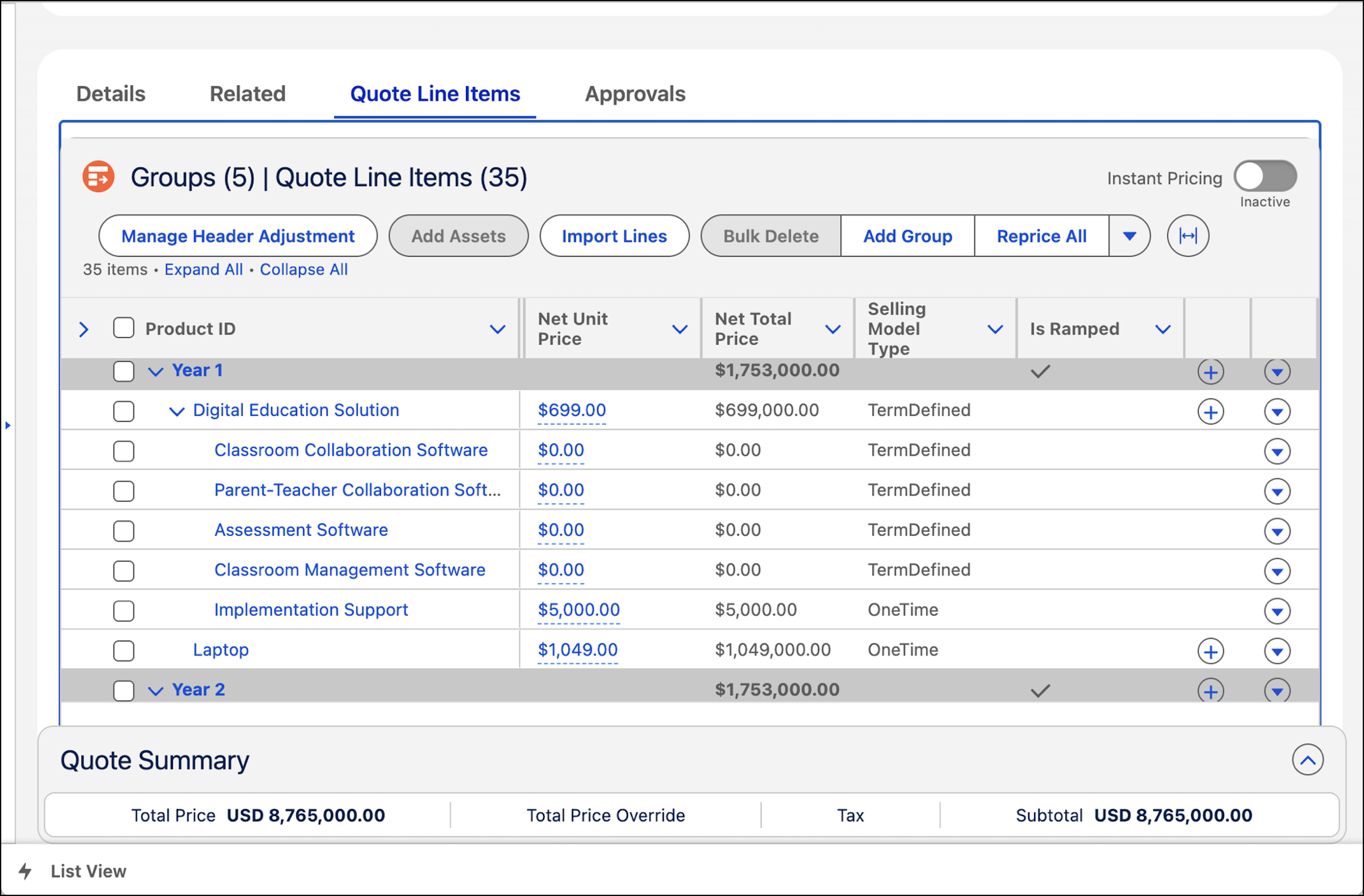
-
To include Email Application and replace Implementation Support with Maintenance
Support from the Year 2 segment, complete these steps.
- Open Product Configurator for Digital Education Solution in the Year 2 segment.
- Select Email Application.
- Deselect Implementation Support.
- Select Maintenance Support.
- Save the changes.
Transaction Management automatically updates the lines in the Year 2 segment and the subsequent segments. -
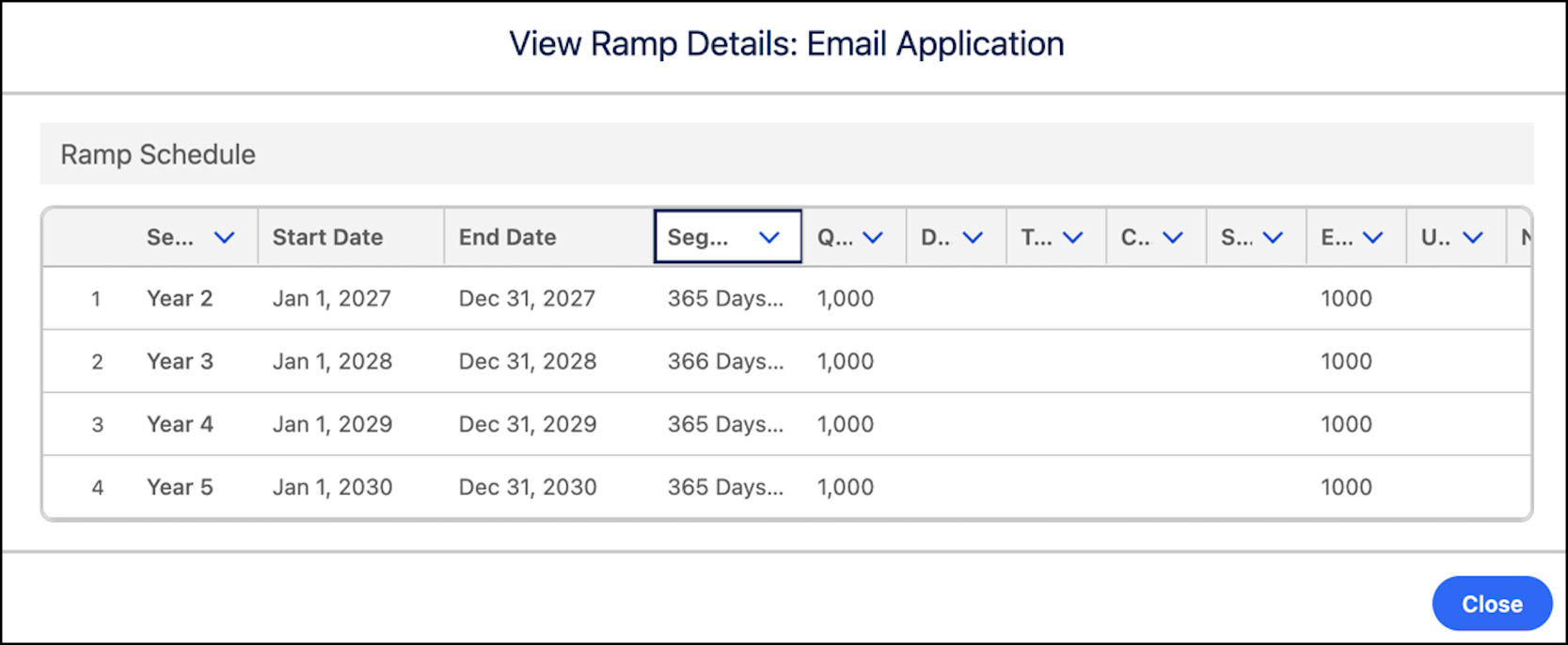
To view the snapshot of the Email Application product, click corresponding to the product and then select View Ramp
Details.
The child product is available only from the second year.
Add Products to Specific Segments
When discussing the requirements with Alex, James realizes that they also need a storage solution for the second and third years. By the fourth year, their in-house storage solution will be ready.
Here’s how Alex adds products.
-
To add products to the Year 2 segment, click corresponding to it and then select Browse
Catalogs.
- Browse and select Cloud Storage Pro, enter the quantity, click Add, and then click Next.
-
To add the product to the Year 2 and the subsequent segments, select
Current and Subsequent Segments.
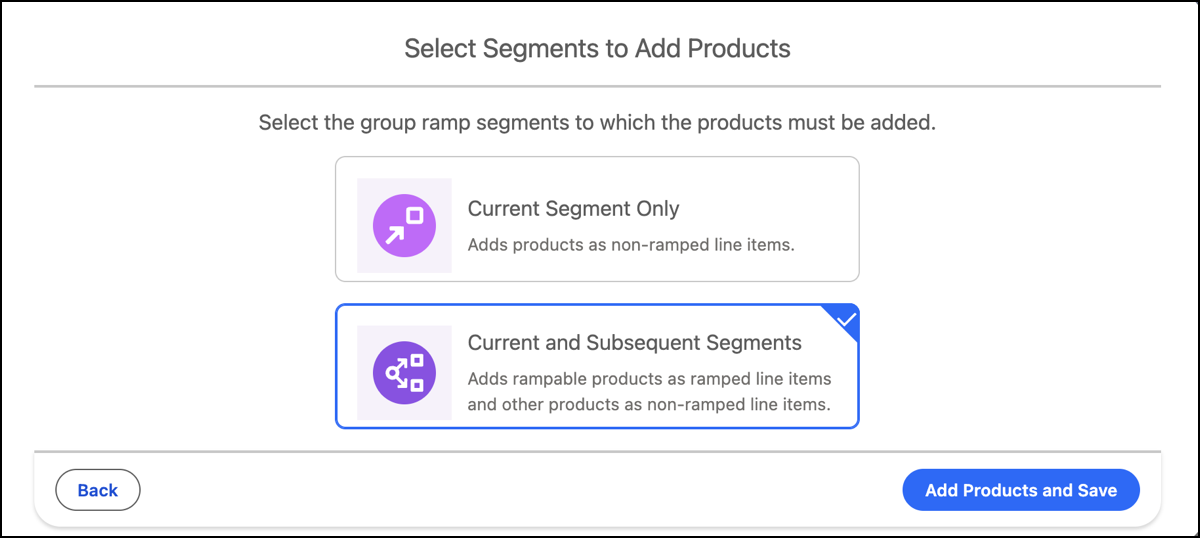
-
To view the details of Cloud Storage Pro, click corresponding to it and then click View Ramp
Details.
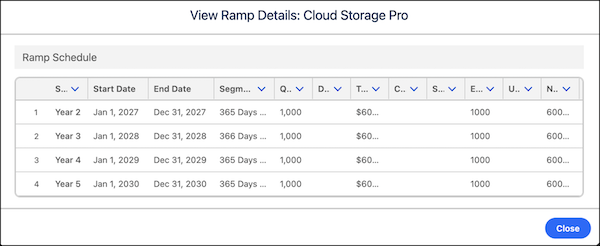 The newly added product is ramped and is available only from the second year.
 -
To delete the product from the Year 4 and Year 5 segments, click corresponding to Cloud Storage Pro in the Year 4 segment, and then select
Delete.
-
In the Delete ramped line item Cloud Storage Pro? window click
Delete.
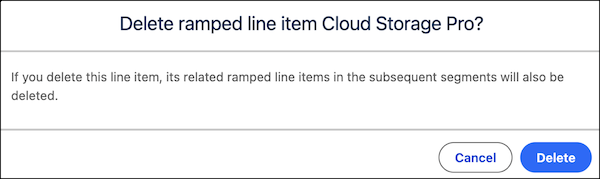 Transaction Management deletes Cloud Storage Pro from the fourth year and fifth years.
 - Save the changes.
James is happy with the quote and approves it. Alex creates an order from the quote, and then activates the order
Amend Consolidated Assets
In the middle of the second year, James calls Alex and informs her that their growth was faster than anticipated. For the third year, he wants 2000 more licenses of Cloud Storage Pro.
Here’s how Alex amends the assets to increase the number of licenses.
- From the App Launcher, find and select Account.
- Click Bloomington Caregivers.
- Under Managed Assets, for Cloud Storage Pro, select the checkbox in the Asset Name column.
- Click Amend.
-
Select an amendment date, and then click Submit.
You can’t modify the fulfilled part of a ramp segment. However, you can modify the upcoming part of the segment.
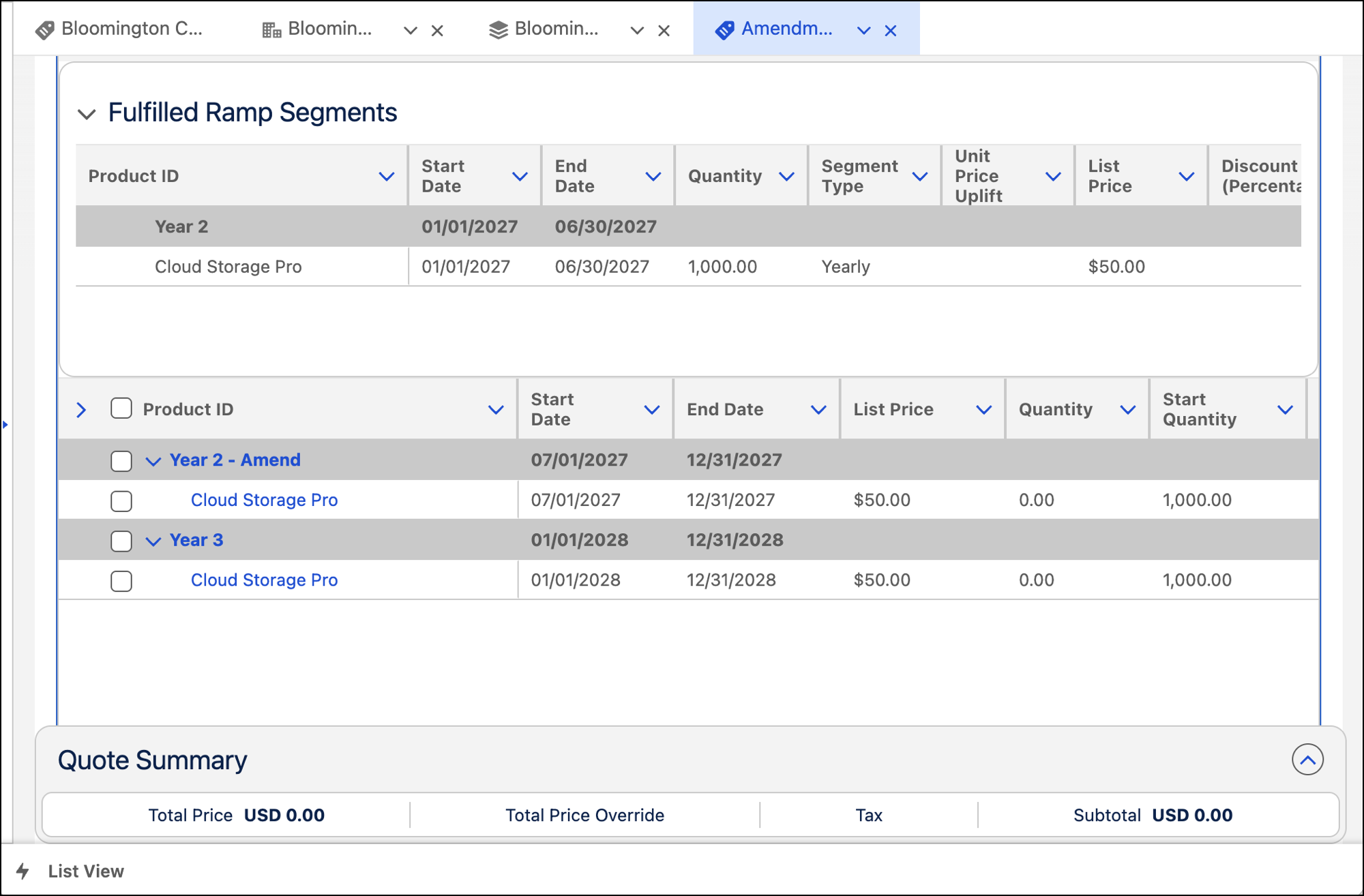
- For Year 3, enter the number of extra licenses, 2000, in the Quantity column.
- Save the changes.
- Create an order from the amendment quote, and then activate the order.
- Click the Bloomington Caregivers tab.
-
To view the updated asset state periods, click corresponding to Cloud Storage Pro and then select
View.
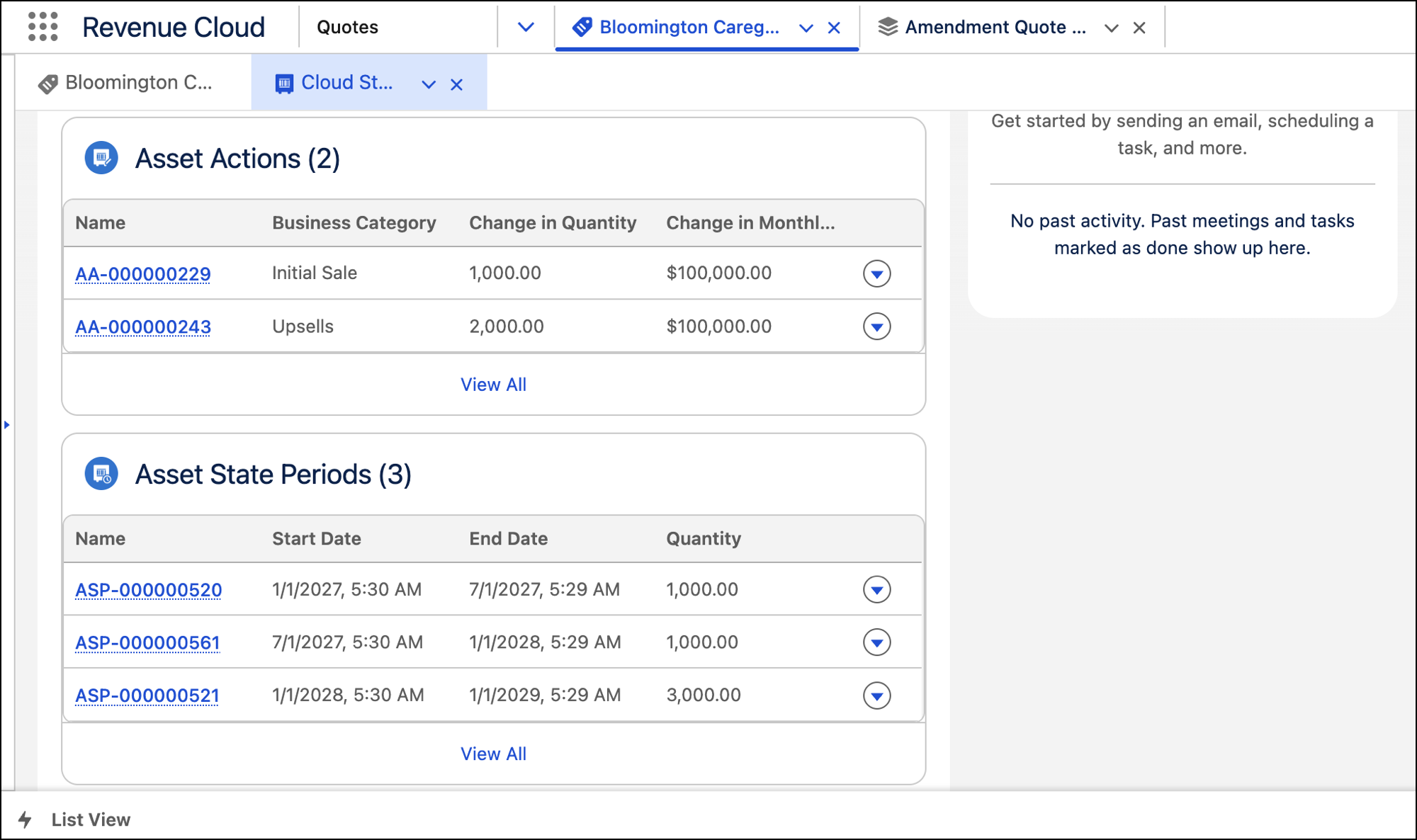
When the amendment order is submitted, Transaction Management:
- Creates the asset action, AA-000000243, to track the upsell.
- Updates the asset state period, ASP-000000520, for the fulfilled duration of the current segment.
- Creates the asset state period, ASP-000000561, for the remaining duration of the current segment.
- Updates the asset state period, ASP-000000521, of the modified segment.
