
You are here:
Automate Asset Creation from Orders
To ensure assets related to an order remain current, use flows to create and update them. When you activate Revenue Cloud orders, create a record-triggered flow that invokes the Create or Update Asset from Order flow action. Customize the flow or add more conditions to perform other actions.
Required Editions
| Available in: Lightning Experience |
| Available in: Enterprise, Unlimited, and Developer Editions of Revenue Cloud where Transaction Management is enabled |
| User Permissions Needed | |
|---|---|
| To open, edit, or create a flow in Flow Builder: | Manage Flow |
| To activate object state definitions: | Assetize Order permission set |
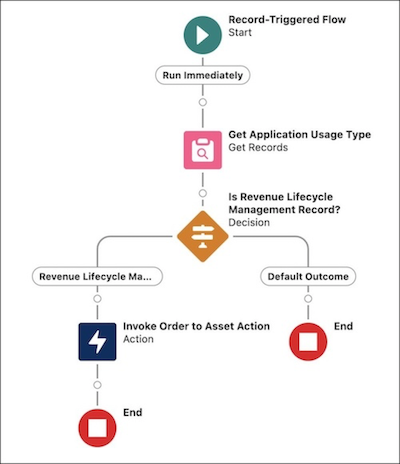
Create a Record-Triggered Flow
- From Setup, in the Quick Find box, enter Flows, and then select Flows.
- Click New Flow.
- Select Record-Triggered Flow and click Create.
- Select Order as the object.
- Select A record is updated for the trigger configuration.
-
In the Set Entry Conditions section, specify these details.
- Condition Requirements: All Conditions Are Met (AND)
- Field: Status
- Operator: Equals
- Value: Activated
Configure Application Usage Type Assignment Records
-
Click
 .
.
- Find and select Get Records.
- Enter Get Application Usage Type for the label and Get_Application_Usage_Type for the API name.
- Select Application Usage Assignment as the object.
-
Add these filter conditions.
- Field: RecordId
- Operator: Equals
- Value: {!$Record.Id}
-
Click Add Condition and specify these filter conditions.
- Field: AppUsageType
- Operator: Equals
- Value: RevenueLifecycleManagement
- Select Choose fields and assign variables (advanced).
- In the Record field, select New Resource.
-
Specify these details for the new resource.
- Resource Type: Variable
- API Name: ApplicationUsageAssignmentRecord
- Data Type: Record
- Object: Application Usage Assignment
- Click Done.
Add a Decision to Check for Revenue Cloud Records
-
Click .
- Find and select Decision.
- Enter Revenue Lifecycle Management Record? for the label and Is_Revenue_Lifecycle_Management_Record for the API name.
-
Specify these outcome details.
- Label: Revenue Lifecycle Management Record
- API Name: Revenue_Lifecycle_Management_Record
- Condition Requirements: All Conditions Are Met (AND)
- Resource: {!ApplicationUsageTypeRecord.Id}
- Operator: Does Not Equal
- Value: {!$GlobalConstant.EmptyString}
Add an Action to Create or Update an Asset
-
Click in the Revenue Lifecycle Management Record branch.
- Find and select Action.
-
Specify these action details.
- Action: Create or Update Asset from Order
- Label: Invoke Order to Asset Action
- API Name: Invoke_Order_to_Asset_Action
- Order ID: {$Record.Id}
- Click Done.
- Save your changes.
- Enter a label and API name for the flow and save again.
- Activate the flow.
Did this article solve your issue?
Let us know so we can improve!
