
You are here:
Discover and Configure Products for Transactions
Browse catalogs, view product lists, configure products, and add items to your quotes or orders.
Required Editions
| Available in: Lightning Experience |
| Available in: Enterprise, Unlimited, and Developer Editions of Revenue Cloud where Transaction Management is enabled |
| User Permissions Needed | |
|---|---|
| To view catalogs: | Read on catalogs |
| To view products: | Read on products |
| To add products to quotes: | Edit on quotes |
| To add products to orders: | Edit on orders |
| To browse for products: |
|
Product Discovery provides a centralized workspace to find and filter products based on specific criteria. Use this page to select buying options, configure bundles, and select quantities before adding them to a transaction.

Find and select products from a catalog to populate your quote or order. Use the Product Discovery workspace to complete these selections.
- Open a quote, order, or account record.
- Click Browse Catalogs on a quote or order page, or click View Catalogs on an account page.
- Select a catalog and click Next.
- Filter the product list to find specific items, then select your quantities.
-
Select buying options or configuration settings.
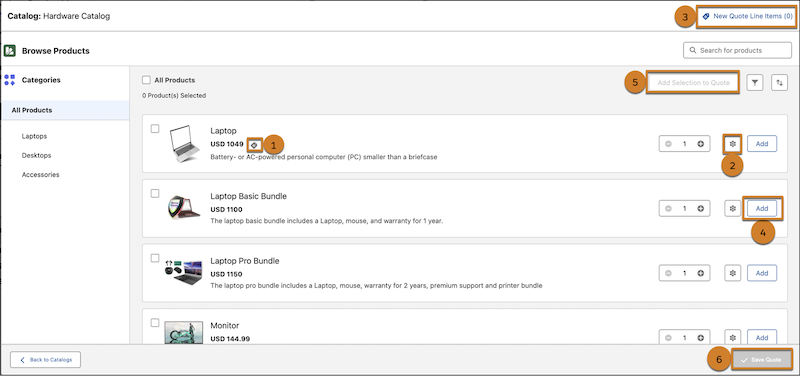
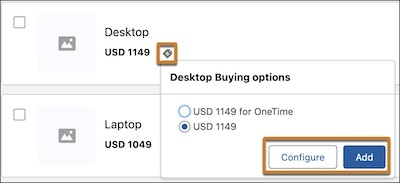
- Click Show buying options (1) if product selling models exist for the item.
- Click Configure (2) for configurable products to set up specific attributes or bundles.
- Use the Add or Configure button within the buying options window if you change the default selection.
- Click Add (4) or Add Selection to Quote (5) to move products to the New Quote Line Items list (3). This is also known as the preview component. If you save your changes after configuring a product, the system creates the quote line item even if it doesn't appear in the preview component.
- Click Add Items to Quote (6) to add your selections as unsaved transient lines to the transaction.
-
Save the quote or order before you attempt to edit the lines.
For products that use derived pricing, the system calculates the final price only after you add the product to the transaction.
Review eligibility requirements, direct saving options, and derived pricing behavior to ensure accurate product selection and transaction totals.
- Save your quote on the Browse Catalogs page to save products directly if the quote page lacks the Transaction Line Editor component.
- Select the All Products checkbox to add only the eligible products from the shown list.
- The list price is 0 for derived pricing products until the system calculates the final price after you add the item to the transaction.
Did this article solve your issue?
Let us know so we can improve!
