Modify Activated Orders Before Fulfillment in Revenue Cloud
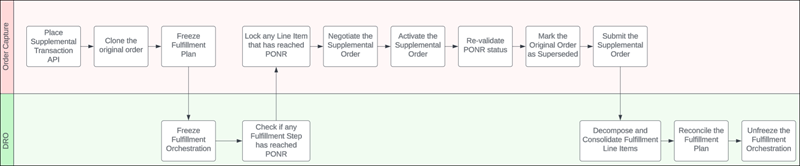
Use in-flight amendments or supplemental change orders to modify existing orders after
activation but before fulfillment. This feature captures changes in a linked order to establish a
unified order view, streamline order modification, and improve accuracy.
Required Editions
Available in: Lightning Experience
Available in: Enterprise, Unlimited, and Developer Editions of
Revenue Cloud where Transaction Management is enabled
User Permissions Needed
To place supplemental orders:
Place Supplemental Orders permission set
AND
Sales Operations Rep permission
group
Prerequisites for Supplemental Orders
Before modifying orders, perform these setup tasks.
Important Review these impacts when you submit an original order to DRO.
Salesforce locks line items when the fulfillment process reaches the point of no return
(PONR).
The system locks the fulfillment plan associated with the original order.
Submitting the supplemental order updates the original fulfillment plan instead of
creating one.
Change an Activated Order
Update products and quantities for an activated but unfulfilled order by creating a
supplemental order.
On the order page, select an activated order and click
Change.
Salesforce creates a copy of the original order in Draft status.
The system copies all products, application usage assignments, order actions,
relationships, attributes, and custom child entities.
The supplemental order appears under the Related Order list of the original order with
the Related Order Type set to supplemental order.
From the order line dropdown, select Configure to reconfigure an
order item.
Edit the product attributes.
Select Save & Exit.
The Supplemental Change Type column updates to Amend for edited products or quantity
changes.
New order items receive the Add type.
Items without updates show the No Change type.
Pricing preference defaults to Skip.
Activate the order.
The original order status changes to Superseded and the new supplemental order
replaces it.
Did this article solve your issue?
Let us know so we can improve!
Loading
Salesforce Help | Article
Cookie Consent Manager
General Information
Required Cookies
Functional Cookies
Advertising Cookies
General Information
We use three kinds of cookies on our websites: required, functional, and advertising. You can choose whether functional and advertising cookies apply. Click on the different cookie categories to find out more about each category and to change the default settings.
Privacy Statement
Required Cookies
Always Active
Required cookies are necessary for basic website functionality. Some examples include: session cookies needed to transmit the website, authentication cookies, and security cookies.
Functional Cookies
Functional cookies enhance functions, performance, and services on the website. Some examples include: cookies used to analyze site traffic, cookies used for market research, and cookies used to display advertising that is not directed to a particular individual.
Advertising Cookies
Advertising cookies track activity across websites in order to understand a viewer’s interests, and direct them specific marketing. Some examples include: cookies used for remarketing, or interest-based advertising.