
You are here:
Set Up Tiered Contract Pricing
Negotiate prices and discounts based on purchase quantities to encourage larger sales and apply customer-specific adjustments to ongoing transactions. Managing these agreements helps you to create volume tiers against a contract item price record and view the calculations in the net unit price waterfall.
Required Editions
| Available in: Lightning Experience |
| Available in: Enterprise, Unlimited, and Developer Editions of Revenue Cloud where Transaction Management is enabled |
| User Permissions Needed | |
|---|---|
| To set up tiered volume adjustments to pricing in contracts: | Salesforce Pricing Design Time User |
Verify Decision Tables
Before you begin, verify that the pricing procedure uses updated decision tables.
- Open your pricing procedure.
- Expand the Volume Discount element and review the Lookup Table Details.
- Verify that the decision table selected is Contract Pricing Volume Tiers. If it isn’t, change accordingly.
-
Refresh the decision tables.
- From Setup, in the Quick Find box, search for and select Decision Tables.
- Select Contract Pricing Volume Tiers, and click Refresh.
Apply Tiered Pricing to Quotes
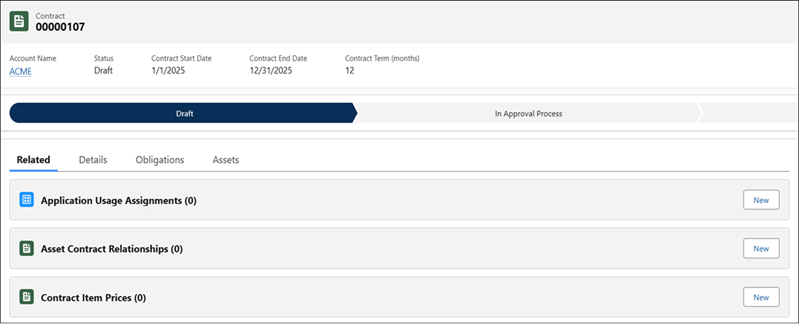
- From the App Launcher, find and select Contracts.
- Click New to create a contract or select an existing contract from the list.
- Associate the contract with the RevenueLifecycleManagement application usage assignment tag.
- In the Contract Item Prices section on the Related tab, click New to create contract item price records or select an existing record.
- Enter values in the fields for the contract item price, and save your work.
- On the contract item price record, select the Related tab and click New in the Contract Item Price Adjustment Tiers section.
- Enter values in the fields for the first tier and save your changes.
-
Create more tiers.
Set the value of the lower bound of the new tier to the same value as the upper bound of the previous tier.
 Note The upper bound quantity is priced exclusively at run-time.
 - On the contract, select the Related tab, and then click New in the Quotes section.
- Enter values in the fields for the quote, and save your changes.
- Add the product as a quote line item and set the quantity.
- Save your changes.
-
Move the quantity to the next volume tier and select the net unit price to see the price
calculations change based on the product volume change.
When you save, the volume-adjusted price discount is applied to the quote.
-
Create an order from the quote, save your changes, and activate the order.
Volume-based price adjustments are included in the order.
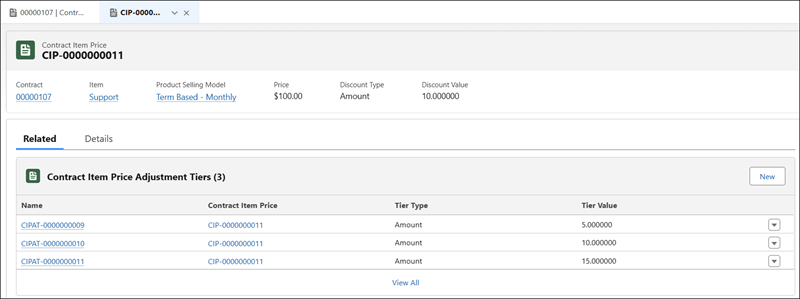
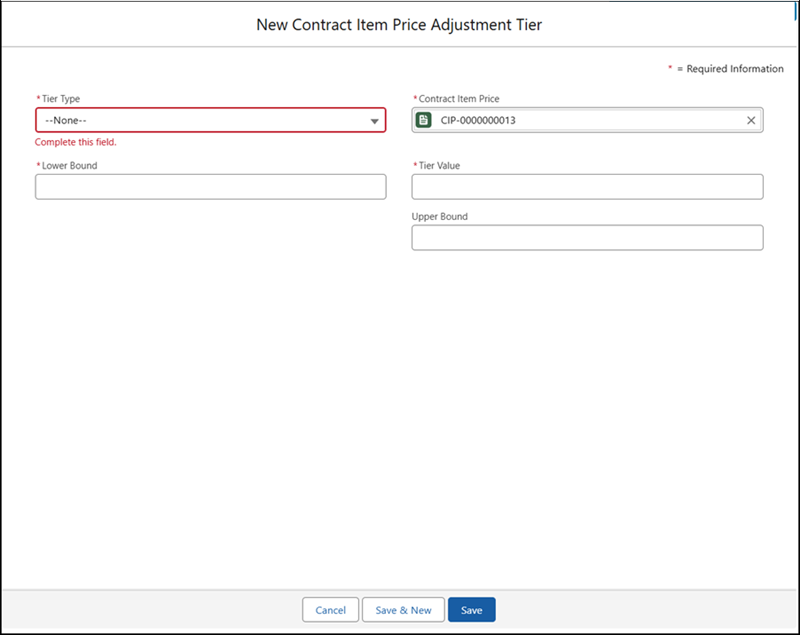
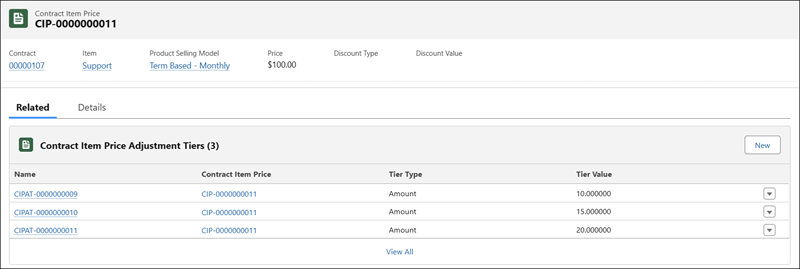

This table shows how to set up tiers to apply percentage discounts based on the quantity purchased.
| TIER TYPE | LOWER BOUND | UPPER BOUND | TIER VALUE |
|---|---|---|---|
| Percentage | 1 | 10 | 5 |
| Percentage | 10 | 20 | 10 |
| Percentage | 20 | 30 | 15 |
Override Default Sequencing for Tiered or Volume Contractual Discounts
Specify the order in which the system applies tiered or volume contractual discounts to products in a transaction. By default, the system sorts transaction line items by quantity, but sales reps can define a custom order by using a field configured by contract managers.
Required Editions
| User Permissions Needed | |
|---|---|
| To configure the sequencing on Transaction Line Editor for quotes and orders: | Edit on quotes AND Edit on orders |
Before you begin, verify that your contract manager configured a field to override the default quantity-based sorting for tiered volume discounts. See Manage Line Item Sequencing for Tiered Volume and Price Adjustments.
- Open a quote or order.
- For each line item in the transaction, enter a sequence number starting with one in the field configured for sequencing tiered volume discounts. If you specify partial or no sequence numbers, the system sequences line items by quantity by default.
- Save your changes.
