
You are here:
View and Edit Orders in Revenue Cloud
The order page lists product and pricing details. Use this workspace to add, remove, and manage products within your transactions.
Required Editions
| Available in: Lightning Experience |
| Available in: Enterprise, Unlimited, and Developer Editions of Revenue Cloud where Transaction Management is enabled |
| User Permissions Needed | |
|---|---|
| To view and edit orders: | Read and Edit on orders |
| To configure products: | Product Catalog Management Viewer permission set |
| To price products: | Price and Tax Calculation for Quoting permission set |
| To activate orders: | Activate Orders app permission |
| To enter decimal quantities for order products and view unit of measure fields: | DecimalQuantityRuntime permission set |
Add Products
Select a price book and add products to an order to begin the pricing process. Associate all products in a transaction—including child products—with the same price book to ensure consistent and accurate pricing.
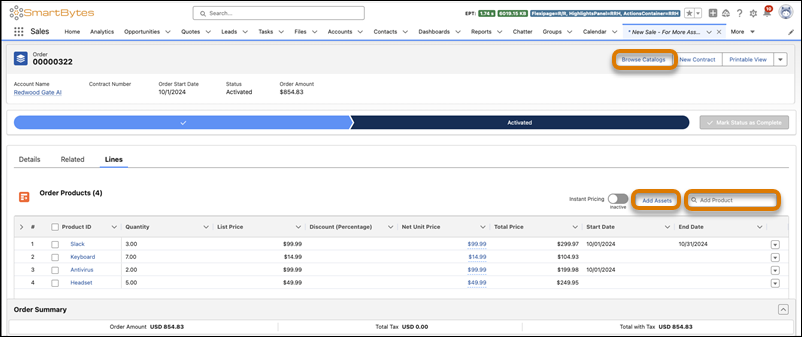
- Establish a price book when you first add products via the search field or catalog.
-
Find and add products by using one of these methods:
- Click Browse Catalogs to find, configure, and add products from specific catalogs.
- Use the Add Product search field to locate and add items quickly.
- Select Add Assets to include existing assets for initial sale orders.
- Review product names and catalogs that add items as unsaved transient lines. You can’t edit the items until you save your changes.
-
Save the order to create order products and their related attribute records.
- Transaction Management copies attribute values to subsequent stages, such as when an order is assetized.
- If a catalog admin turns off product attributes after this step, existing order product attributes remain unchanged.
Customize the Order Products Section
Modify the Order Products section to improve navigation before editing transactions.
- Keep the Product Name or other fields visible while scrolling by clicking Freeze up to this Column on a specific field.
- Show the filter row to search columns in large transactions or hide it to at no additional cost up vertical space.
Edit Transactions
Update product attributes and configurations directly within the Order Products section on the Lines tab.
- Avoid editing the Net Unit Price, Net Total Price, Total Adjustment Amount, or Pricing Term Count fields if Salesforce Pricing is active.
-
Update line items.
- Click an attribute cell to change its value and save.
- To perform bulk updates, select multiple items, click the attribute on one item, and save.
- Use the Sales Transaction Line Editor for bulk actions on both line items and groups.
- Wait for the system to finish its tax calculation before changing the order.
- Save changes promptly to avoid losing edits from a page reload or an expired session.
-
Enter decimal quantities.
- Enter decimal values only if a product has an associated unit of measure.
- Transaction Management rounds values based on the record's scale and rounding method.
- The editor shows two decimal places, but the system stores the exact scale specified.
- View the full decimal value by clicking the quantity cell or opening the side panel.
- Open the Order Product page from the related list to delete the current discount value if the editor prevents switching between percentage and amount. Then, enter the new value and type directly in the line editor.
-
Manage lookups and renewals.
- Click lookup fields like Legal Entity to search for records or create ones directly in the editor.
- Select Automatically Renew for Term-Defined products; this status copies to assets upon assetization.
Filter and Group Lines
- Expand the dropdown arrow on the top row to filter multiple columns and isolate parent line items, as the system excludes child items from results.
-
Build a hierarchical structure with up to five levels of line items and nested groups
to show financial subtotals for every level.
- Manual - Click Add Group to organize items. Move items by using Move Selected Items. Use the load more if a target group isn’t visible.
- Automatic - Select Group By on a column in the Transaction Line Editor to organize items. The Sales Transaction Line Editor and Formula fields don’t support this option.
- Sequence - Define the order by using the Sort Order field on the Order Product Groups related list. Groups without a value appear at the end, sorted by creation date.
Calculate and View Prices
- Update prices after making edits by clicking Save to price the order.
- Turn on Instant Pricing to recalculate price-impacting changes immediately, noting that the feature turns off automatically upon page reload or session expiry.
- Refresh the entire transaction by clicking Reprice All, or use Refresh Prices when a warning message appears.
- Project tax for the transaction by clicking Estimate Taxes.
- Hover over the Net Unit Price to see the price waterfall, which shows adjustments for bundles, tiers, attributes, derived prices, and contract prices.
- Hover over the Total Price to see the bundle parent price, the sum of line items, and the bundle subtotal.
See Also
Did this article solve your issue?
Let us know so we can improve!
