
You are here:
View and Edit Quotes in Agentforce Revenue Management
Use the Transaction Line Editor or Sales Transaction Line Editor to add, configure, and price quotes in Agentforce Revenue Management. These editors provide a centralized workspace to manage product selections, apply discounts, and verify pricing details before final submission.
Required Editions
| Available in: Lightning Experience |
| Available in: Enterprise, Unlimited, and Developer Editions of Revenue Cloud where Transaction Management is enabled |
| User Permissions Needed | |
|---|---|
| To use the Transaction Line Editor or Sales Transaction Line Editor: | Manage Agentforce Revenue Management AND Create Orders from Quotes permission set AND Price and Tax Calculation for Quoting |
| To enter decimal quantities for quote line items and view unit of measure fields: | DecimalQuantityRuntime permission set |
When you add products for the first time, select a price book to establish accurate pricing. To ensure consistency, associate all products in a transaction—including child products—with the same price book. Transaction Management copies attribute values and auto-renewal statuses to subsequent stages, such as when you convert a quote into an order.
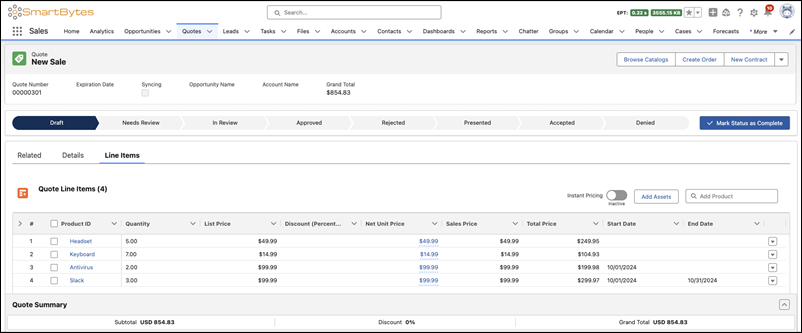
Add Products to Quotes
Select a price book and add products to a transaction to begin the pricing process. Products that use the catalog automatically relate to the same price book, ensuring consistent and accurate pricing across all items.
- Establish a price book when you first add products via the search field or catalog. To learn more about price books, see Define Prices in Price Books.
-
Find and add products by using one of these methods.
- Click Browse Catalogs to find, configure, and add products from specific catalogs.
- Use the Add Product search field to locate and add items quickly.
- Select Add Assets to include existing assets for initial sale quotes.
- Review transient lines. The system adds products as unsaved transient lines in the quote line items section. You can’t edit these lines until you save your changes.
-
Save the quote. Saving creates quote line items and related attribute records.
- Transaction Management automatically copies these attribute values to subsequent stages, such as when you create an order from the quote.
- If a catalog admin turns off product attributes after this step, the existing quote line item’s attributes remain unchanged.
- Verify product visibility. The Quote Line Items section shows all root products. Child products appear only if you leave the Quote Visibility field unselected or set it to Always or Transaction Line Editor.
Customize the Quote Line Items Section
Modify the editor workspace to improve navigation before editing your transactions.
-
Freeze essential columns for easier scrolling. Click Freeze up to this
Column on a specific field.
For example, freeze the Product Name column to keep it visible while scrolling through pricing or attribute data.
-
Manage the filter row for large transactions.
- Select the option to show the filter row to search or filter columns for line items.
- Hide the filter row when it’s no longer needed.
Edit Transactions
Update product attributes, pricing, and configurations directly within the line editor to refine your quote. Use the Quote Line Items section on the Quote Line Items tab to apply these changes.
-
Review pricing and formula constraints.
- Avoid editing the Net Unit Price, Net Total Price, Total Adjustment Amount, or Pricing Term Count fields if Salesforce Pricing is active.
- Reference derived lookup fields only by their ID when creating custom formula
fields. Spanning fields, such as
Quote.AccountIdandQuoteLineItem.ParentQuoteLineItemIdaren’t available for use.
-
Update individual or multiple line items.
- Click a specific attribute cell, such as Quantity, to update its value and save your changes.
- To perform bulk updates, select multiple items, click the attribute on one selected item, enter the new value, and save. The editor applies the value to all selected items.
- Use the Sales Transaction Line Editor to perform these bulk actions on both line items and groups.
- Save changes promptly, as the system clears unsaved edits if the page reloads or the session expires.
-
Enter decimal quantities.
- Provide decimal values only for products with an associated unit of measure record.
- The editor shows values rounded to two decimal places, but Transaction Management stores the exact scale specified in the unit of measure record.
- Click the Quantity cell or open the side panel to view the full decimal value.
-
Modify discount types.
- Open the Quote Line Item page from the related list if the editor prevents switching between Discount (Percentage) and Discount (Amount).
- Delete the current discount value, then enter the new value and type directly in the line editor.
-
Manage lookup fields and renewals.
- Click a lookup field, such as Legal Entity, to search for existing records, or create a record directly within the section.
- Select Automatically Renew for products by using the Term-Defined selling model. Transaction Management copies this status to subsequent stages, such as the order.
Filter Quote and Order Line Items
Apply filters to isolate specific products that meet your criteria and manage large transactions effectively.
-
Click the caret icon
 on the top row of the line editor to show the filter criteria fields.

- Enter search terms or values in one or more columns to narrow the visible list.
-
Use the Discount column to find specific reductions.
- To find amount-based discounts, enter the numeric value, such as 10.
- To find percentage-based discounts, enter the value with the percent symbol, such as 10%.
- Review filtered results. Filtering applies only to parent line items. If your quote contains bundles, the editor excludes child items from the filter results.
Group Quote or Order Line Items
Group lines to view transactions, create streamlined proposals, and view financial subtotals for different hierarchy levels. You can build a hierarchical structure with up to five levels containing both line items and nested groups in a single table.
- From Setup, search for and select Revenue Settings. Turn on Enable Groups in quotes and orders. If you group a transaction, assign every line item to a group.
-
Organize lines manually from a quote record.
- Click Add Group to move all existing lines into an initial group.
- To create more groups, click Add Group again.
- Give a name or description to each group to identify its contents.
- Select specific lines or groups and click Move Selected Items to change their assignment.
- Click load more at the end of the group list if your target group isn’t currently visible in the editor.
-
Organize lines automatically.
-
In the Transaction Line Editor, click the down arrow icon on a groupable column
and click Group By.
For example, you can group by the Location column to organize items by their delivery site.
- Automatic grouping is unavailable in the Sales Transaction Line Editor and doesn’t support formula fields.
-
In the Transaction Line Editor, click the down arrow icon on a groupable column
and click Group By.
-
Define the display sequence by entering values in the Sort Order field on the Quote
Line Groups related list.
The system places groups without a sort order value at the end of the list, sorted by their creation date.
-
Click Ungroup to return the transaction to a flat list.
The system automatically carries your nested group structure over when you convert a quote into an order.
Calculate Prices and Taxes
Update your quote with the latest pricing and tax data to ensure financial accuracy.
- On a quote record, update prices after making inline edits like quantity changes or manual discounts by clicking Save.
-
Recalculate prices immediately after every configuration or line item change by
enabling Instant Pricing.
- Instant Pricing only recalculates lines with price-impacting changes.
- Instant Pricing turns off automatically when you reload the page or when your session expires.
-
Refresh the entire transaction.
- Click Reprice All to refresh prices across the entire quote or order.
- Click Refresh Prices or Reprice All to reprice the transaction manually when a warning message appears in the Quote Line Items section.
- Calculate the transaction by clicking Estimate Taxes.
Derive Prices
Calculate the price of a product based on another pricing source, such as a percentage of the quote subtotal or the net price of a source product. This process, known as Transactional Derived Pricing Scope, helps you to automate costs for items like service charges or extended warranties.
For information on configuring a derived pricing product in Salesforce Pricing, see Implement Derived Pricing.

- Add a derived pricing product to the quote to calculate prices based on factors like a percentage of the subtotal.
- Update the derived price by clicking Save. If Instant Pricing is active, the price updates automatically when you add or delete line items.
-
Streamline the quoting and ordering process by turning on Add Derived Pricing Assets
to a Quote or Order in the Revenue Settings page.
This setting automatically includes derived products whenever you add a contributing source product.
View Prices
Use the Quote Line Items section to review pricing details and adjustment breakdowns for your transaction.
-
View the price waterfall for a line item by hovering over its Net Unit Price.
- Review pricing adjustments including bundle, tier, and attribute changes.
- Verify discount percentages with up to two decimal places and amount adjustments based on the currency scale.
- Access these details for both saved line items and transient lines.
- Identify specific details for derived prices or contract prices.
- Hover over the Total Price to see the bundle parent price, the sum of line items, and the bundle subtotal.
- Go to the Quote Summary section to see a complete pricing breakdown, including all transaction discounts.
-
Group lines to see the total price for a specific field or set of items.
For example, group by Location to view the financial total for that specific site.
