
You are here:
Assign User Permission to Manage Asset Data
Before users can create and manage asset data in Revenue Management, turn on Revenue Cloud and assign your users the required permission.
Assign the Access Lifecycle-Managed Assets User Permission
Assign the Access Lifecycle-Managed Assets user permission to the necessary users.
-
Create a permission set.
Don’t assign any permission set license.
- Edit the permission set.
- Search for the Access Lifecycle-Managed Assets user permission and enable it.
- Save your changes.
- Assign the permission set that you created to the necessary users.
Configure Object and Field-Level Security
Assign the necessary access to the necessary objects and fields.
- Assign Read, Create, Edit, and Delete access to the Asset, Asset Action, and Asset State Period objects to the profiles of your users.
- Assign the required access to the necessary Asset, Asset Action, and Asset State Period fields to the profiles of your users.
Verify User Access
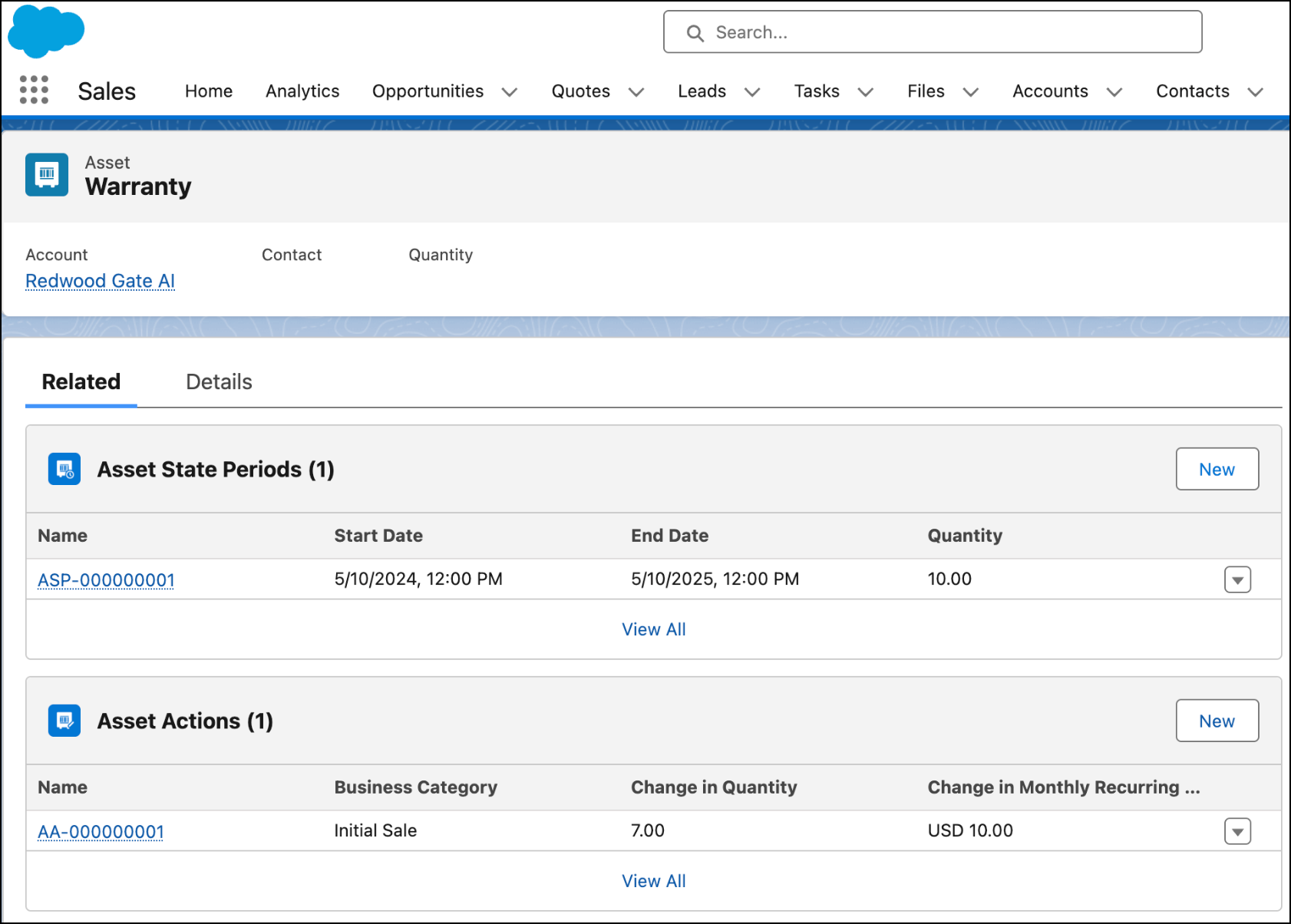
If the New button on the Asset Actions and Asset State Periods related lists of Asset records is visible, users have the required access to create and manage asset data. With this access, they can manage Asset Action, Asset State Period, and Asset State Period Attribute records, as well as Customer Asset Lifecycle Management fields by using composite, composite graph, and sObject APIs.
After you verify user access, your users can migrate product and price book entry data that your asset data references, and then migrate asset data to Revenue Management.
