
You are here:
Rounding Values
The Rounding Values element assists in precisely calculating the rate of a usage resource by using rounding rules.
Required Editions
| Available in: Lightning Experience |
| Available in: Enterprise, Performance, Unlimited, and Developer Editions with the Revenue Cloud Advanced license |

Important
- The Rounding Values element sets the rounding precision for an org that doesn’t have multicurrency enabled. When multicurrency is enabled, the org's settings determine the precision, and you can adjust decimal places for each currency through Manage Currencies in Setup. See Manage Multiple Currencies.
- The Rounding Values element determines the currency values for the outputs of preceding rating elements such as Manual Rate Discount and Volume-Based Rate Discount.
Here are the rounding rules.
- Round Up
- Apply this rule to round up the currency value of a resource to the nearest higher value. For example, if a storage unit costs US$1.7, use the round up rule to adjust the rate to $2.
- Round Down
- Apply this rule to round down the currency value of a resource to the nearest lower value. For example, if a storage unit costs $1.30, use the round down rule to adjust the rate to $1.
- Half Up
- Apply this rule to round up the currency value of a resource to the nearest number based on the decimal value. For example, if a storage unit costs $1.45 and you select the Half Up rule, the rate is adjusted to $1.5. However, if the storage unit costs $1.20, then the rate is adjusted to $1.
Add the Rounding Values Element
Use the Rounding Values element to ensure that all rating elements added to the rating procedure work for different currencies in a single currency org.
Required Editions
| Available in: Lightning Experience |
| Available in: Enterprise, Performance, Unlimited, and Developer Editions with the Revenue Cloud Advanced license |
| User Permissions Needed | |
|---|---|
| To create, update, and delete rating procedures: | Rate Management Design Time User |
- From the App Launcher, find and select Rating Procedures.
- To open the rating procedure record, click the procedure name.
- To open the rating procedure in the Rating Procedure builder, click the rating procedure version.
-
Define the Rating Setting element and the base rate of the usage resource.
See Rating Setting and Base Rate.
-
Click
 , and
then select the Rounding Values element from the list.
, and
then select the Rounding Values element from the list.
-
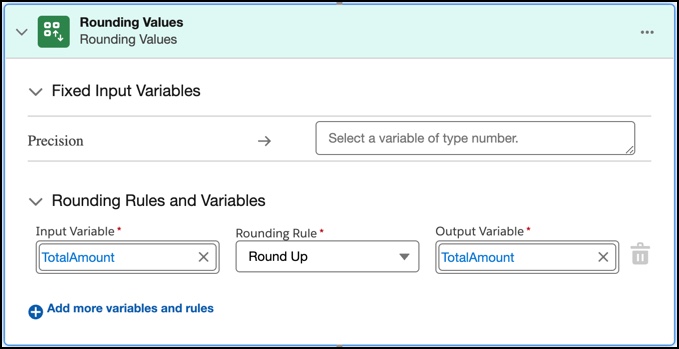
If you’re on a single currency org, specify a value for the Precision variable.
If you don’t map the Precision variable to the correct context tag or constant resource, the rounding rule isn't applied to the resource’s final rate.
- Assign an input variable, such as TotalAmount, to an output variable and select the rounding rule.
- To add more rules and variables, select Add more variables and rules.
-
Save your procedure and then simulate it.
The rate details in the Waterfall View show the rounded rate for the usage resource.
Did this article solve your issue?
Let us know so we can improve!
