
Loading
Manufacturing Cloud
Table of Contents
Select Filters

          No results
          No results
          Here are some search tips

          Check the spelling of your keywords.
          Use more general search terms.
          Select fewer filters to broaden your search.

          Search all of Salesforce Help
          Manage Metrics for Sales Agreements

          Manage Metrics for Sales Agreements

          Select the metrics that you want to show for sales agreements and group similar metrics. Select the quantity and revenue metrics that you want your key account managers to view in the sales agreements table for a sales agreement. Create metric groups to group similar metrics and help account managers view agreement terms for metrics in a group based on their business needs. Each group can contain up to 10 metrics.

          Required Editions

          Available in: Lightning Experience
          Available in: Enterprise, Unlimited, and Developer Editions
          User Permissions Needed
          To modify metrics: Customize Application

          The data that key account managers see in the sales agreement table of a sales agreement record depends on the selected metric group. Users can switch between metric groups to view various metrics.

          You can select standard and custom metrics to be shown. The standard metrics available for selection are:

          • Planned Amount
          • Planned Quantity
          • Forecasted Quantity
          • Forecasted Amount
          • Actual Quantity
          • Actual Amount
          • Sales Price
          • Cost Price
          • Discount Percentage
          • Derived Planned Amount
          • Planned Margin Amount
          • Planned Margin Percentage
          • Planned Shipment Quantity
          • Actual Shipment Quantity
          • Unallocated Order Quantity
          • Unallocated Order Revenue
          • Planned Cost Amount
          • Actual Margin Amount
          • Actual Margin Percentage
          1. From Setup, in the Quick Find box, enter Sales Agreements, and then select Sales Agreements.
          2. If you implemented Sales Agreements before Spring ’23, in the Metric Groups section, enable metric groups.
            Warning
            Warning After you enable metric groups in your org, you can’t disable them.
            A metric group called Preset Group is created. Preset Group contains these standard metrics:
            • Planned Quantity
            • Actual Quantity
            • Sales Price
            • Discount Percentage
            • Planned Amount
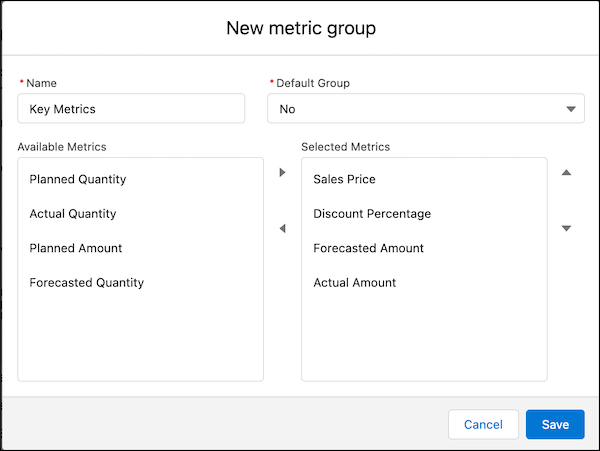
          3. To create a metric group, click New.
            You can have up to 100 metric groups in an org. Each metric group can have up to 10 metrics.
            Create sales agreement metric group
          4. Specify a name for the metric group.
          5. Specify whether the metric group is the default group.

            You can specify only one metric group as the default group.

          6. From the Available Metrics list, select the metrics that you want to add to the metric group, and move them to the Selected Metrics list.

            All standard and custom metrics are listed in the Available Metrics list.

          7. Save your work.
           
          Loading
          Salesforce Help | Article