
You are here:
Create a Sales Agreement
Create a sales agreement to get a consolidated view of products, schedules, and associated metrics for long-term business transactions.
Required Editions
| Available in: Lightning Experience |
| Available in: Enterprise, Unlimited, and Developer Editions |
| User Permissions Needed | |
|---|---|
| To modify sales agreements: | Read and Edit permissions on Sales Agreement |
Ensure that your admin has added the relevant fields to the page layout for the Sales Agreement object.
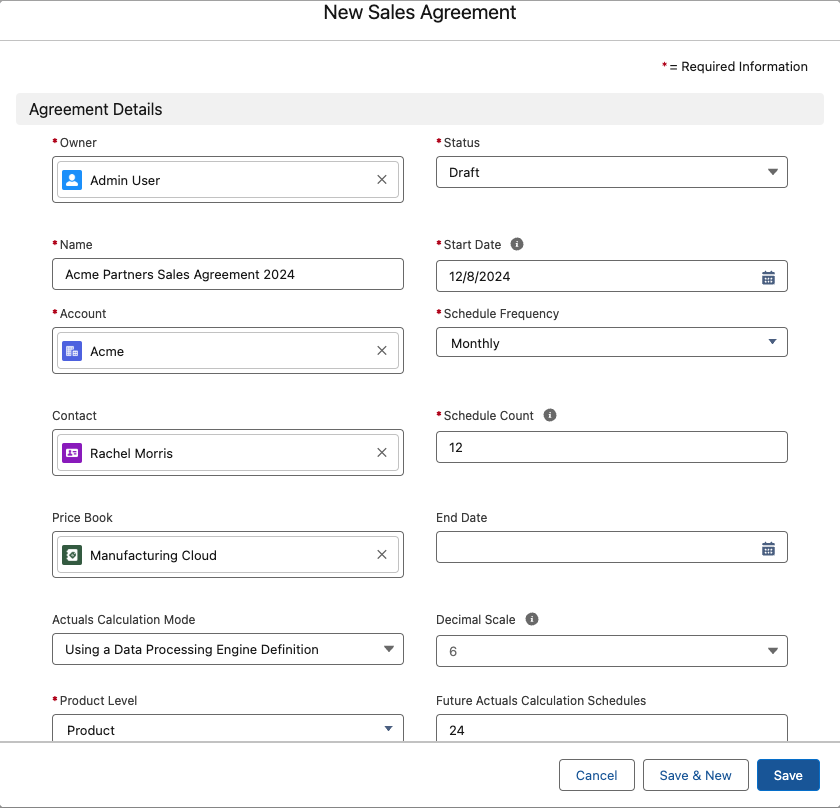
- From the App Launcher, find and select Sales Agreements.
- Click New.
- Enter a unique name for the sales agreement.
- Search for an existing account or create an account.
-
Change the owner of the sales agreement to another existing user, if necessary.
The current user is the default owner.
-
Select the status of the sales agreement.
A sales agreement is always created in a Draft state.
-
For Start Date, select the date on which the sales agreement activates.
After a sales agreement is approved, the agreement automatically activates when the agreement reaches the start date.
-
For Schedule Frequency, select the duration of a schedule in the sales agreement:
Option Description One-Time The sales agreement consists of one schedule, and activates on the start date and expires on the end date. Weekly The sales agreement consists of weekly schedules. The first schedule starts from the start date you selected, and the last schedule ends on the end date you selected. The weekly schedule consists of seven days and begins from the day of the start date, not the first day of the calendar week. The number of weeks depends on the schedule count. Monthly The sales agreement consists of monthly schedules. The first schedule starts from the start date you selected, and the last schedule ends on the end date you selected. The number of months depends on the schedule count. Quarterly The sales agreement consists of quarterly schedules. The first schedule starts from the start date you selected, and the last schedule ends on the end date you selected. The number of quarters depends on the schedule count. Yearly The sales agreement consists of yearly schedules. The first schedule starts from the start date you selected, and the last schedule ends on the end date you selected. The number of years depends on the schedule count. -
For Schedule Count, enter the number of schedules for which you want the sales
agreement to be active.
Enter 1 if the schedule frequency is one-time. You can create up to 72 schedules. Contact Salesforce support if you want to increase the schedule count limit.
-
If the sales agreement has the One-Time schedule frequency, in the End Date field,
enter the date on which the sales agreement expires.
For all other schedule frequencies, irrespective of the date you enter, when you save your changes, the app calculates the end date based on the start date, schedule frequency, and schedule count you selected.
- Select a contact related to the account, if necessary.
-
Search and select a price book.
Depending on the price book you select, the products filter automatically when you add products to your sales agreement. This field is optional for product category-based sales agreements.
-
For Product Level, select the level of the products associated with the sales
agreement.
- Product
- Category
Use Category to create a sales agreement for multiple products that belong to the same product category. -
To specify the planned quantities for products across different schedules when you add
products to the sales agreement, select User Specifies Planned
Quantities.
Selecting the User Specifies Planned Quantities checkbox lets you specify the planned quantity for products in the sales agreement. To distribute the initial planned quantity across all schedules automatically, deselect the checkbox.
- Enter a description, if necessary.
-
If needed, search and select a price adjustment schedule.
A price adjustment schedule outlines the discounts or price adjustments that are applied to the guidance prices of products in the sales agreement. If you don’t select a price adjustment schedule, the default price adjustment schedule associated with the selected price book applies to the sales agreement.
-
If necessary, for Actuals Calculation Mode, select the mode of calculating the actual
quantities of products for sales agreements.
Your admin sets the default actuals calculation model in the Default Actuals Calculation Mode section of the Sales Agreement settings in Setup.
Option Description Manually using API upload When the sales agreement activates, the actual quantities for products aren’t automatically recalculated and refreshed. You can upload changed values in bulk using API upload. The daily process recalculates sales agreement actual quantities at regular intervals based on the latest uploaded data available. Automatically from direct orders When the sales agreement activates, the actual quantities for products are automatically recalculated based on all orders that reference this particular sales agreement. Automatically from orders through contracts When the sales agreement activates, the actual quantities for products are automatically recalculated based on all orders that reference the contracts that are associated with this particular sales agreement. Using a Data Processing Engine Definition Select this option to calculate actuals by modifying the data processing engine to suit your business needs.
If active orders are associated with sales agreements, the actual quantities of products are derived and updated using a flow.
-
If necessary, for Decimal Scale, enter the number of decimal places that are supported
in the metrics for this sales agreement.
Your admin sets the default decimal scale in the Default Decimal Scale section of the Sales Agreement settings in Setup.
-
If necessary, for Future Actuals Calculation Schedules, specify the number of future
schedules for which you want to recalculate actuals.
You can select up to 24 future schedules. For example, if you select the value 1, the upcoming schedule is included in the actuals calculation.
Add products or categories to your sales agreement. Then, get your sales agreement approved. You can modify the name, description, and contact details for an approved, active, canceled, or expired sales agreement.
