
You are here:
Compare Two Versions of a Contract Document from the Microsoft 365 Editor
During contract negotiations, contract authors can compare contract versions directly from the Microsoft 365 editor. Use the Compare Contracts feature to analyze differences between document versions. First, check out the document version from the contract record page, then open the Salesforce Contracts Connector add-in. The steps include selecting a .docx document, choosing the version to compare against, and viewing the highlighted changes between versions. You get a clear, side-by-side comparison of the modifications, including edits, additions, and deletions.
- The Compare Contract Versions Enabled contract type config is created, and its value is set to Yes.
The Display alternative file previews setting is enabled. This setting must be enabled to view the comparison preview, which uses JPG file previews. See File Preview.
| REQUIRED EDITIONS |
|---|
| Available in: Lightning Experience |
| Available in: Professional, Enterprise, Unlimited, and Developer Editions |
| USER PERMISSIONS NEEDED | |
|---|---|
| To compare contract document versions: | Microsoft 365 Word User |
- Check Out the contract document version by using the Modify Contract in Microsoft 365 Editor option.A draft contract document version is created.
- From the Home tab, open the Salesforce Contracts for Word add-in.
- Click … and then select Compare Contracts.
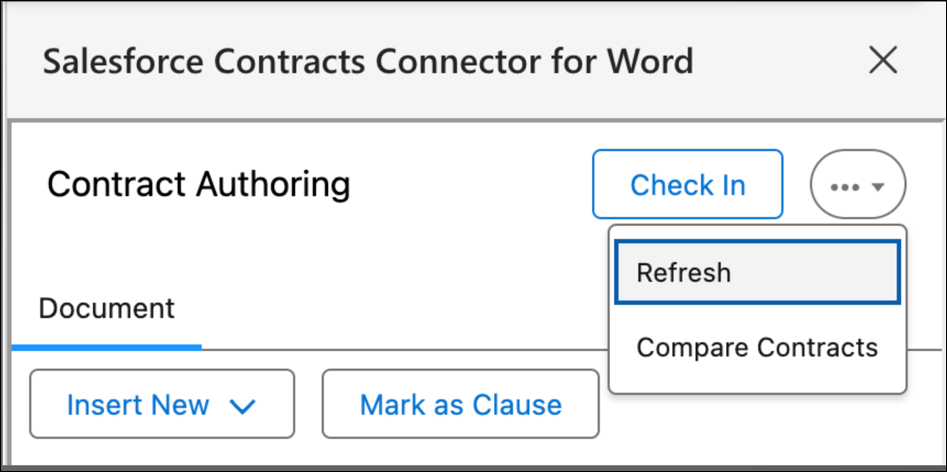 The Selected Contract Version section shows the last checked-in document version, for example, version 6. The draft checkout version, for example, version 7, is selected by default in the Compare With dropdown.
 - In the Compare With dropdown, select the document version that you want to compare against; for example, version 5.The right panel shows the selected version for comparison.
- Turn on Show Differences.Version comparison is a resource-intensive operation and may take some time. Make sure you’ve selected the appropriate contract version for comparison.The system compares the two versions of the contract document and shows the differences in a new document on the right panel. It highlights the content edited, added, or deleted compared to the base version, which is document version 7.
- To close the comparison window, click Cancel.
Did this article solve your issue?
Let us know so we can improve!
