
You are here:
Create a Contract Extraction Template for Extraction
You can use the extraction template to define the attribute mapping and context mapping essential for accurately extracting contract details from a file. In the extraction template, the contract admins must define the fields for which values must be extracted. In the prompt description, provide instructions for generative AI to identify the values of each specified field. You can define multiple extraction templates, but the template name and combination of contract object and record type must be unique. Based on the sales representatives’ business requirements, they can choose the appropriate template to extract the relevant field values for each specified field of the contract.
If you have user-defined fields in the custom context definition, ensure the contract record has corresponding fields for mapping.
You can use the cloned ContractsExtractionContext context definition as is or customize the cloned context definition to fit your needs. For this illustration, the assumption is that no active context definitions are available.
| REQUIRED EDITIONS |
|---|
| Available in: Lightning Experience |
| Available in: Enterprise, Unlimited, Professional, and Developer Editions |
| USER PERMISSIONS NEEDED | |
|---|---|
| To create an extraction template: | Context Service Admin |
- To create an extraction template, from Setup, in the Quick Find box, enter Contract Lifecycle Management, and then select Contracts AI.
- Click Create Extraction Template.
-
Complete these fields.
- Template Name: A name for the extraction template.
- Target Object: Select Contract.
- Record Type: The record type associated with the Contract object. For example, Contract Lifecycle Management.
- Click Next.
-
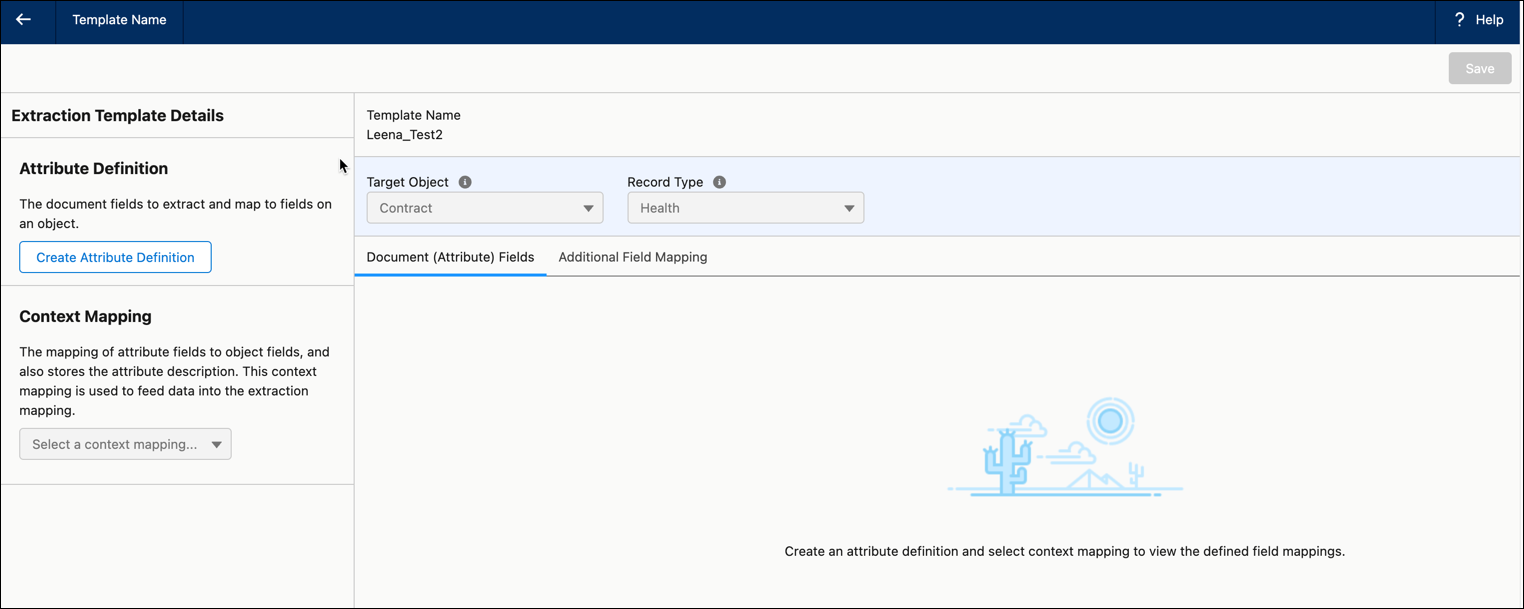
To define the user-defined fields that you want to extract from the file and map those fields to the contract fields, create an attribute definition.
-
Click Create Attribute Definition.
The standard custom definition ContractsExtractionContext is cloned.
-
Click OK on the message.
The cloned context definition opens. The Attribute Definition and Context Mapping are populated with the cloned definition and mapping. In the Extraction Template Details window, the Document (Attribute) Fields tab lists the seven predefined context definition mapping field details, while the Additional Field Mapping tab is empty.
- To view the seven predefined fields for extraction, click the down arrow next to the DocExtrctPersistenceMapping and select Input Mapping.
- Click Cancel to close the window.
-
Click Create Attribute Definition.
-
To add user-defined fields to the persistence mapping.
- Click Edit.
- Click Next twice.
- Click Add Attributes.
- Specify the attribute details such as Attribute Name, Type, and Data Type.
- Click Next.
- Save your changes.
-
To map the newly added user-defined fields to the contract fields for data extraction, complete these actions.
- Click Map Data.
- Select Edit next to the persistence mapping.
-
Click Map.
You’re directed to Context Mapping’s builder page to begin mapping your nodes and attributes. You can map the contract fields to the document’s predefined and user-defined fields.
- Map the fields on the Contract object with the ContractCache fields. See Add Context Mapping.
- Save your changes.
- After you define your context definition, its structure, and its mapping, activate your context definition.
- To add prompt descriptions for the newly added fields, go back to the extraction template details page. See .
- In the context mapping section, select the persistence mapping that you want to use.
-
To modify the persistence mapping.
- Click Edit Context Mapping.
- Use the dropdown edit action to modify the persistence mappings.
- Save your changes on the extract template details page.
