
You are here:
Create a Document Template by Using Clauses
From the clause library, add pre-approved clauses to the document template.
| REQUIRED EDITIONS |
|---|
| Available in: Lightning Experience |
| Available in: Enterprise, Unlimited, Professional, and Developer Editions |
-
Initiate the creation of a document template. See
Create Templates by Using Microsoft 365 Word in Document Template Designer.
The document opens on a new tab in the Microsoft 365 editor.
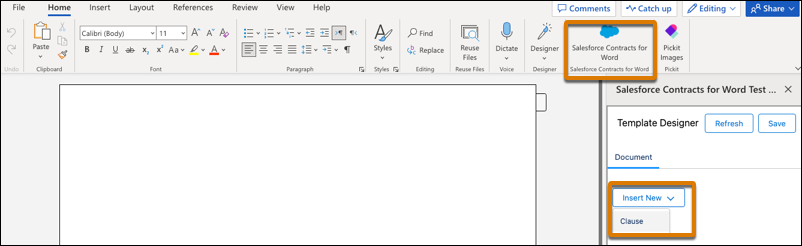
- Click the Salesforce Contracts for Word add-in on the Home tab.
To insert a clause, from Insert New, select Clause.
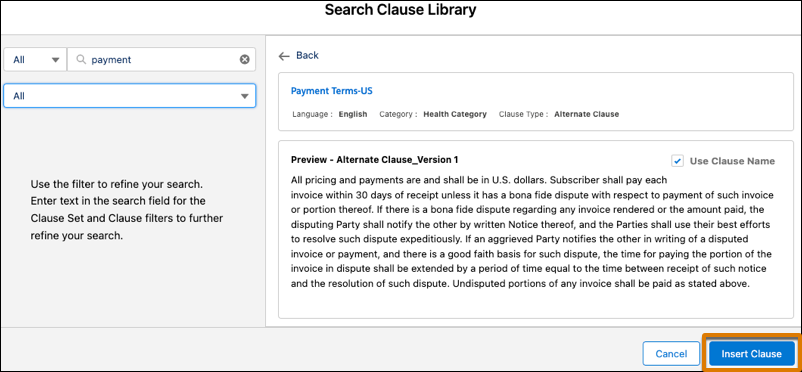
- Select a filter to search in the clause library from these options: All, Document Clauses, or Document Clause Sets. You can also search with clause category. Enter the text in the search filter to narrow down the results. See Search for Standard Clauses in Clause Library.
- To insert a clause into the document, select the clause, and then click Insert Clause .
 The add-in panel shows the added clause. You can also select the clause in the add-in panel to locate the content in the document.
 - After adding the clauses and document content, save your changes.
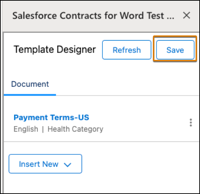 This uploads the document to the template designer.
Did this article solve your issue?
Let us know so we can improve!
