
You are here:
Document Generation with Omniscript
Customize the Single Doc Core - DOCX Serverside (LWC) Omniscript within the docGenerationSample/CoreSingleDocxLWC type to generate documents from Microsoft Word DOCX or PowerPoint PPTX templates. Use Lightning Web Components (LWC) within the Omniscript to streamline the creation and management of contract documents. You can use this Omniscript only with server-side document generation feature.
- Customize Single Doc Core - DOCX Serverside (LWC) Omniscript
The Single Doc Core - DOCX Serverside (LWC) Version 1 Omniscript is a pre-configured sample Omniscript designed to generate documents by using Lightning Web Components (LWC). It fetches document templates, generates documents from the selected templates, and previews the generated documents. - osGenerateAndPreviewDocument Lightning Web Component
The osGenerateAndPreviewDocument Lightning Web Component (LWC) generates and attaches Microsoft Word, PowerPoint, and PDF documents to a Salesforce object. This component automates document generation and preview processes. - osListTemplates Lightning Web Component
Use the osListTemplates Lightning Web Component (LWC) to search for and select a document template from a list. This component includes a search input, validation messages, and a data table with infinite scroll. - Use an Omniscript to Generate Documents
When you configure an Omniscript to generate documents, follow these steps. - Single Doc Core - DOCX Serverside (LWC) Omniscript Steps and Properties
The Single Doc Core - DOCX Serverside (LWC) Omniscript consists of steps that run sequentially when the Omniscript is invoked. Each step has properties that determine the action that the step performs.
Customize Single Doc Core - DOCX Serverside (LWC) Omniscript
The Single Doc Core - DOCX Serverside (LWC) Version 1 Omniscript is a pre-configured sample Omniscript designed to generate documents by using Lightning Web Components (LWC). It fetches document templates, generates documents from the selected templates, and previews the generated documents.
To modify the Omniscript, you must create a new version of the Omniscript, because you can't edit or delete the original Omniscript (Version 1). If necessary, you can then create a new version. Customize the SelectTemplate and GenerateDocument Lightning Web Components to enhance document generation functionality. The osGenerateAndPreviewDocument and osListTemplates Lightning Web Components are available in the Omniscript by default.
You can use the osGenerateAndPreviewDocument Lightning Web Component to generate and attach Microsoft Word, PowerPoint, or PDF documents to the specified record detail page. Customize this component to tailor the document generation process to meet specific requirements.
Similarly, you can use the osListTemplates Lightning Web Component to search for and select from a document template from a list. By customizing this component, you can improve the template selection process.
| REQUIRED EDITIONS |
|---|
| Available in: Lightning Experience |
| Available in: Enterprise, Unlimited, Professional, and Developer Editions |
| USER PERMISSIONS NEEDED | |
|---|---|
| To access Omniscript: | DocGen Designer or DocGen User (Internal Users), DocGen Runtime Community User (External User), Omnistudio Admin or Omnistudio User |
- From the App Launcher, find and select Omniscripts.
- Expand docGenerationSample/CoreSingleDocxLWC and click Single Doc Core - DOCX Serverside(LWC) (Version 1).
- To customize the Omniscript, click New Version.
- Click SelectTemplate, and then click ListTemplates.
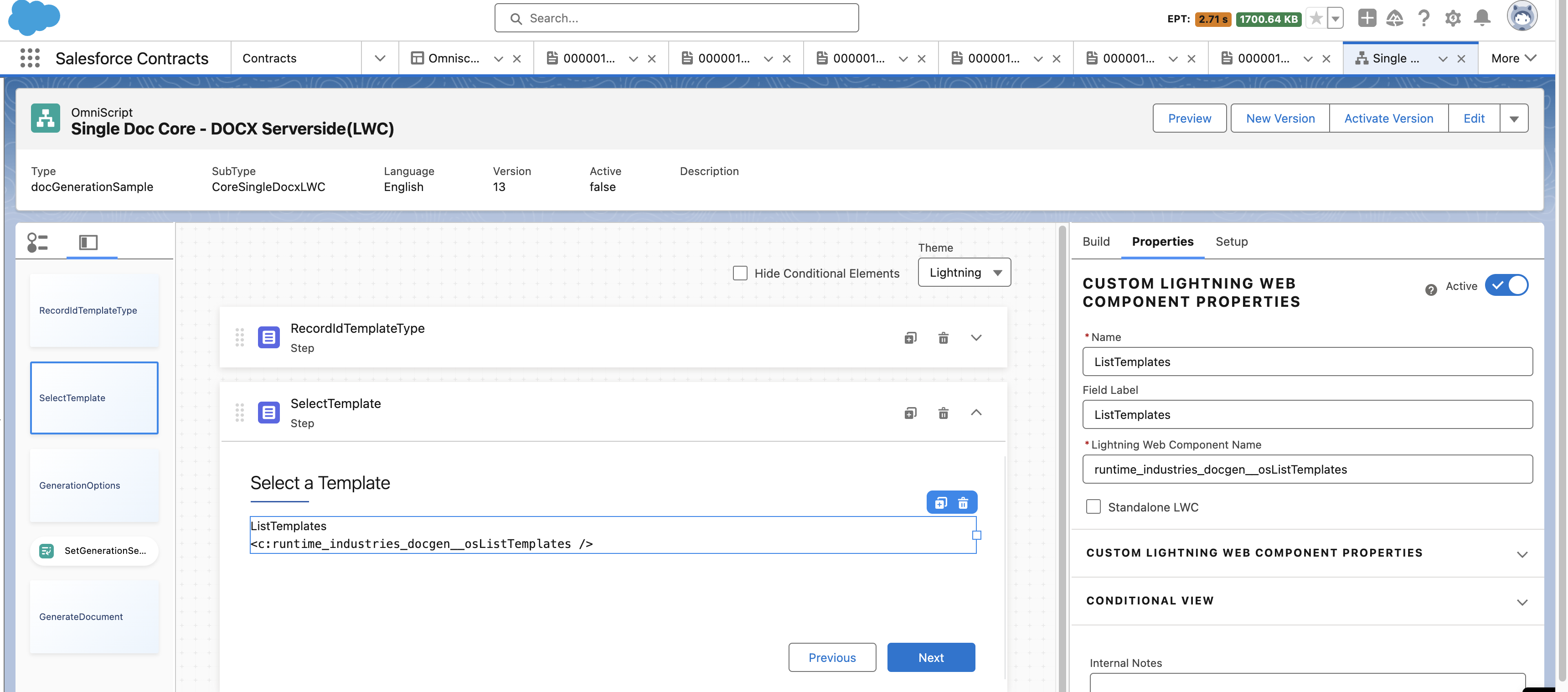
- Update the required settings in the Properties panel.
- Click GenerateDocument, and then click GenerateAndPreviewDocument.
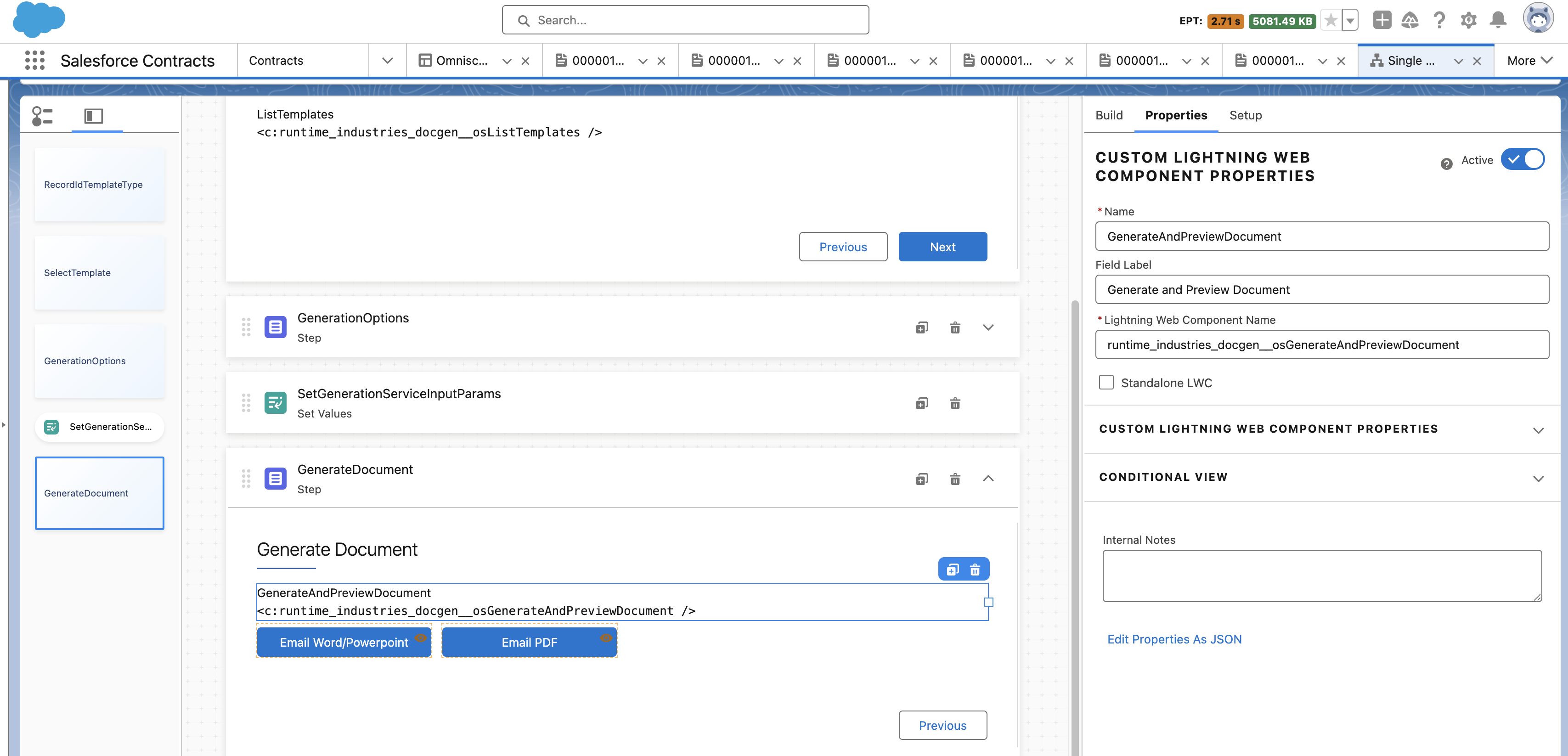
- Update the required settings in the Properties panel.
- Click Email Word/Powerpoint and update the Email Address List fields.When a user clicks Email Word/Powerpoint while generating a document, the generated Word or PowerPoint document is sent to the configured email address.
- Click Email PDF and update the Email Address List fields.When a user clicks Email PDF while generating a document, the generated PDF is sent to the configured email address.
- To run the Omniscript, click Preview.
- Click Activate Version.
osGenerateAndPreviewDocument Lightning Web Component
The osGenerateAndPreviewDocument Lightning Web Component (LWC) generates and attaches Microsoft Word, PowerPoint, and PDF documents to a Salesforce object. This component automates document generation and preview processes.
The osGenerateAndPreviewDocument LWC creates a Document Generation Process object based on the provided input. It listens to the Platform event DocGenProcStsChgEvent to determine when the document is generated. Once the document is generated, it renders a Document Previewer for your review.
The osGenerateAndPreviewDocument.js file includes the following input parameters:
| Property Name | Required or Optional | Description | Available Values | Default Value |
|---|---|---|---|---|
| context-id | Required | SObjectId, such as QuoteId, OpportunityId, OrderId, or ContractID. | N/A | N/A |
| document-title | Required | Title of the Document. | N/A | N/A |
| template-id | Required | ID of the selected template. | N/A | N/A |
| service-function | Required | Function to use to generate a document. |
|
generatedocument |
| font-source | Optional | Font in the document. |
|
Document Font |
| attach-document | Required | Type of document to be generated and attached. |
|
all |
| content-version-id | Optional | Content Version Id of the .docx, which is converted to PDF. Applicable for only service-function generatepdf. |
N/A | N/A |
| token-data-map | Optional | Token data to be used in the document generation. Applicable for only service-function generatedocumentwithtokendata. |
N/A | N/A |
To use the osGenerateAndPreviewDocument LWC within any Omniscript, prefix the component name with the runtime_industries_docgen namespace. For example, use runtime_industries_docgen__osGenerateAndPreviewDocument. To generate and attach documents directly to the parent object, include the component as a custom LWC element in your Omniscript.
osListTemplates Lightning Web Component
Use the osListTemplates Lightning Web Component (LWC) to search for and select a document template from a list. This component includes a search input, validation messages, and a data table with infinite scroll.
The osListTemplates LWC performs these functions:
-
Takes the document template type as input and lists all the active document templates of the selected type.
-
Searches for document templates of the selected type.
-
Checks if a template is selected before proceeding to the next step.
-
Updates the Omniscript data JSON based on the selected template.
The osListTemplates.js file includes these input parameters:
| Property Name | Required or Optional | Description | Available Values | Default Value |
|---|---|---|---|---|
| template-type | Required | Filters and shows templates that match the specified document type. |
|
N/A |
Use an Omniscript to Generate Documents
When you configure an Omniscript to generate documents, follow these steps.
- Open a contract record page.
- Enter a record ID and select a template type.
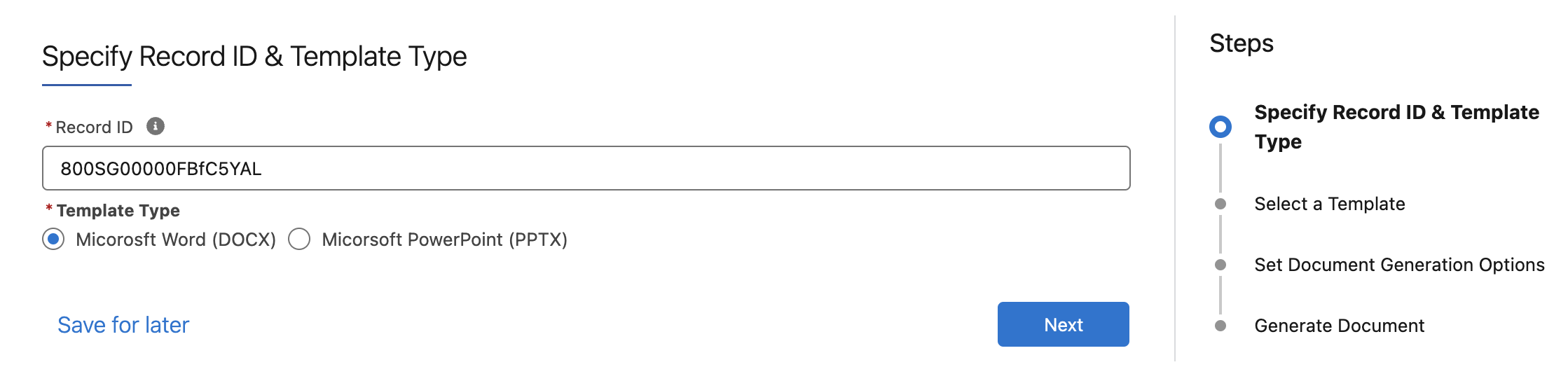
- Click Next.
- Either search for a template and select it, or select a template from the list of templates and click Next.
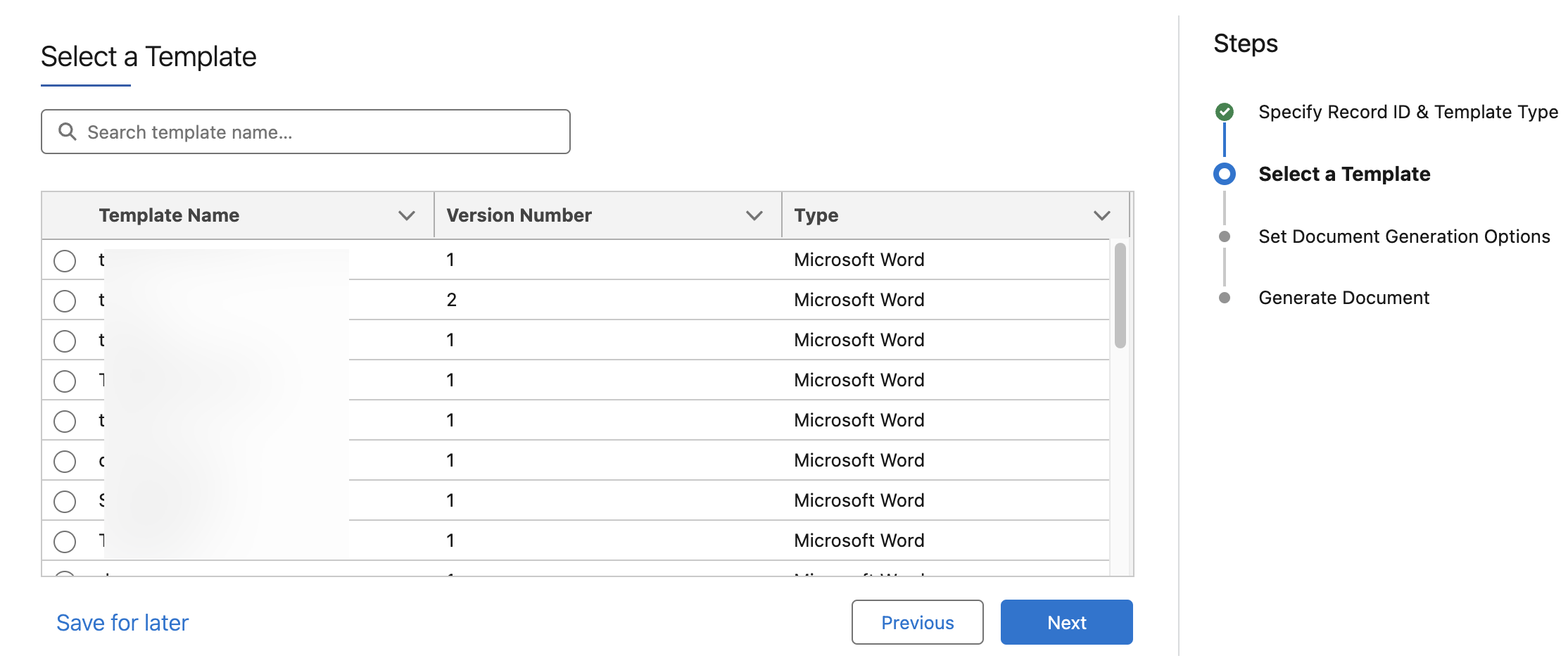
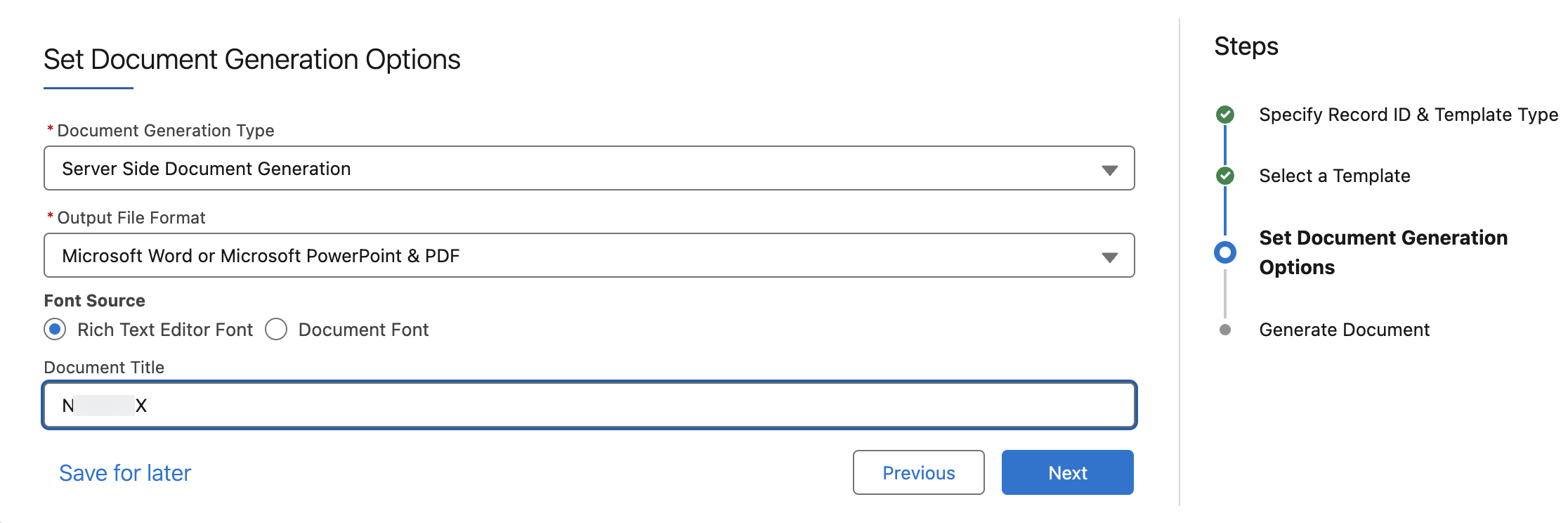
- Set document generation options and click Next.
- To download the generated document, click Download and select either PDF or DOCX.
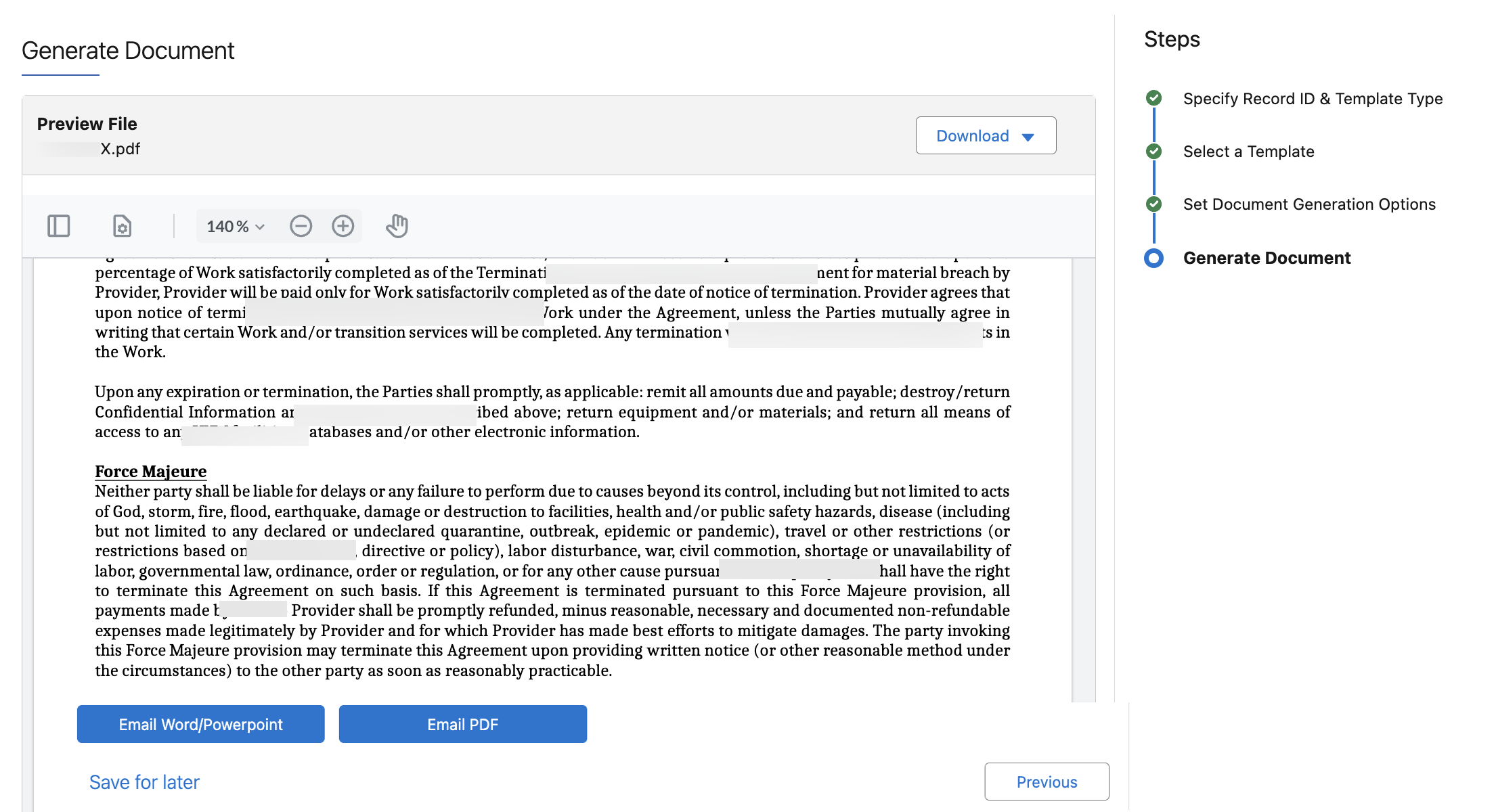
- To email the generated document to an email address that your admin has configured in the Omniscript, click Email Word/Powerpoint or Email PDF.
Single Doc Core - DOCX Serverside (LWC) Omniscript Steps and Properties
The Single Doc Core - DOCX Serverside (LWC) Omniscript consists of steps that run sequentially when the Omniscript is invoked. Each step has properties that determine the action that the step performs.
| Omniscript Step | Properties |
|---|---|
| Script Configuration |
|
| EnterRecord |
|
| SelectTemplate | Shows the document templates in the osListTemplates Lightning Web
Component. |
| GenerationOptions |
To list previously generated DOCX and PPTX documents, use the Developer Console to run a query like this:
|
| SetGenerationServiceInputParams | If the ServiceFunction in the previous step is set to Server Side Document
Generation w/ Token Data, the tokenDataMap is used
instead of the Data Mapper associated with the template. Use this
key to test document generation with sample data. Set the
isTocUpdateRequired flag to true to trigger the automated
update of the dynamic table of contents
in the output file. |
| GenerateDocument | This component uses the osGenerateAndPreviewDocument LWC to
generate and preview documents with values collected from earlier
steps. |
