
You are here:
Salesforce Contracts Manages Contract Lifecycles
The entire contract lifecycle can be managed within the Salesforce Contracts application. The system administrator can define the stages in the Salesforce Contracts application. At each stage of a contract’s lifecycle, multiple users can perform different actions on the contract or its documents. For example, a salesperson can send a contract for review, but can’t modify the contract once it has been generated.
You can configure Salesforce Contracts to meet the specific lifecycle requirements for your contracts. You can define a unique lifecycle for each contract type. You can send contracts for internal approvals before you send them to the customer during the negotiation stage. You can track the contract's progress from one state to another using the Object State Definition for a specified contract type.
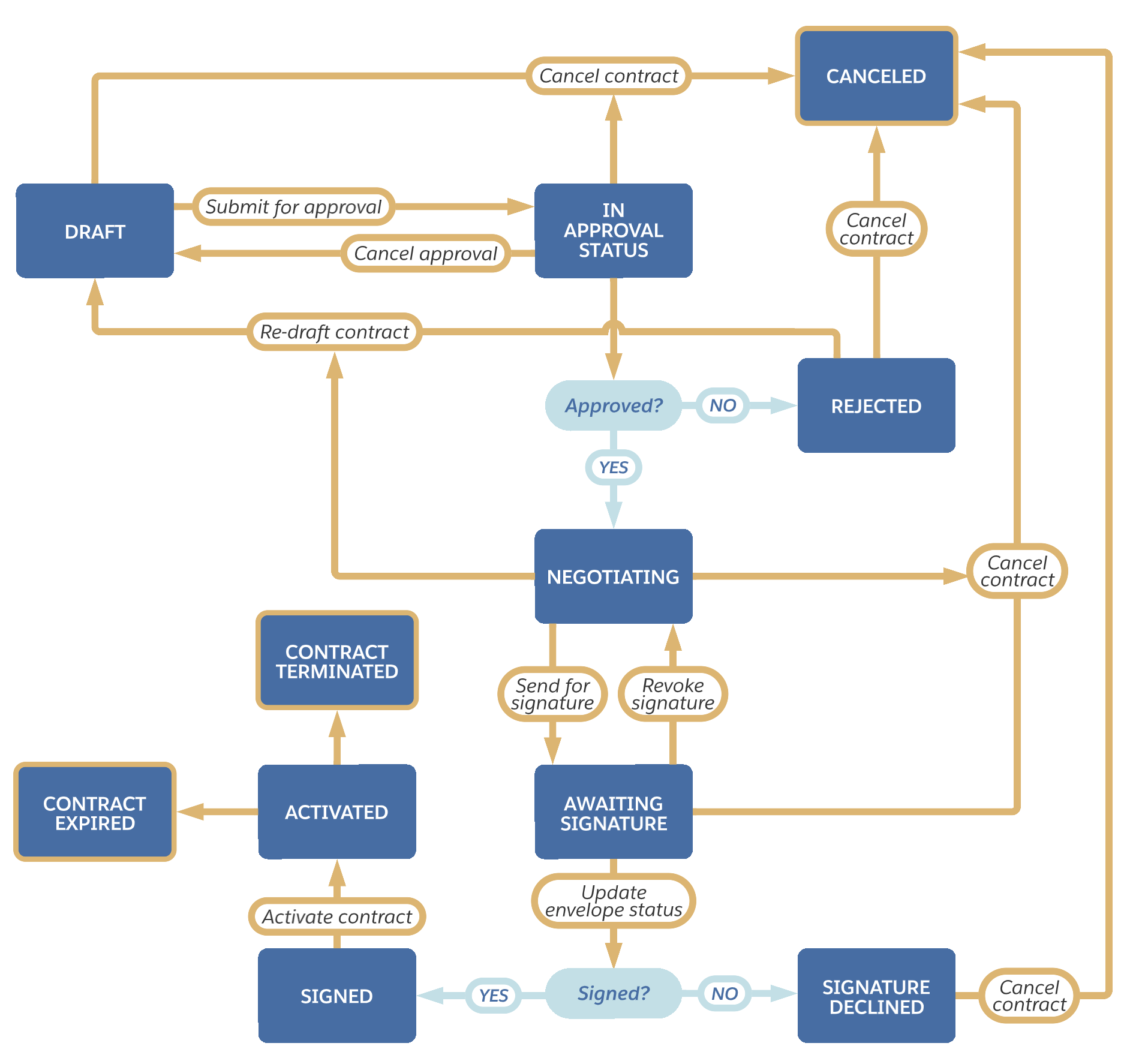
Here's a sample contract lifecycle using the Salesforce Contracts application.
-
Author the contract in Draft status.
-
Submit the contract for approval or cancel the contract.
-
If you cancel the contract, the lifecycle ends. The status changes to Canceled.
-
If you click Submit for Approval, you initiate the contract for the approval process, go to step 3.
-
-
The contract status moves to In Approval Process .
-
If the approver approves the approval request, the status changes to Negotiating. Go to step 4.
-
If the approver rejects the approval request, the status changes to Rejected.
-
If you click Re-draft, the status changes to Draft.
-
If you click Cancel Contract, the status changes to Canceled.
-
-
The contract status moves to Negotiating status. Once the contract is ready to be signed, send the contract for e-signature. Go to step 5.
-
The contract status moves to Awaiting Signature status. There are three possible actions, decline e-signature, cancel the contract, or negotiate the contract.
-
If you click Cancel Contract, the status changes to Canceled.
-
If you click Revoke Signature, the status changes to Negotiating.
-
If the signer declines the e-signature request, the contract moves to Signature Declined. You can move the contract back to Draft or Cancel the contract.
-
If the contract is signed, go to step 6.
-
-
Click Update Envelope Status to move the contract to Signed.
-
Click Activate Contract to move the contract to Activated.
-
If needed, click Terminate Contract to move the contract to Terminated.
