
You are here:
Set Up a Named Credential Using Guided Setup
A named credential is used to securely connect Salesforce with Microsoft 365 and Azure. Named credentials store authentication details.
Required Editions
| Available in: Lightning Experience |
| Available in: Professional, Enterprise, Unlimited, and Developer editions. |
| User Permissions Needed | |
|---|---|
| To access the Microsoft 365 and Azure Integration Guided Setup | CLM Admin User |
-
Access the Named Credential Setup:
- In the guided setup, click Set Up a Named Credential to expand the step.
-
Create or select a named credential:
-
To create a new named credential:
- Click New Named Credential.
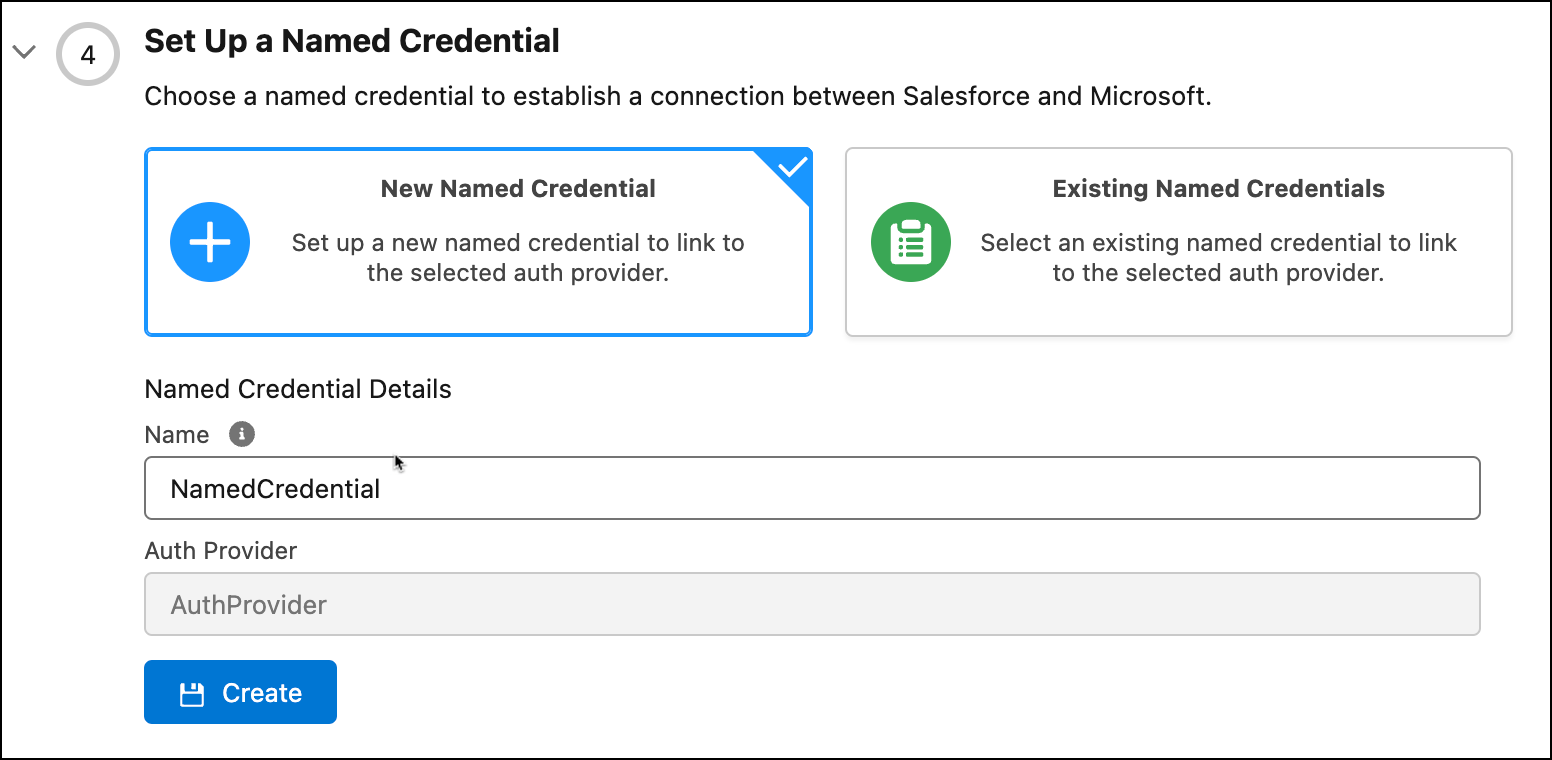
- Enter these details:
- Enter a name for the credential (e.g., MicrosoftNamedCredential).
-
The previously configured Auth Provider for Microsoft is autoselected.
- If needed, enable Private Mode to enhance document security by creating a temporary copy for anonymous feedback from the third-party reviewers.
- Click Create.
- Click New Named Credential.
-
To select a named credential:
- Click Existing Named Credential and select a configured named credential.
-
Click Confirm.
-
To create a new named credential:
-
Authenticate the Named Credential:
- Click Authenticate.
- If the authentication status is configured, proceed to next step.
- If the Authentication Status is other than configured or you get an error, click Refresh to get the latest authentication status from Azure. After the authentication status updates to Configured, proceed to next step. See Microsoft 365 Frequently Asked Questions (FAQs) for answers to common questions.
-
Assign Microsoft 365 Guided Setup Permission set:
The system automatically creates the Microsoft 365 Guided Setup Permission set when the admin completes the guided setup. It initially assigns the permission set only to the user who runs the setup. The admin must then identify users who need to use the Microsoft 365 add-in, and manually assign the Microsoft 365 Guided Setup Permission to them.
Did this article solve your issue?
Let us know so we can improve!
