
You are here:
Submit a Contract for E-Signature
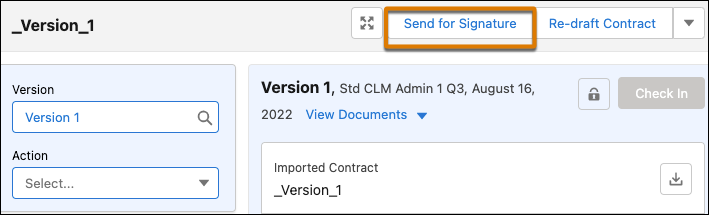
DocuSign manages the contract document signature flow. Use the Send for Signature button to initiate the e-signature process.
- To initiate the contract for e-signature when the contract is in Negotiating state, click Send for Signature on the contract's record page.
- In the Choose Signers section, select the signers for the document.
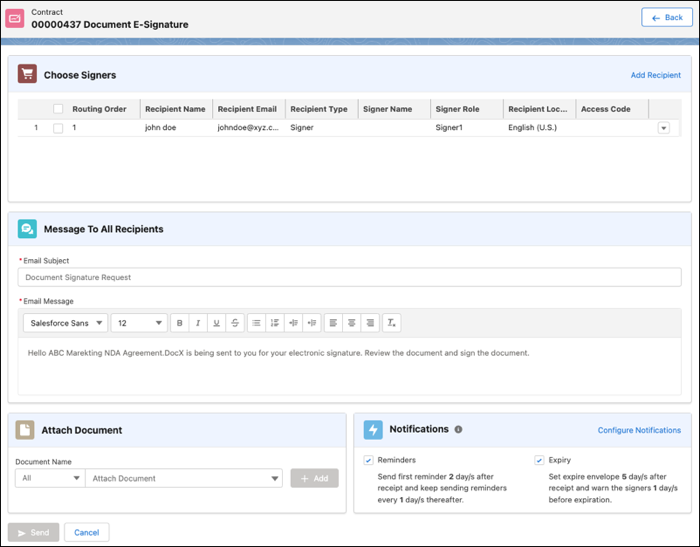
- To add the signers, click Add Recipient and then add enter the details on the Add Recipient page.
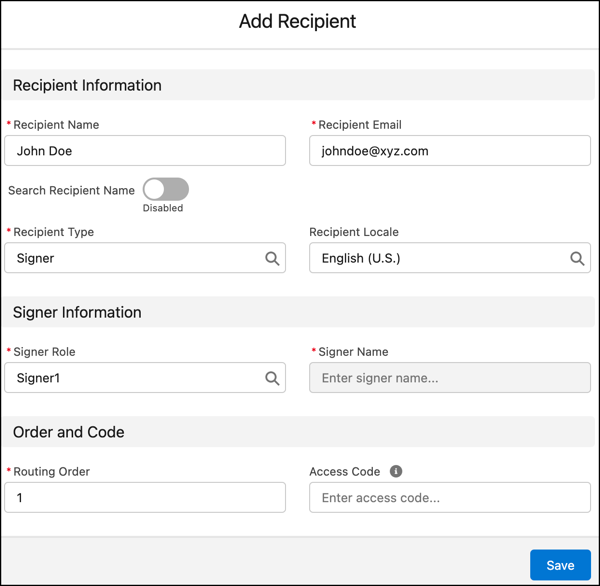
 Tip If you want certain recipients to receive the document at the same time, you can enter the same routing number for those recipients. For example, if you want Rose and Sean to receive the document at the same time, enter the same routing number for them.
 - In Email Subject, enter the subject line for the email message.
- In Email Message, enter the message for the signers. You can add rich text for the email message.
- In Attach Document, select the documents that you want to send for e-signature. The document list consists of the documents generated and supplementary documents. You can attach multiple documents from the same version and supplementary DOCX and PDF files. You can also upload attachments by using API.
 Note Contract attachments support only PDF and DOCX files.
 - Click Configure Notifications to configure the Reminders and Expiry notifications for the recipients. The configuration is dependent on the electronic signature envelope config or the contract type config. If vendor defaults are set, reminder and expiry notifications are disabled. The envelope is a DocuSign signature session. The envelope expires if the signatories don't sign the document within the specified time frame.Note The number of days for envelope expiration notification must be greater than the number of days set to send the first reminder.
- In the Choose Signers section, select the added signers for the document.The Send button is only active when at least one signer is selected.
- Click Send.
Did this article solve your issue?
Let us know so we can improve!
