Loading
Salesforce now sends email only from verified domains. Read More
Business Rules Engine
Table of Contents
Select Filters

          No results
          No results
          Here are some search tips

          Check the spelling of your keywords.
          Use more general search terms.
          Select fewer filters to broaden your search.

          Search all of Salesforce Help
          Simulate and Activate Your Expression Set Version

          Simulate and Activate Your Expression Set Version

          Before you activate your expression set, run simulations with default and custom test input variables. Different decision matrices or subexpression versions called in an expression set version can have different start date time and end date time values. Test different versions by changing the Effective Date value. If the expression set doesn't work as expected, edit the elements and resimulate. When you're satisfied, activate the expression set version. If the expression set version is related to a context definition, you can simulate it by using the context mappings available in the context definition.
          Required Editions

          Available in: Lightning Experience
          Available in: Enterprise, Unlimited, and Developer Editions for clouds that have Business Rules Engine enabled
          User Permissions Needed
          To create, update, and delete expression sets: Rule Engine Designer
          To use expression sets in Business Rules Engine: Rule Engine Runtime

          Simulate the StudentDiscountCalculation expression set that we created to test if the expression set is working as intended, and then activate the set.

          1. Open your expression set version in Expression Set Builder.
          2. Click Simulate.
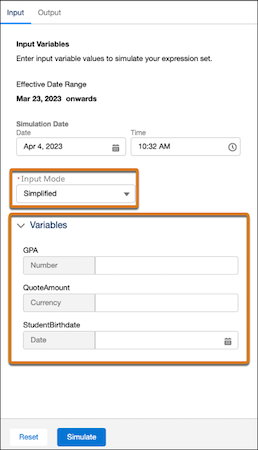
            The Input Mode dropdown displays the options for providing sample simulation data to the version.
          3. To enter sample values for the expression set version variables in the Variables section, select Simplified Input Mode.
            Simplified input mode for simulation.
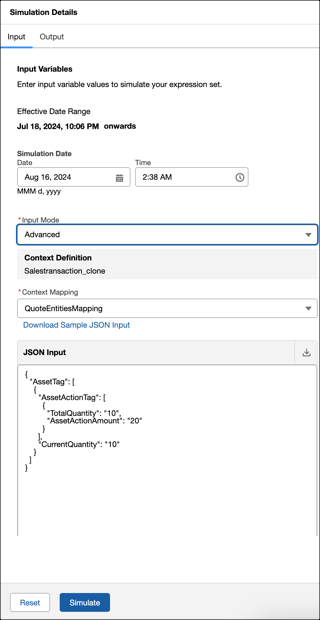
          4. To enter sample values for the expression set variables in the JSON Input text box, select Advanced Input Mode.
            Advanced simulation mode.
            1. Change the selection to a mapping of your choice.
              The Context Mappings dropdown lists the available options if the expression set is linked to a context definition. The default context mapping is selected.
            2. Enter sample values for the variables in the JSON Input text box.
              Alternatively, download the sample JSON input file, modify the file with your input values, and paste the updated JSON inputs in the textbox.
          5. Simulate the expression set.
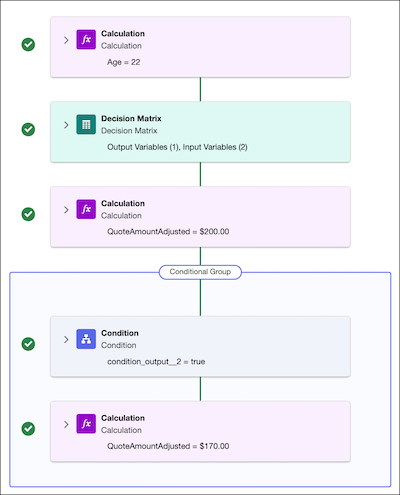
            Here's how the simulation results look in Detailed View, which is the default simulation view.

            Step-wise simulation result.

            Tip
            Tip To see how the results appear to your users, switch to Concise View. Concise View shows the explanations for version steps where you added explainability message templates.
          6. For comprehensive testing of the expression set, enter different variable values, change the mapping, and resimulate.
          7. If you're happy with the simulation result, activate the expression set version.
           
          Loading
          Salesforce Help | Article