
You are here:
Create a Batch Job
Use a batch job to automate the processing of large volumes of records for a business process configured in Salesforce Flow.
Required Editions
| View supported editions. |
| User Permissions Needed | |
|---|---|
| To create a batch job: | System Administrator profile |
- From Setup, in the Quick Find box, enter Batch Management, and select it.
- Click New.
-
Define the batch job.
Field Value Name Enter the name of the batch job. Process Type Select the process type that represents the Salesforce product where the business process that the batch job must execute is configured.
If the business process is configured in Salesforce Flow, select Flow.
The process types that are available to you depend on the licenses available in your org.
Execution Process Select an active flow or business process to execute. Batch Size Enter the size of each batch job part. Retry Count Enter the number of times to rerun a failed batch job. Retry Interval Enter the number of milliseconds to wait before running the failed batch job again. 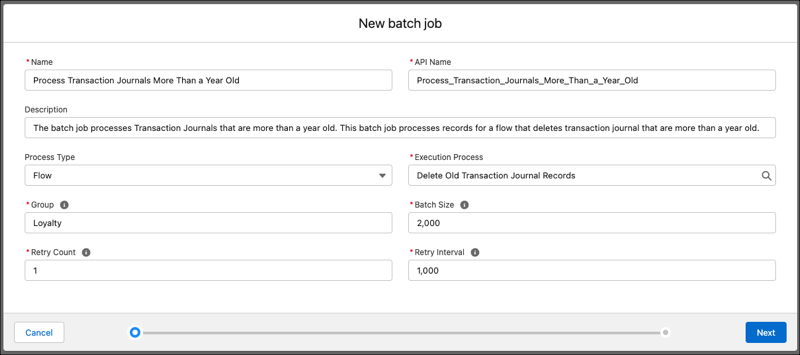
- Click Next.
-
Configure the batch job.
The configuration options available to you differ based on the Salesforce product where the business process is configured and the process type of the batch job. Here are two types of configuration options:
- Business processes configured in Salesforce Flow:
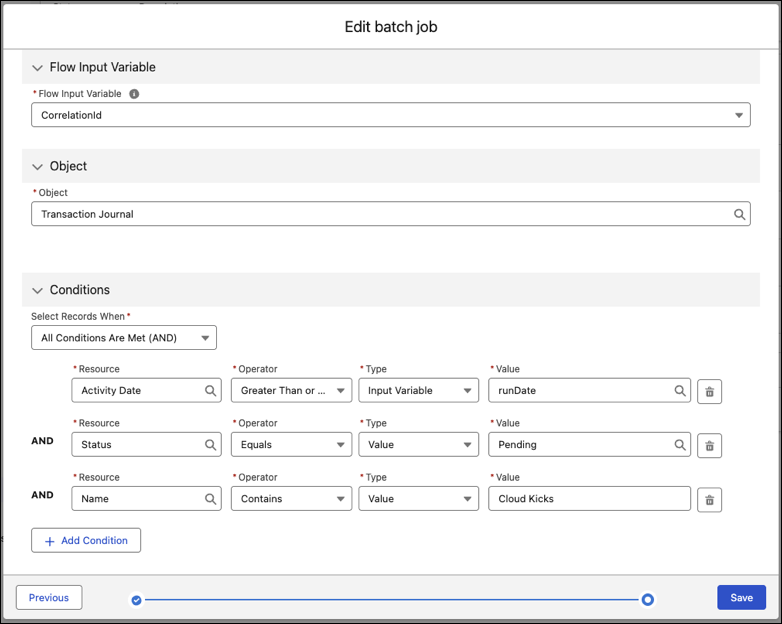
Field Value Flow Input Variable The text input variable that uniquely identifies the records that the batch job sends to the flow to process. Object Select the object whose records the batch job must filter and send to the flow.
You can select records from big objects by using the BatchProcessJobDefinition Tooling API.
Conditions Select the filter conditions based on which records must be selected for the batch job.
You can filter records with a value you define or by using input variables. Input variable values are defined in the flow that runs the batch job.
To filter records based on future and previous days, use an input variable to send date literal inputs from a flow or an Apex resource. These date literals are supported:
- The NEXT_N_DAYS:n
- N_DAYS_AGO:n
For more information, see Date Formats and Date Literals in WHERE in SOQL and SOSL Reference.
- Business process configured in other Salesforce products:
Field Value Object Select the object whose records the batch job must filter and send to the business process.
You can select records from big objects by using the BatchProcessJobDefinition Tooling API.
Some process types and business processes automatically filter the list of objects available to you.
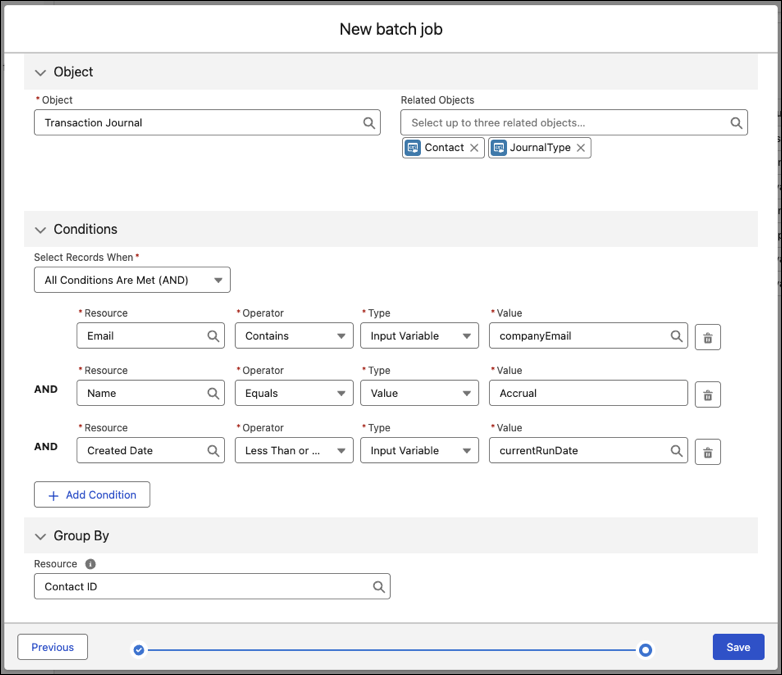
Related Objects Select up to three related objects of the selected object whose fields you want to use to:
- Create record filter conditions
- Group records for processing together
If the selected object is Contact, you can select Account as a related object, filter contacts by account status and group contacts by account for processing.
The ability to select related objects is only available with a limited set of process types.
Conditions Select the filter conditions based on which records must be selected for the batch job. The filter conditions can use fields from the selected object, and if available, fields from the selected related objects.
You can filter records with a value you define or by using input variables. Input variable values are defined in the flow that runs the batch job.
To filter records based on future and previous days, use an input variable to send date literal inputs from a flow or an Apex resource. These date literals are supported:
- The NEXT_N_DAYS:n
- N_DAYS_AGO:n
For more information, see Date Formats and Date Literals in WHERE in SOQL and SOSL Reference.
Group By Select a field that's used to uniquely identify and group records for processing. The group by field can be a field from the selected object or, if available, a field from one of the selected related objects.
If the selected object is Quote and a selected related object is Opportunity, you can group quotes by the opportunity's associated account.
The ability to select a group by field is only available with a limited set of process types.
If you see additional configuration options, they are specific to your selected process type. To learn more about these settings, see the help for the Salesforce product that supports that process type.
- Business processes configured in Salesforce Flow:
-
Save and activate the batch job.
You can't edit an active batch job and only active batch job can run. If you deactivate a batch job, its already scheduled runs fail .
To create batch jobs programmatically, use Metadata API.
