
You are here:
Interact With Web Page Highlights By Using the Einstein Relationship Insights Browser Extension
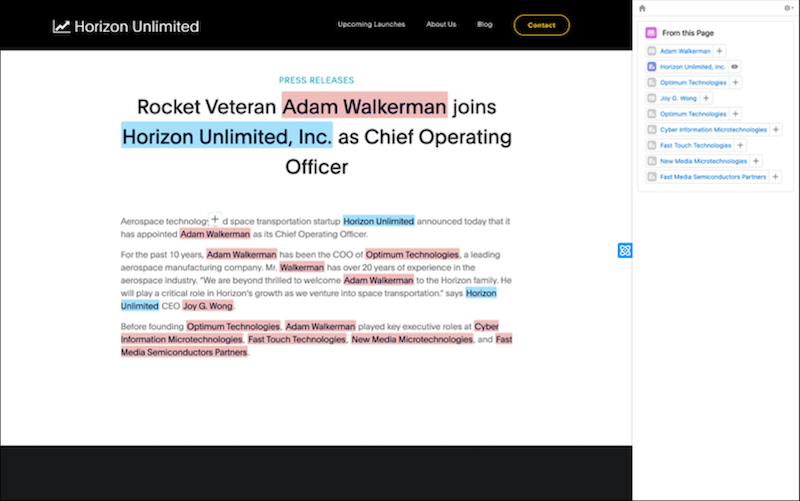
Einstein detects people and companies on web pages and highlights them so you can easily identify and interact with them.
People and companies with existing Salesforce records are highlighted in blue and people and companies without existing Salesforce records are highlighted in red. You can interact with the highlights on the page to create records or preview existing records in Salesforce.

Note You’re automatically redirected to the Einstein Relationship Insights component when
you interact with highlights in the browser. If your admin has not set the Einstein
Relationship Insights component as the default tab, you must open the tab manually.
-
Navigate to a web page that you want to explore.
- To invite from the extension menu, open the extension menu, and click Explore the page.
- To invite from the sidebar, click
 , and then click Explore.
- On your browser’s address bar, click the browser extension icon, and turn on Highlights.
-
To create a record from a highlight:
-
Hover over a red highlight and click
 .
.
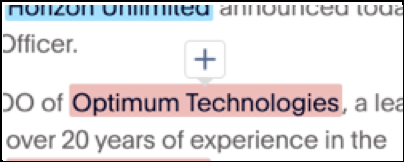
- If applicable, select the type of record you want to create, and click Next.
- In the record form, enter the required details, and save the record.
-
Hover over a red highlight and click
-
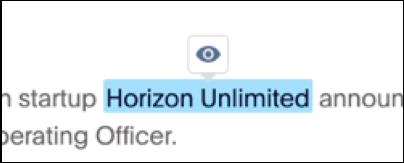
To view existing records for a highlight, hover over a blue highlight and click
 .
.
-
For records with multiple matches, in the Verify Matching Record window, you can
confirm the matching record.
- If you find a correct matching record, select it, and click Confirm.
- If no records are correct and you want to create a record, click New.
-
For records with multiple matches, in the Verify Matching Record window, you can
confirm the matching record.
-
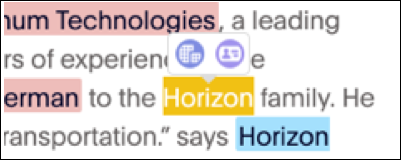
To create a record for a person or company that Einstein doesn’t recognize, select the
object name with your cursor. From the hover options, select Create
organization record or Create person record based on
whether the selected object is a company or person.
Did this article solve your issue?
Let us know so we can improve!
