
You are here:
Set Up a Timeline to Show Engagement Events from Data Cloud Data Model Object
Configure interactive timelines that show engagement events from a Data Cloud data model object (DMO).
Required Editions
| Available in: Lightning Experience |
| Available in: All editions with Industry Service Excellence permission set licenses |
| User Permissions Needed | |
|---|---|
| To configure a Timeline: | Read and Edit access for objects you’re including on the Timeline |
| To select a data space: | Data Spaces add-on license |
To view engagement events from Data Cloud DMOs on the timeline, make sure that you set up the timeline and Data Cloud in the same org and that the Data Cloud Events admin setting is turned on.
- From Setup, in the Quick Find box, enter Timeline, and then select Timeline.
-
Turn on Timeline Configuration.
 Note Enabling Timeline is a one-time task. After you enable Timeline in your org, you can’t disable it.
 -
Click New Timeline.
- Enter a name for the timeline.
- Enter an API name for the timeline, or accept the name that's automatically generated.
-
Select an object that serves as the base timeline object or the basis for the
timeline.
You can base your timeline on standard or custom Salesforce objects. You can add related objects to the timeline later.For example, to represent a customer’s account history on a timeline, select Account as the timeline object.
- Save your changes.
-
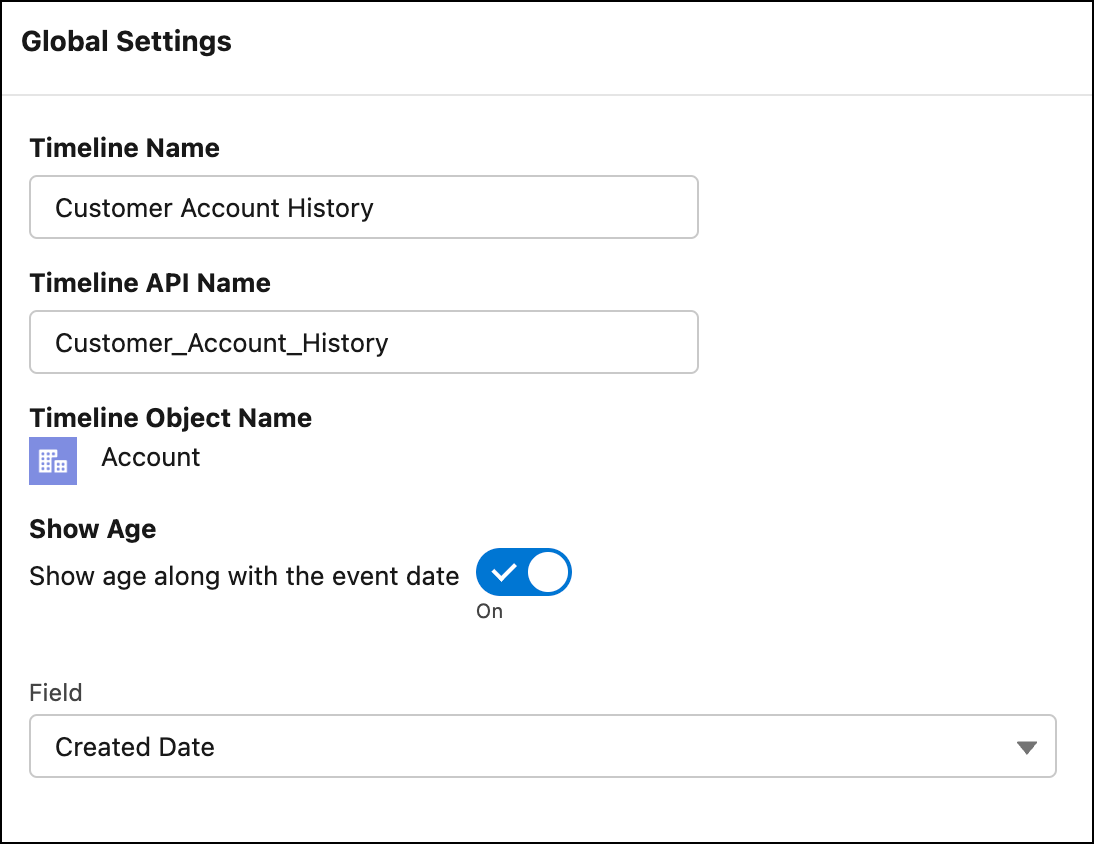
On the Global Settings page, turn on Show Age to show how old a record of the base or
primary object was when an event occurred, along with the date of the event.
For example, you can see the age of an account based on when it was created. If the base object is Asset, the age of the asset at the time of an event is shown. Otherwise, only the event and the date appear.
-
If you chose to show the age along with the timestamp, choose the field that you want
to use for calculating the age.
To show the age of the user, select the Birthdate field.
- Click Next.
- On the Timeline Related Objects page, click the Data Model Object Events tab.
-
Click Add Related Object.
The Enter related object details screen opens.
-
Select a related object to map it with the DMO containing the information that you want
to show on the timeline.
The Related Object list shows the base timeline object and its parent and child objects.
-
Select the field that associates the related object with the base timeline
object.
For example, if the base Timeline object is Account and the related object is Contact, then select the Person Contact Id field from the Account object, which is a lookup field to the Contact object.If a related object has only one lookup to the base object, then the field is automatically selected and can’t be changed.Note Enhanced Timeline doesn't support encrypted fields. Make sure any field you choose isn’t encrypted.
- Click Next.
-
Select the data space that’s associated with the DMO containing the information that
you want to show on the timeline.
To see the associated engagement events on the timeline, users, for example contact center agents, must have access to the selected data space.
-
Select the engagement DMO that you want to show engagement events on the timeline
from.
You can add only one DMO per base object for showing Data Cloud events on the timeline. To increase the limit to three DMOs, ask your Salesforce administrator to open a case with Salesforce Customer Support. See How to create a case with the Feature Activations & Limits Team.Use the Related DMOs option to select the engagement DMOs that have a relationship with the selected related object. The All DMOs option can be used to select any engagement DMO available in the Data Cloud org.
-
Select the field corresponding to the ID field of the selected related object.
For example, if the selected related object in the Enter related object details screen is Contact, then select a field of the engagement DMO that corresponds to the ID field of the Contact object.
-
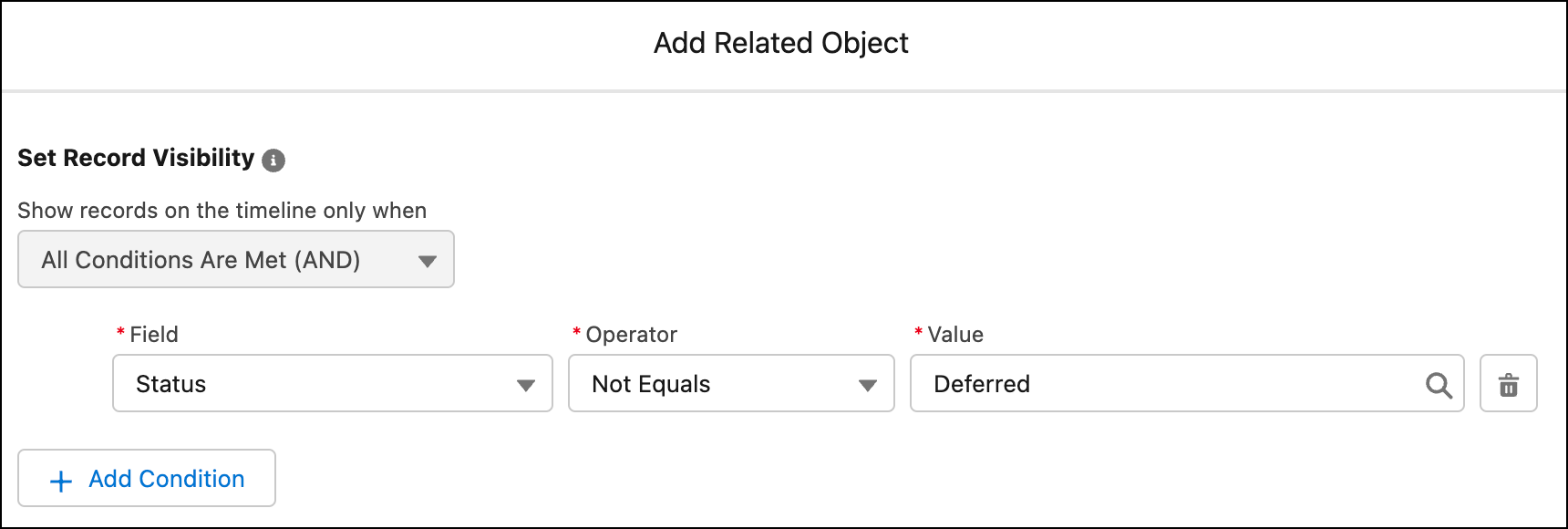
Add conditions for showing records on the timeline, and then click
Next.
For example, you can show tasks that aren’t canceled or deferred.
-
Select the Title, Subtitle, and Timestamp fields for the timeline events, and then
click Next.
Every event on a timeline has a title, an optional subtitle, and a timestamp, which are sourced from fields in the related object.
For title, use the Subject field or similar. For example, Call Customer.
For subtitle, use the Description field or similar. For example, Ask about an upcoming event.
The timestamp shows the date and time when an event took place alongside the event on the timeline.
- Select the fields you want to show on the timeline, and then click Add.
- To save the timeline and make it available for use, click Activate.
-
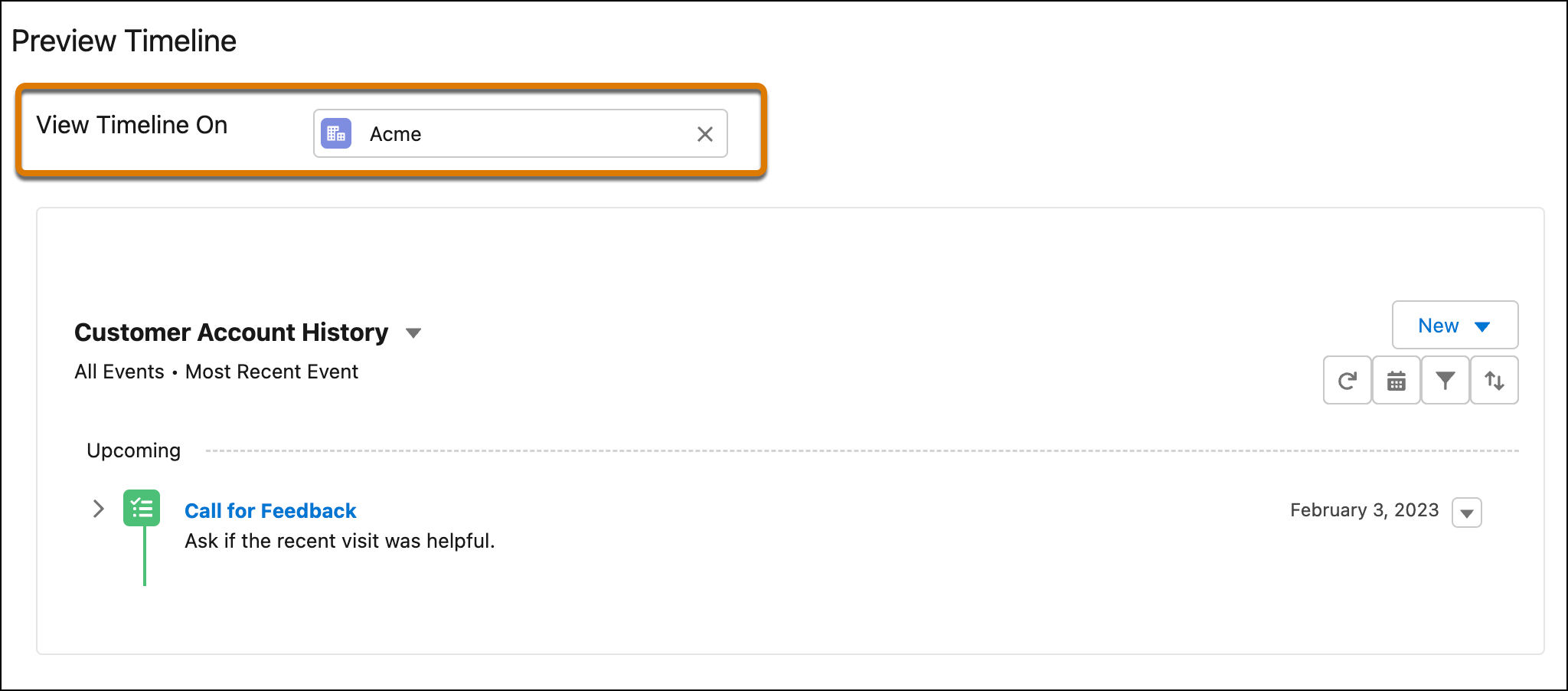
Preview the timeline you configured by selecting a base object record in the View
Timeline On field.
 Note The timeline notifies agents after fetching Data Cloud engagement events. Agents must click
 to see the events on the timeline.
Did this article solve your issue?
Let us know so we can improve!
