
Set Up a TPM Account Plan
Before your KAMs can create a customer’s account plan view, ensure that you’ve completed the prerequisite tasks.
Required Editions
Available in: Lightning Experience Available in: Enterprise and Unlimited Editions where Consumer Goods Cloud is enabled |
| User Permissions Needed | |
|---|---|
| To set up an account plan: | CGCloud Business Admin |
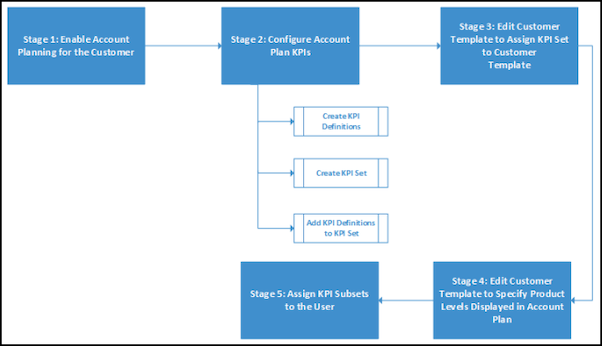
Here are the prerequisite tasks that you must complete so that your KAMs can create account plan views.
-
To enable account planning for a customer, in the customer’s Customer
Extensions related list, select Plan for the Account Plan
Type .
See Create a Customer.
-
Configure the KPIs to be used in the account plan view.
-
Create a KPI set with the Usage field set to Plan.
See Create KPI Sets.
- Create KPI definitions, and then add them to the KPI set. If you set Value Type to Percentage for KPIs that are of the percentage type, then the KPI values are shown with a % symbol in the account plan grid.
-
Specify the subset that each KPI definition belongs to. Add the KPIs
that KAMs can edit in the customer business plan to the Baseline
Management KPI subset.
See Create KPI Sets.
Create at least two account plan KPI sets. One for defining promotion-dependent KPIs (for example, Actual Volume and ROI), and the other for defining promotion-independent KPIs (for example, Baseline). -
Create a KPI set with the Usage field set to Plan.
- In the Plan Dependent KPI Set field of a customer template, add the KPI set.
-
To specify the levels of the product hierarchy to be shown in the account plan
view, edit the customer template and specify the product levels.
The account plan shows the levels configured in the customer template in addition to the default product level. See Create a Customer Template.
-
In the KPI Subsets field in User Settings, assign one or more KPI subsets to
the KAM.
Only the KPI subsets that are assigned to the user are available for selection while filtering account plans and they consequently appear in the account plan. See Create User Settings.
-
Update your sales organization to include these settings.
- In Account Product List Type, select the type of the account product list used for promotion planning and account planning.
- In Used Reference Date, select the date that's used as a reference to resolve the product hierarchy in the account plan view. This filter is used to select a specific date to determine the product hierarchy to identify the conditions that are applicable for account plan calculation.
- To identify the volume and condition tables in processing services (from which a batch process fetches products to create the account product list), specify the measure codes.
Did this article solve your issue?
Let us know so we can improve!
