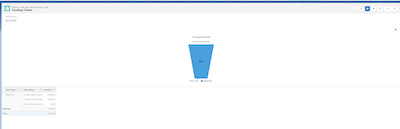
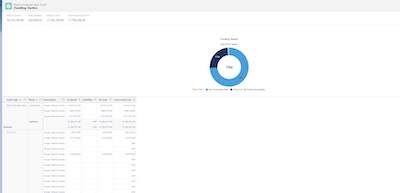
You can use the out-of-the-box reports available in the CG managed package as-they are.
However, to customize these out-of-the-box reports or to add these reports to a dashboard, deploy
the report source code in your org. After you deploy the report source code, make sure to verify
that the reports are deployed successfully.
Required Editions
Available in: Lightning Experience
Available in: Enterprise and Unlimited Editions where Consumer Goods
Cloud is enabled
User Permissions Needed
To deploy reports:
CGCloud Business Admin
You can deploy these reports:
Fund_Claims: Shows funds and assigned payment tactics. The deductions are grouped by Claim
Type.
Fund_Tactics: Shows funds and assigned tactics. The deductions are grouped by Tactic
Type.
Funds: Shows aggregated Funding KPIs. Uses fund templates and the funds are grouped by
Type.
Claims: Shows claims. The claims are grouped based on the claims’ age.
You can deploy these report types:
Note Deploy all the report types corresponding to the reports that you want to deploy.
Funds_With_Payment_Tactic_funds: Report type for funds and assigned Fund Payment Tactics
template from add-ons. Use this report type to configure fund reports with claim-related
information.
Funds_With_Tactic_Funds: Report type for funds and assigned Fund Tactics Template from
add-ons. Use this report type to configure fund reports with Tactic-related information.
Fund_Template: Report type for Funds Template from add-ons. Use this report type to
configure Fund reports.
From the command prompt, go to cgcloud_CGCloudAddons | TPM | Reports | Fund Reports.
Deploy these folders by using Salesforce CLI commands:
sf project deploy start --source-dir
       ./force-app/main/default/reportTypes --target-org <username/alias>
sf project deploy start --source-dir
       ./force-app/main/default/reports --target-org <username/alias>
From the App Launcher, find and select Reports.
In the navigation tree, click All Folders.
Share reports with Public Groups for All Internal Users:
From the All Folders view, click the dropdown arrow on the TPM Reports row, and
then click Share.
For All Internal Users, give the Manage access.
Click Share, and then click Done.
Did this article solve your issue?
Let us know so we can improve!
Loading
Salesforce Help | Article
Cookie Consent Manager
General Information
Required Cookies
Functional Cookies
Advertising Cookies
General Information
We use three kinds of cookies on our websites: required, functional, and advertising. You can choose whether functional and advertising cookies apply. Click on the different cookie categories to find out more about each category and to change the default settings.
Privacy Statement
Required Cookies
Always Active
Required cookies are necessary for basic website functionality. Some examples include: session cookies needed to transmit the website, authentication cookies, and security cookies.
Functional Cookies
Functional cookies enhance functions, performance, and services on the website. Some examples include: cookies used to analyze site traffic, cookies used for market research, and cookies used to display advertising that is not directed to a particular individual.
Advertising Cookies
Advertising cookies track activity across websites in order to understand a viewer’s interests, and direct them specific marketing. Some examples include: cookies used for remarketing, or interest-based advertising.