You are here:
Allocate Space in the Platform Cache Partitions
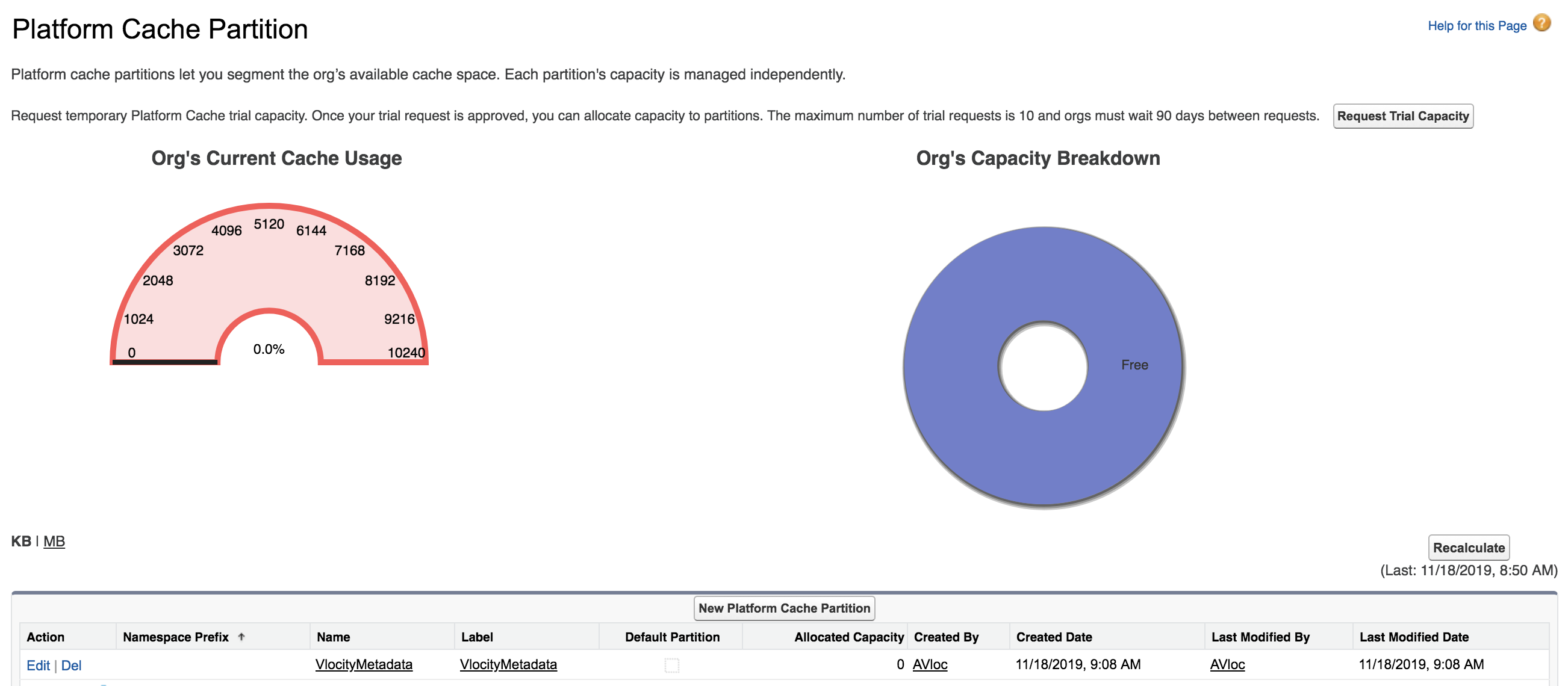
If Platform Cache partitions that Vlocity features use, such as VlocityMetadata and VlocityAPIResponse, don't exist, you can create them. Even if they exist, you must allocate space in them to enable caching.
For more information about when to use the Platform Cache, see the Get Started with Platform Cache Salesforce Trailhead and Platform Cache in Salesforce Help.
The following steps use the VlocityMetadata partition as an example.
-
Go to Setup.
-
In Lightning Experience, click the gear icon and select Setup from the menu.
-
In Salesforce Classic, click the user menu and select Setup from the menu.
-
- In the Quick Find box, enter Platform.
- Click Platform Cache.
-
If you don't see VlocityMetadata in the list of partitions,
click New Platform Cache Partition and enter
VlocityMetadata as both the Name and
Label.
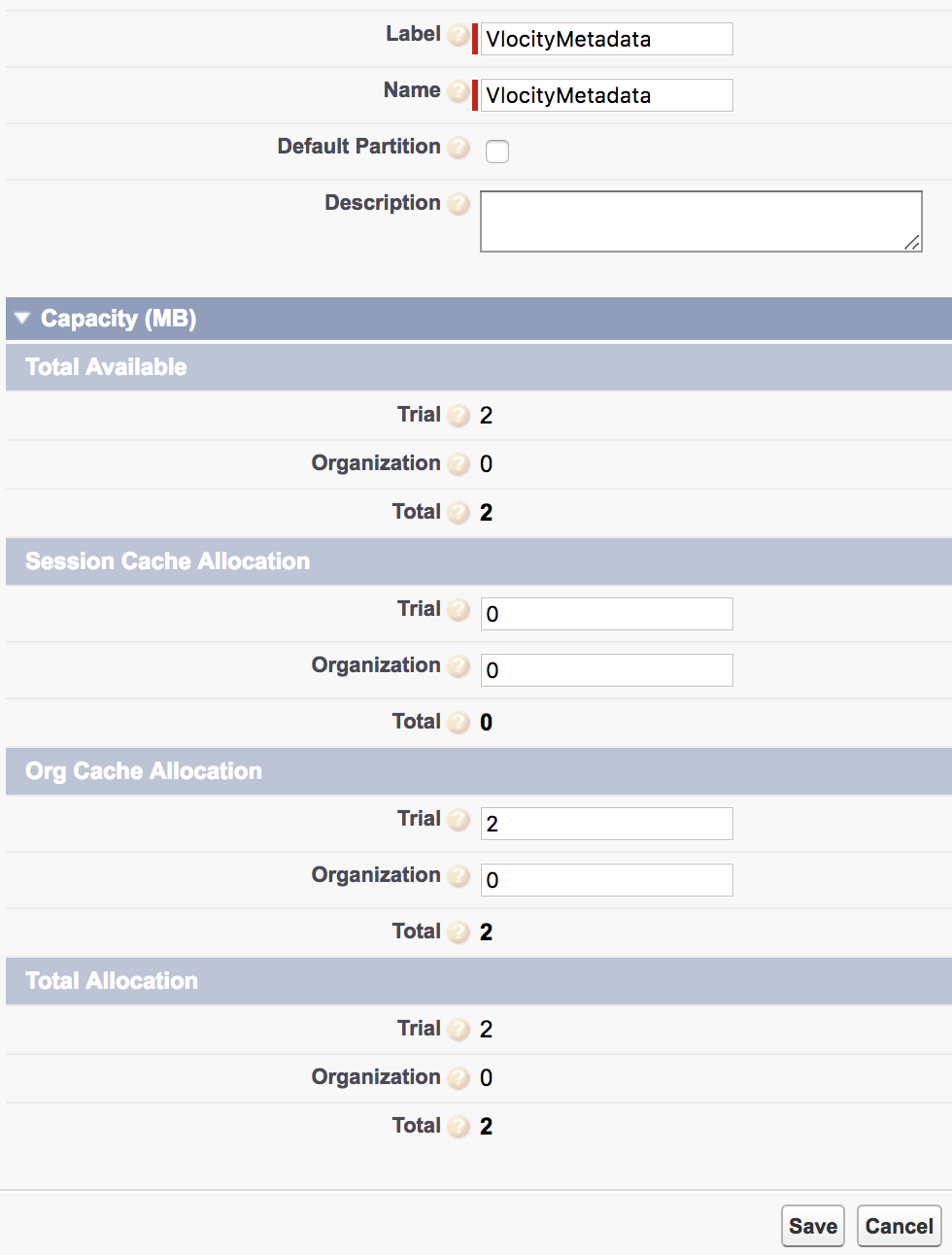
If you do see VlocityMetadata in the list of partitions, click VlocityMetadata and then click Edit.
-
Under Total Available, note the amounts for Trial,
Organization, and Total.
If the Total is zero, click Cancel, then click Edit for other partitions and reduce their allocations.
- Under Org Cache Allocation, enter an amount between 2 and the corresponding total from the previous step in the Trial or Organization field.
- Click Save.