
You are here:
Configure Attribute Rules
You can display attributes and attribute values that correspond to specific product configurations. Product compatibility rules support attribute configuration. Configuration evaluations are server-side and actions are client-side. Changing an attribute triggers attribute configurations.

In Spring '22 and later releases, configuring attribute rules is available in LWC. For more information, see Configure Attribute Rules in LWC.
You must explicitly define all required behavior. After an action is applied, only another configuration can change it. For example, you can define a product configuration where changing the color attribute affects the memory attribute choices.
Each configuration requires two sections—the IF section and the THEN section, also known as the condition section and the action section.
-
Use the IF section to create the conditions that trigger the configuration.
-
Use the THEN section to define the actions.
The configuration in the following image defines that, If the Color attribute is Red, then the Memory Size attribute must exclude 16GB. If the Color attribute is Blue, then the Memory Size attribute must include 16GB.
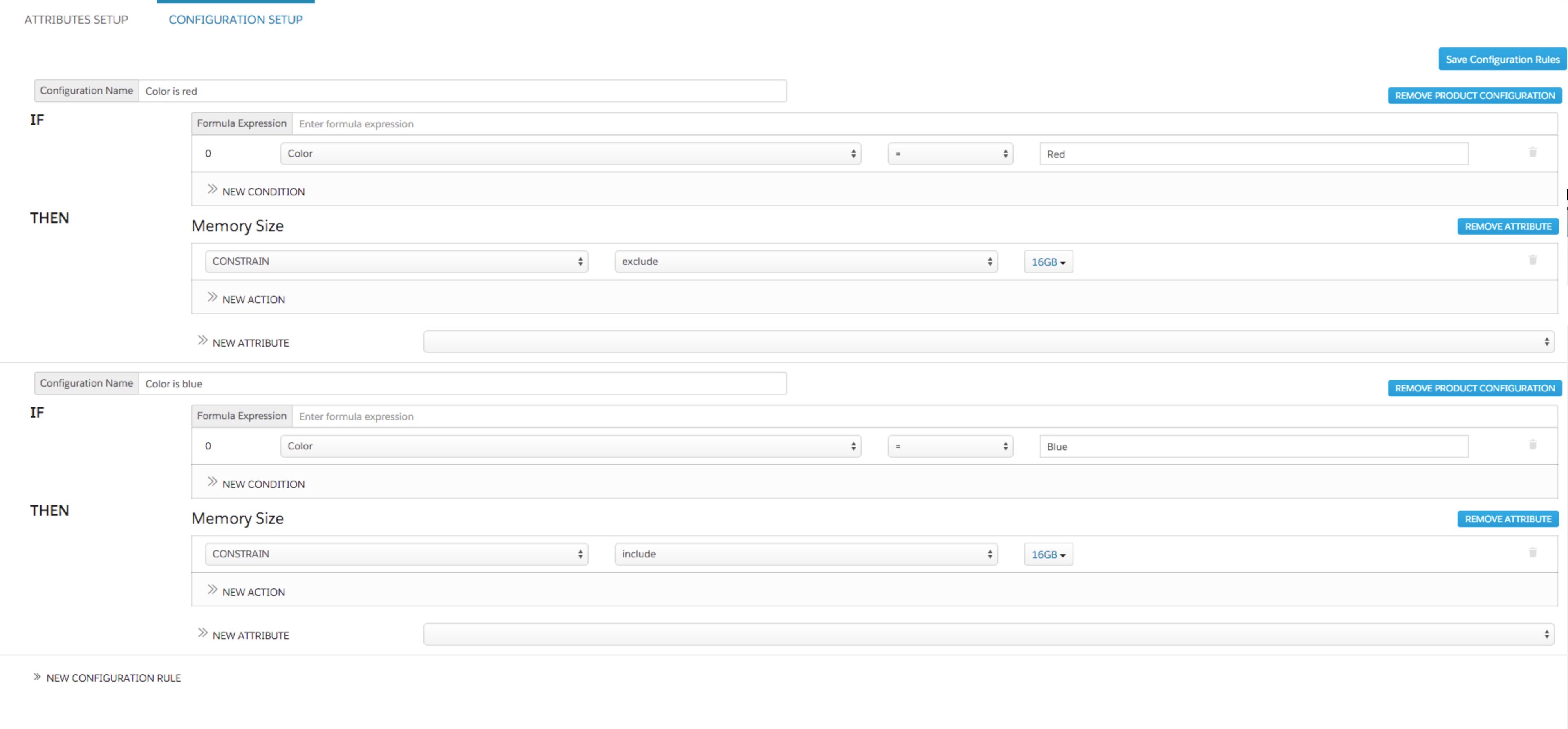
The configuration setup is similar to setting up rules, which include, from left to right:
-
index number
-
attribute
-
operator
-
value
In the example above, 0 is the index number, Color is the attribute, the equal sign (=) is the operator, and Red is the value.
To configure attribute rules:
- On the Product record detail page, in the Product Attributes section, click Configuration Setup.
- Click New Configuration Rule.
- In the Configuration Name box, enter a name for the rule.
- Click New Condition.
- Select the attribute.
- Select the operator.
- Enter the value.
- Repeat steps 4 through 7 to enter more conditions.
-
If the action should occur when any one of several conditions is met, in
the Formula Expression box, enter the appropriate
expression.
A formula expression indicates if the rule action occurs when all conditions are met or when one condition is met. By default, rules use and. Using a formula expression, you can specify that a rule uses or, for example,
{index x} OR {index
                          y}
. - From the New Attribute picklist, select the attribute.
-
Select the appropriate action.
The following actions are available:
-
Constrain includes or excludes specific picklist choices. It is only applicable for attributes in picklists.
-
Assign assigns values to any type of attribute.
-
Disable disables any attribute.
-
Require indicates that an attribute is required.
-
Hide hides any attribute in the user interface. The attribute definition is in the JSON but is hidden from the user.
-
- To add more actions, click New Action and repeat step 11.
- When you are finished, click Save Configuration Rules.
