
You are here:
Product Attributes in EPC
Product attributes define product characteristics and can be categorized. You can use attributes to filter products. Pricing is based on product attributes.

In Salesforce Industries Communications, Media, and Energy Summer '17, use the EPC Product Console to create attributes. For more information, see Create Products in Vlocity Product ConsoleCreate Products in the Product Console.
The Product object is extended to support product attributes. Attributes are organized using attribute categories. Product attributes define product specifications. For example, a phone might come in four different colors, three different sizes, and so on. You define attribute categories, such as color and size, to accommodate these options. Using product attributes, you can filter products to display only those available to a specific customer. You can also base pricing on product attributes.
Products can be categorized and filtered by custom attributes. The product administrator can add these attributes to the products in a price book. All product records support attributes. Product attributes can be filterable and configurable.
-
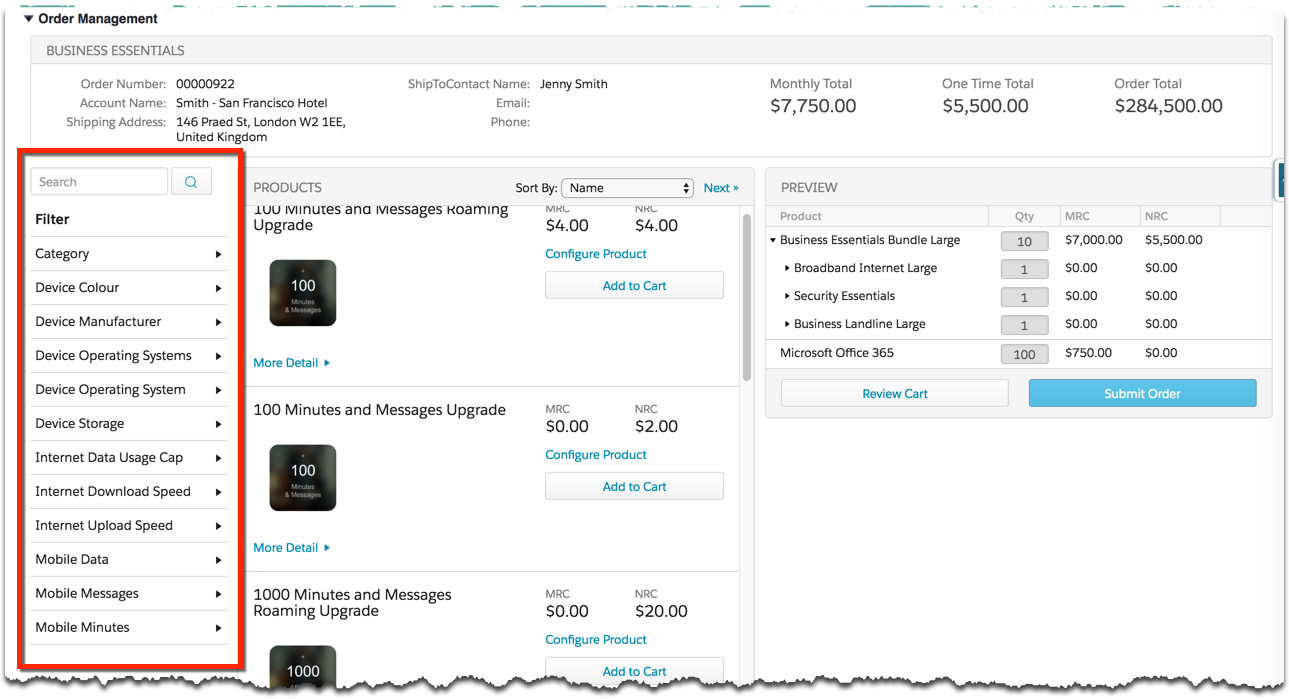
If a product attribute is filterable, you can use it as a filter in the Opportunity Manager, Order Manager, or Quote Manager.
-
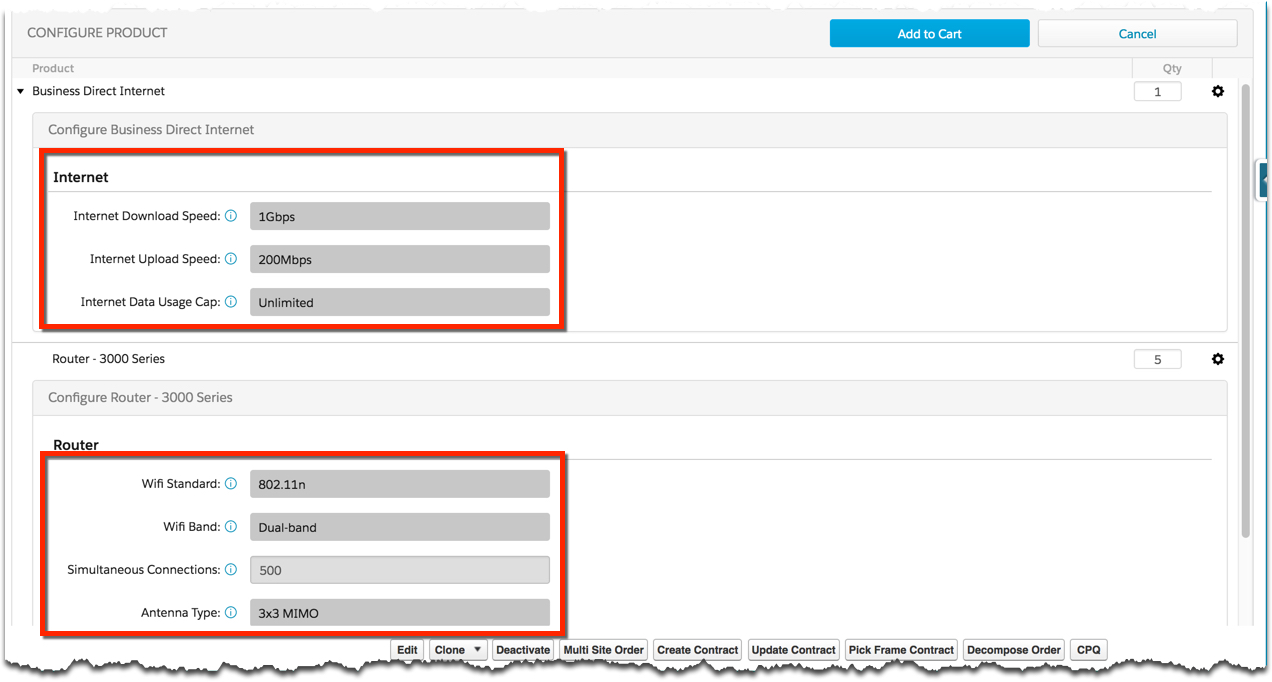
If a product attribute is configurable, the user can configure the attribute after adding the product to the cart.
Pricing can depend on rules based on attributes. The attributes drive the pricing. You can offer a product with pricing based on its attributes. For example, you can offer broadband Internet service at different prices for 50 Mbps, 100 Mbps, and so on. You can also define rules that specify one price for a product by itself, but a different price when the Product is part of a bundle.
When searching for products in the CPQ user interface, you can filter the product list based on the product attributes that have been applied. When you add a product to your cart, you can click the product in the cart to configure the item attributes.
Attributes are flexible. There are no limits to the number of attributes a product can have. Each attribute corresponds to one field. Using attributes avoids some performance, search, and security issues. Pre- and post-processing steps can use attributes.
The image shows how attributes are shown in Order Management.
You can use attributes to configure products before or after they have been added to the cart.
- Create New Product Attribute Categories
Attribute categories group attributes. They also appear as headings at run time in Vlocity Cart’s Filter and Configuration windows. Attribute categories are required to create product attributes. The type of attribute is defined at the Attribute Category level. You must create Attributes Categories before adding new attributes to the category. - Create a New Product Attribute
Product attributes further define products. For example, an iPhone might have attributes for model, color, storage capacity, and so on. You add attributes to attribute categories that you have previously defined. - Constrain Product Attributes Using a Format Mask
You can constrain attribute values using a format mask. By applying a format mask, you ensure that a user can type only in a predetermined pattern. The format mask is a part of setting up product attributes on a product. - Configure Attribute Rules
You can display attributes and attribute values that correspond to specific product configurations. Product compatibility rules support attribute configuration. Configuration evaluations are server-side and actions are client-side. Changing an attribute triggers attribute configurations. - Set Up Product Attributes
After creating attribute categories and attributes, you can apply those attributes to products. End users can find and filter products based on attribute values. - Create a Product Attribute Template
If you have a set of attributes that you can apply to multiple products, create a product attribute template to speed the assignment of attributes to a product. You can create templates using attribute settings that you have already defined on a product. - Edit a Product Attribute Template
Product attribute templates are displayed in the products list. You can edit them in the same way that you edit product attributes on a Product record detail page. - Upgrading the Attribute Schema
After reviewing the Attribute Schema Upgrade ConsiderationsJSONAttribute v2 Schema Upgrade Considerations, choose one of the two upgrade options. The first option is recommended for orgs with smaller data sets that are able to have downtime while performing the upgrade. The second option is recommended for orgs that cannot have downtime while performing the upgrade. - Adding Product Attributes to an Object
Product Attributes are designed for use with objects related to CPQ. However, you can add Product Attributes to any custom object by adding the JSONAttribute field and configuring the DRJSONAttributeSObjects setting. You must be in Lightning Experience to follow these instructions.
