You are here:
Configuring the PDF Document Template Custom Setting
The PDF Document Template custom setting controls the active template name for an object. This document provides Vlocity CLM with a template when a contract is created. You can create a PDF Document Template setting for any object from which you make contracts.
The PDF Document Template setting for opportunity, order, and quote is at the org level. However, the PDF Document Template setting for the Contract object is on the contract type.
This feature applies only to Web-based templates. For DOCX or PPTX templates, you can customize the Generic Document Generation Omniscript. You can also customize the Omniscript for Web-based templates. However, if you want to use a simple setup with the Salesforce.com PDF rendering service, you can use this PDF Document Template custom setting for Web-based templates.
Vlocity CLM uses the Salesforce.com PDF rendering service to create PDF documents. This service has its limitations. For more information, see "Visualforce PDF Rendering Considerations and Limitations," in the Visualforce Developer Guide.
To configure the PDF Document Template custom setting for opportunities, orders, and quotes:
- From Setup, in the Quick Find box, enter Custom Settings.
- Click Custom Settings.
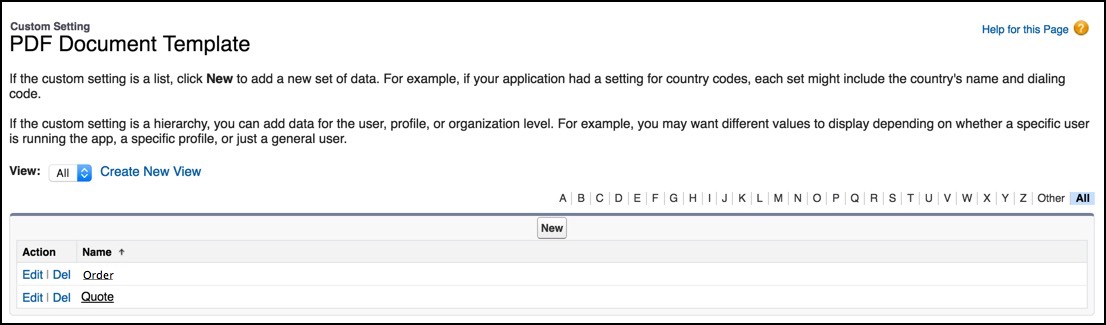
- Next to PDF Document Template, click Manage.
- To change an existing default:
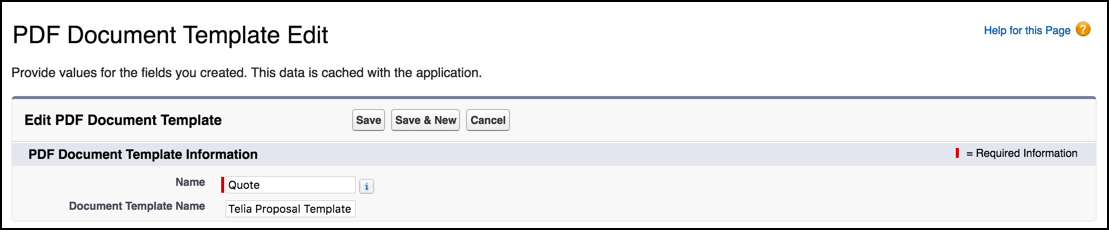
- Next to the object name, click Edit.
- In Document Template Name, enter the default PDF template name.
- Click Save.
- To add a new object:
- Click New.
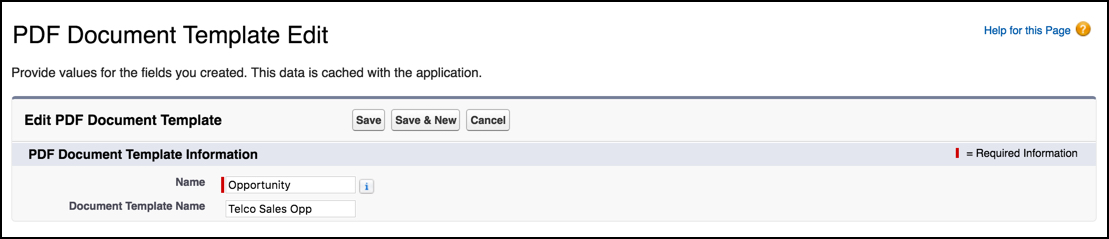
- In Name, enter the object name.
- In Document Template Name, enter the default PDF template name for the object.
- Click Save.