
You are here:
Create a Basic Omnistudio Data Mapper Extract and Data Mapper Transform in CLM
You can create a basic Omnistudio Data Mapper Extract and Data Mapper Transform to pull the information from a contract object into the Microsoft Document template.
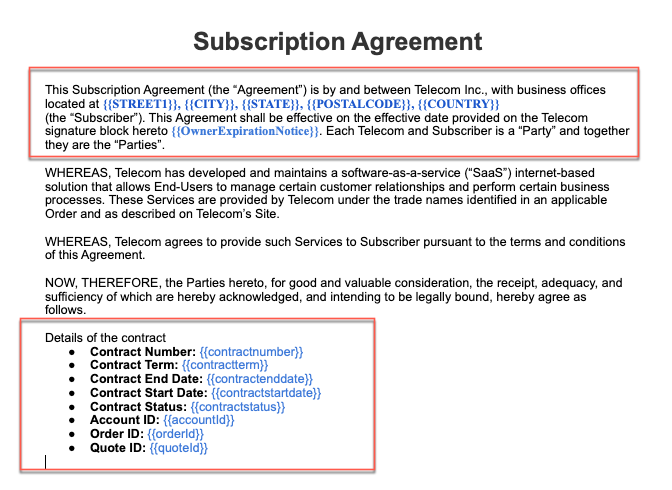
- Create a Microsoft Word document with tokens. For more information, see Tokens in Microsoft Word or Microsoft PowerPoint Documents.
- Create a Microsoft Word template. For more information, see Creating a Microsoft Word or Microsoft PowerPoint Template.
- From the Token Mapping Method, select Data Mapper.
- Enter a Mapping Data Mapper Bundle Name to transform tokens with actual data in the document.
- Enter a Data Extract Data Mapper Bundle Name to retrieve Salesforce data to be used in tokens.
- Click the icon next to the Data Extract Data Mapper Bundle Name field to open the Data Mapper Extract in a new browser tab.
- Create a Data Mapper Extract.
- On the Extract tab, click Add Extract Step.
- From the list of Salesforce objects, choose Contract.
- Set the Extract Output Path to Contract and the filter to Id = Id
- On the Output tab, click +.Using the Extract JSON Path field, map Salesforce object data with tokens in the document by using the Output JSON Path field.
- Set the Extract JSON Path to Contract:ContractNumber.
- Set the Output JSON Path to contractnumber.
- Map all the fields in the contract that you want to extract data from.
- Go to the Preview tab and then click Edit as Params.
- In the Input Parameters pane, click Add New Key/Value Pair.
- Set the Key to Id and the Value to a valid Salesforce Contract object Id.
- Click Execute.
- Verify that the Response pane displays a JSON structure containing the desired output. For example,
- Go to the Output tab, copy the Current JSON Output, and save to use it later in your Data Mapper Transform.
- Click the icon next to the Mapping Data Mapper Bundle Name field to open the Data Mapper Transform in a new tab.
- Create a Data Mapper Transform.
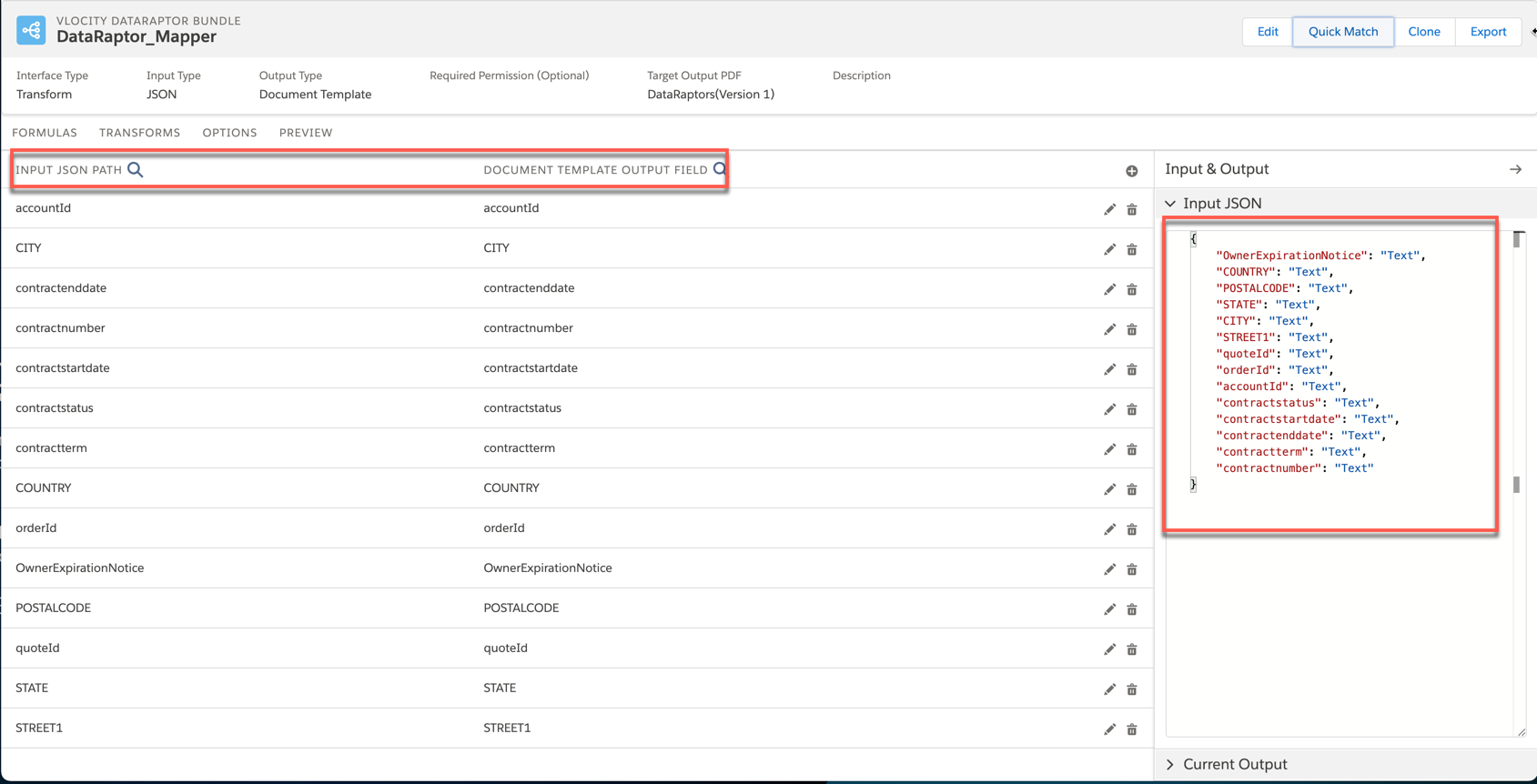
- In the Transform tab, paste the Current JSON Output code that you copied from the Data Mapper Extract in to the Input JSON panel.
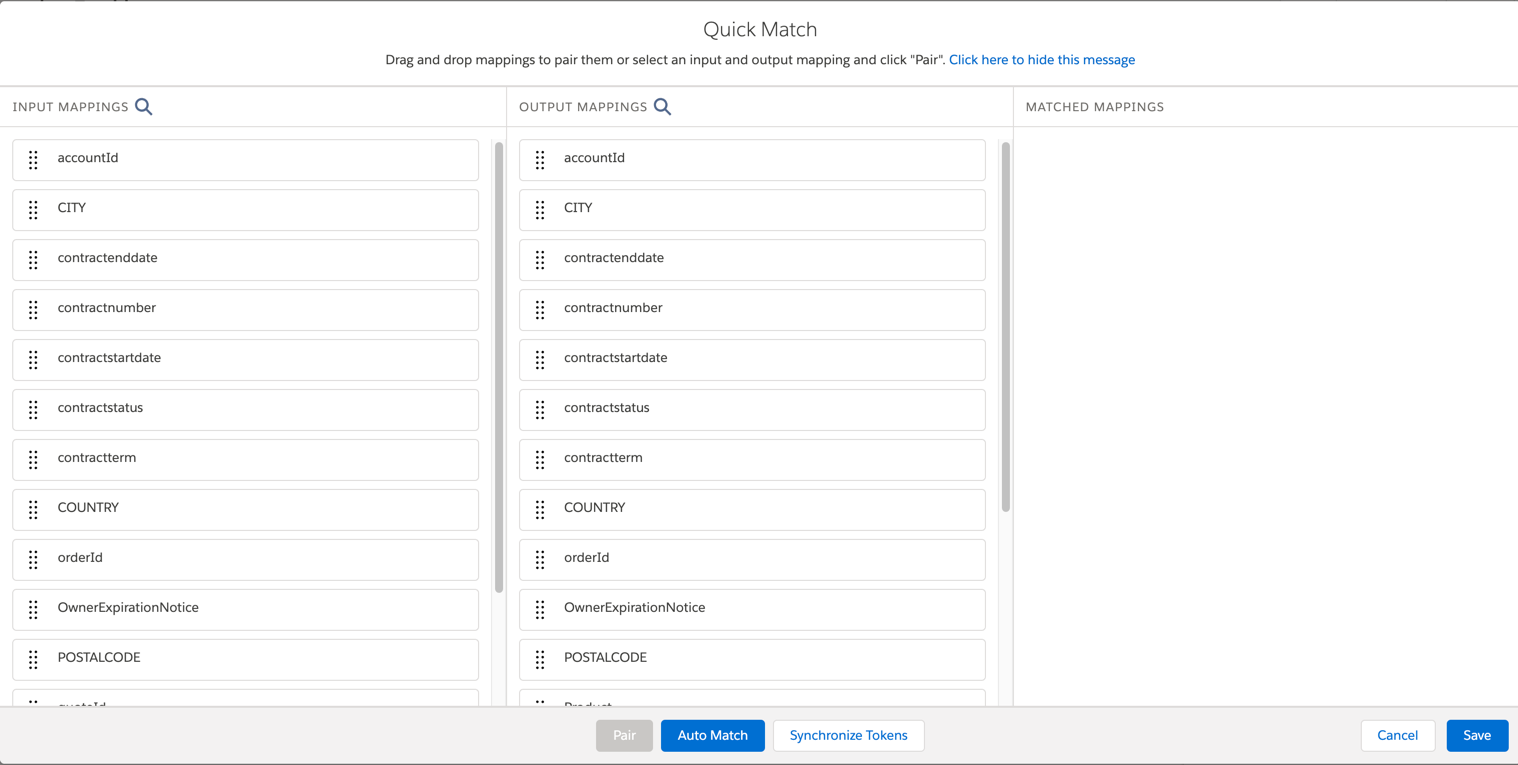
- Click Quick Match.Notice the fields in the Input and Output Mappings columns. The fields in the Input Mappings column come from the JSON code you pasted into the Input JSON panel. The fields in the Output Mappings column come from the document template.
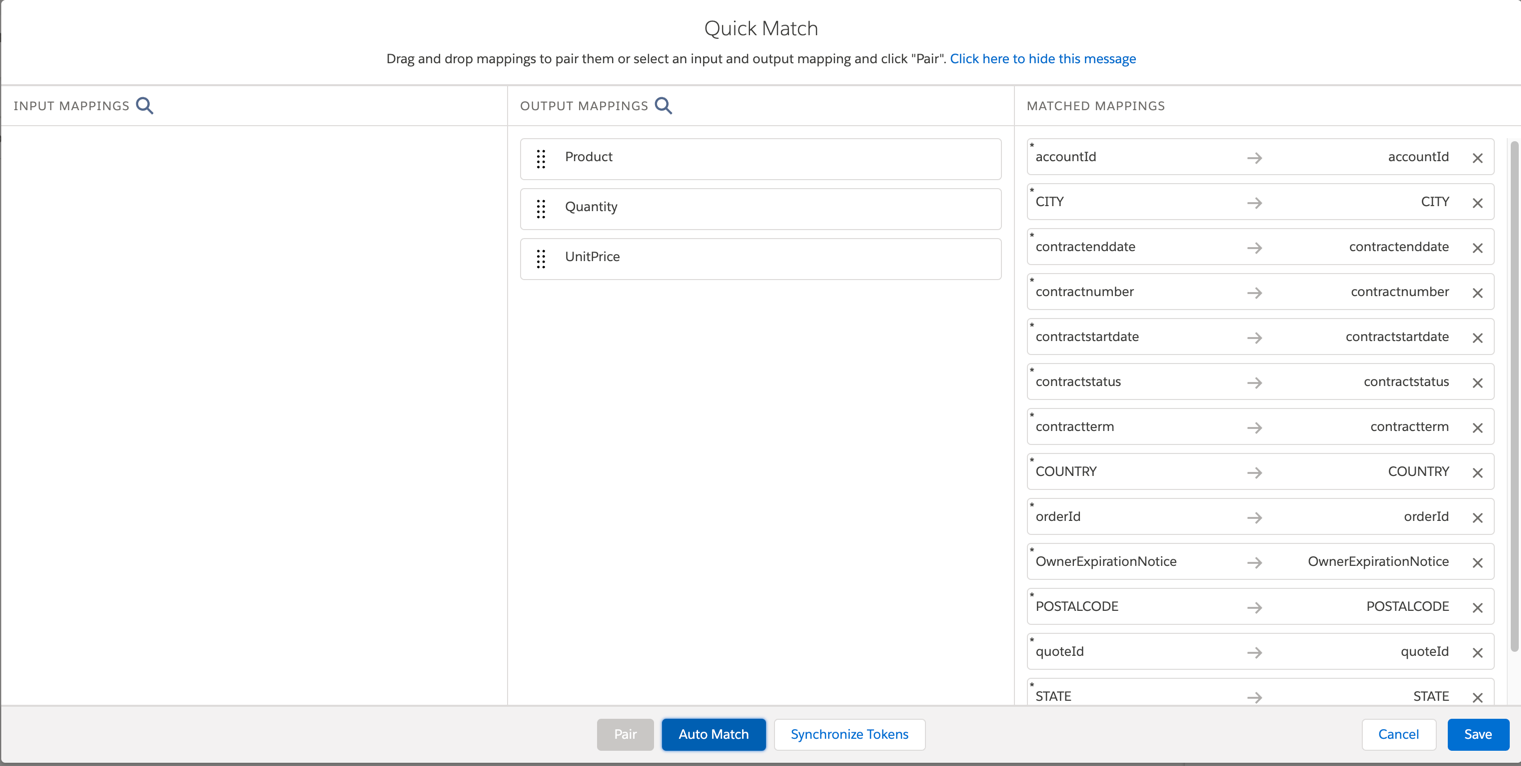
- Click Auto Match to match the input and output fields.Make sure to drag fields from the Input column into the Output column if they don't get matched automatically.
- Click Save.The Transform tab is populated, notice the Input and Output JSON paths. The Input JSON path matches the output from the Data Mapper Extract. The Output JSON path matches the tokens in the document template.
- Click Edit and change the Output Type to JSON, and then click Save.
- Verify that the Data Mappers pull the information from the Contract object and populates the document template.
- Go to the Document Template Designer, click Test Template.
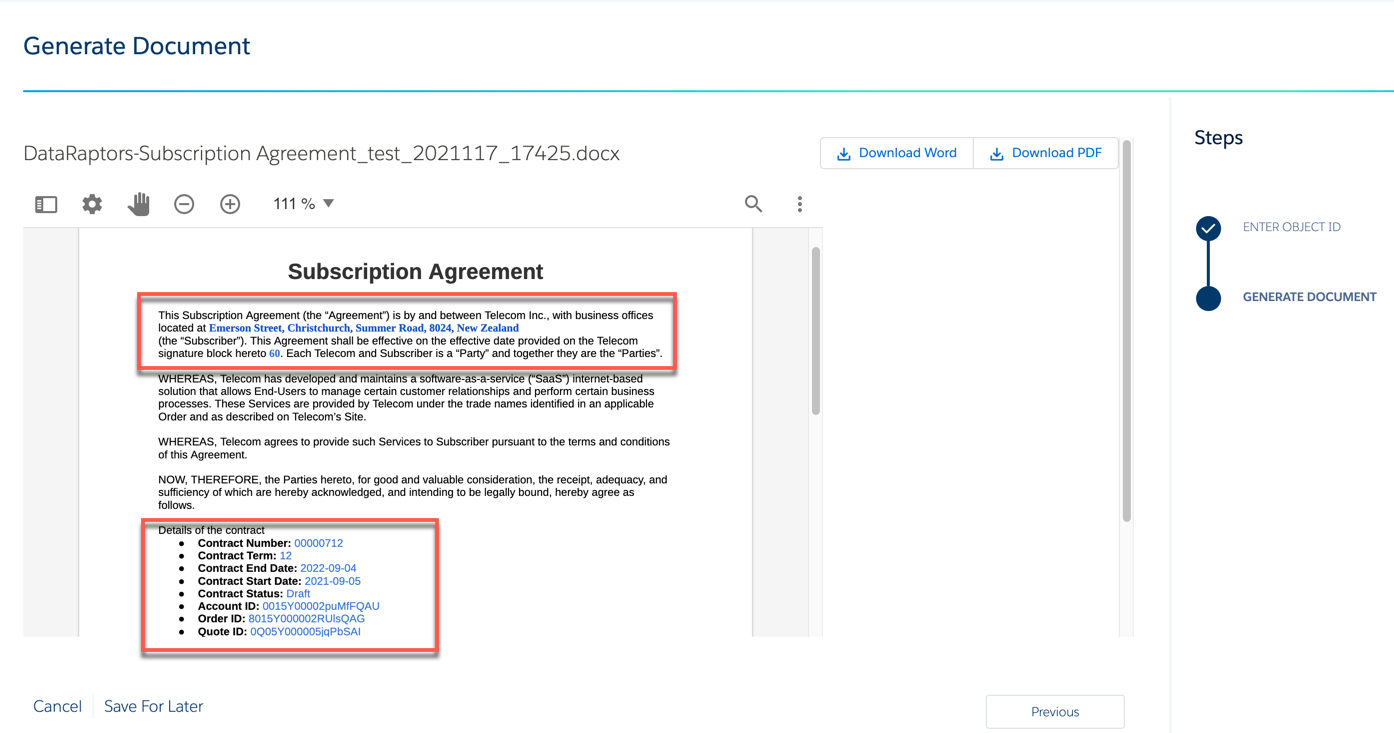
- In the Object ID box, enter the ContractID and then click Next.The document is generated and the tokens are replaced with the contract details. You can download the generated document either in .docx, or .pdf format by using the Download Word, or Download PDF button, respectively.
Did this article solve your issue?
Let us know so we can improve!
