You are here:
Creating a Contract from the Contracts Tab
You can create a contract from the Contracts tab, instead of from another object.
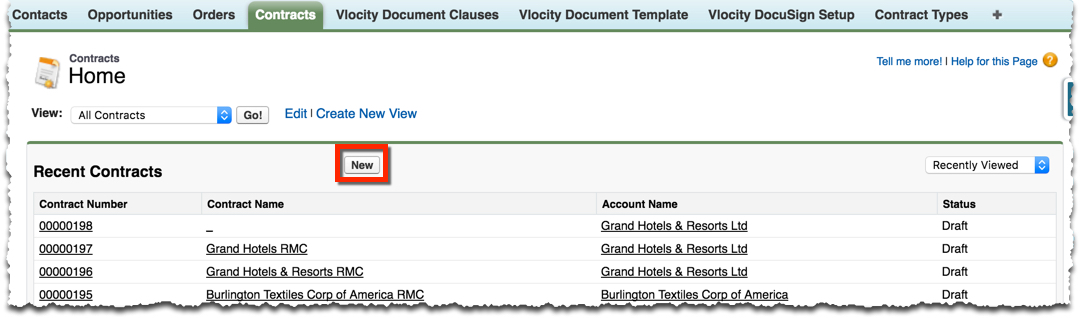
To create a contract from the Contracts tab:
- On the Contracts tab, click New.
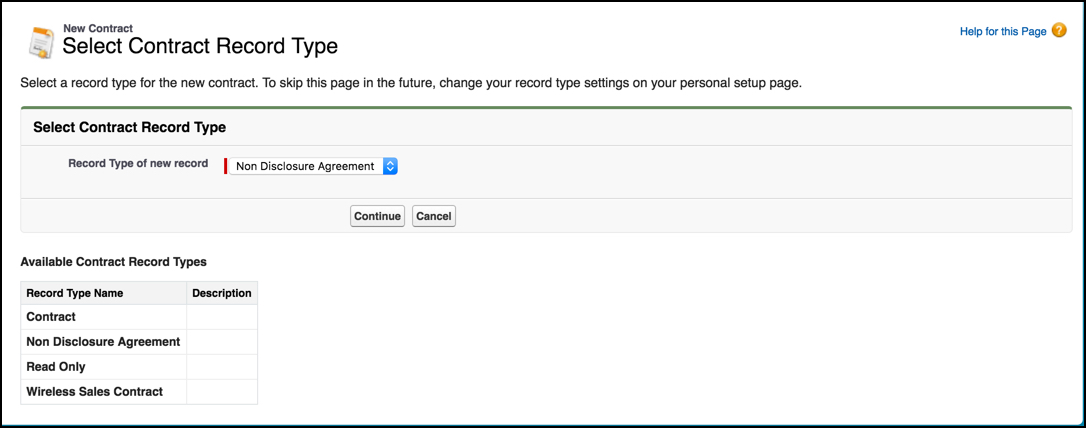
- From the Record Type of new record picklist, select the Contract Type.
- Click Continue.
- Enter the contract information. For more information, see Creating a Contract from an Opportunity, Order, or Quote.
- After you save the contract, on the Contract record detail page, scroll to the Contract Line Items related list.
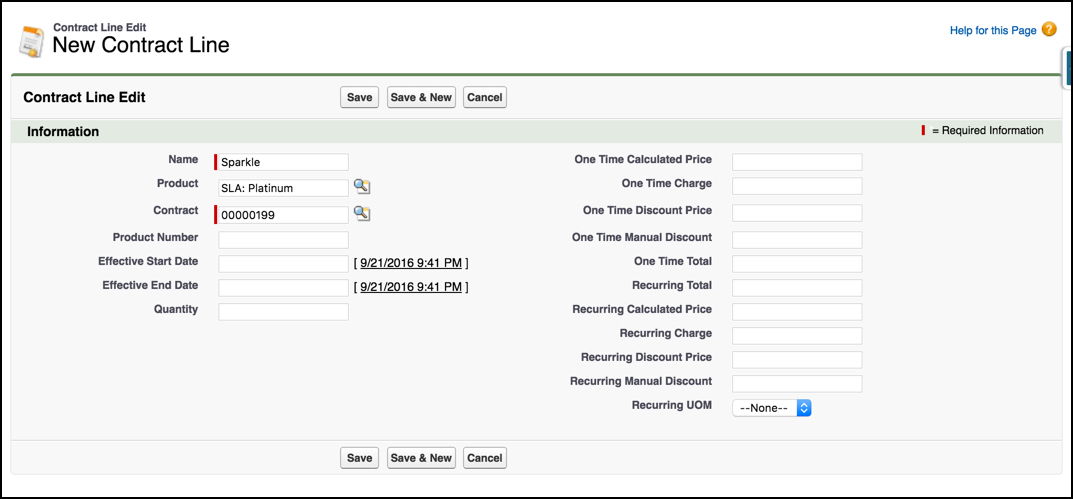
- Click New Contract Line.
-
Enter the information for the first contract line item.
-
Name is the line item name.
-
Product is a lookup to the product with which this line item is associated.
-
Contract is a lookup to the Contract object with which this line item is associated.
-
Product Number is a key of the Product record derived from the Product2 table.
-
Effective Start Date is the date that denotes the effective start date for the contract line item.
-
Effective End Date is the date that denotes the effective end date for the contract line item.
-
- Click Save, or, to create more contract line items, slick Save & New.
- Repeat steps 7 and 8 for all of the contract line items.