You are here:
Creating a Frame Agreement
Frame agreements give you the ability to set up the pricing terms and general terms for future sales. However, unlike a sales contract, this frame agreement does not necessarily mean a customer is promising to buy products but is interested in locking down prices and terms for orders that may be placed in the future.
Frame agreements currently support setting up of product-level, product-category-level, and account-level discounts as their pricing terms.
You create frame agreements from quotes, opportunities, or orders, and then frame agreements go through the stages of the contract lifecycle until reaching a status of Active. When Active, the terms automatically apply to all quotes and orders for that account for the duration of the frame agreement.

Example
Acme sells its communication products to its B2B customers. Starbucks negotiates a frame agreement with Acme for a 10% discount on all accessories that Starbucks buys over the three years (January 1, 2019 to December 21, 2021). Acme creates a contract as a frame agreement for Starbucks as the account for the duration of three years. A new sales quote is created on January 15, 2019 for Starbucks and a headphone accessory is added. The price is automatically discounted by 10% because of the active frame agreement. If products other than accessories are added, those products receive the regular price because they are not part of the frame agreement.
- Create a quote, opportunity, or order and add contract-based discounts to it.
To create pricing discounts for frame agreements, see Create a Contract-Based Discount.
- Negotiate the pricing discounts with your customer, and obtain internal approvals if necessary.
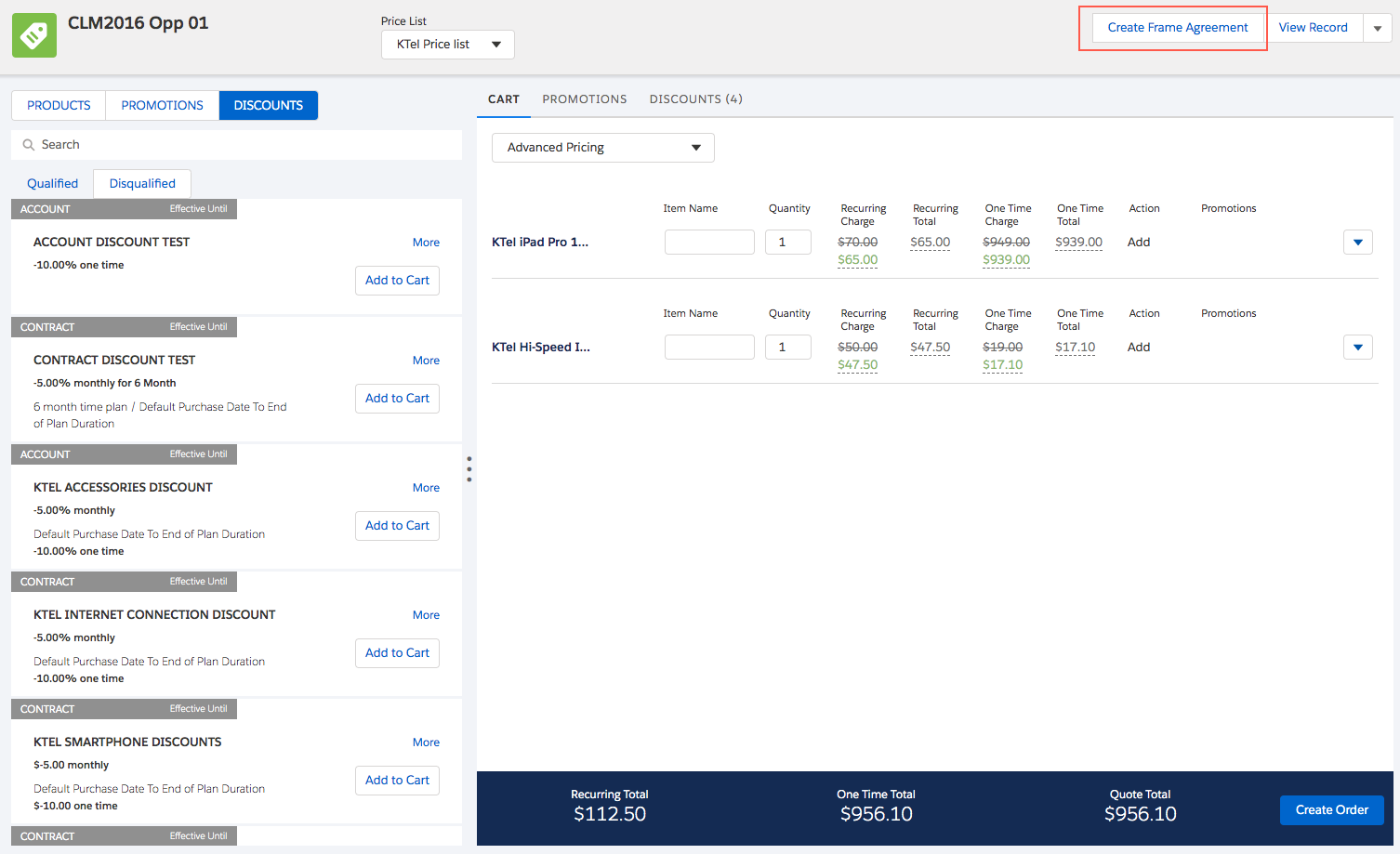
- From Vlocity Cart for that quote, opportunity, or order, click Create Frame Agreement.
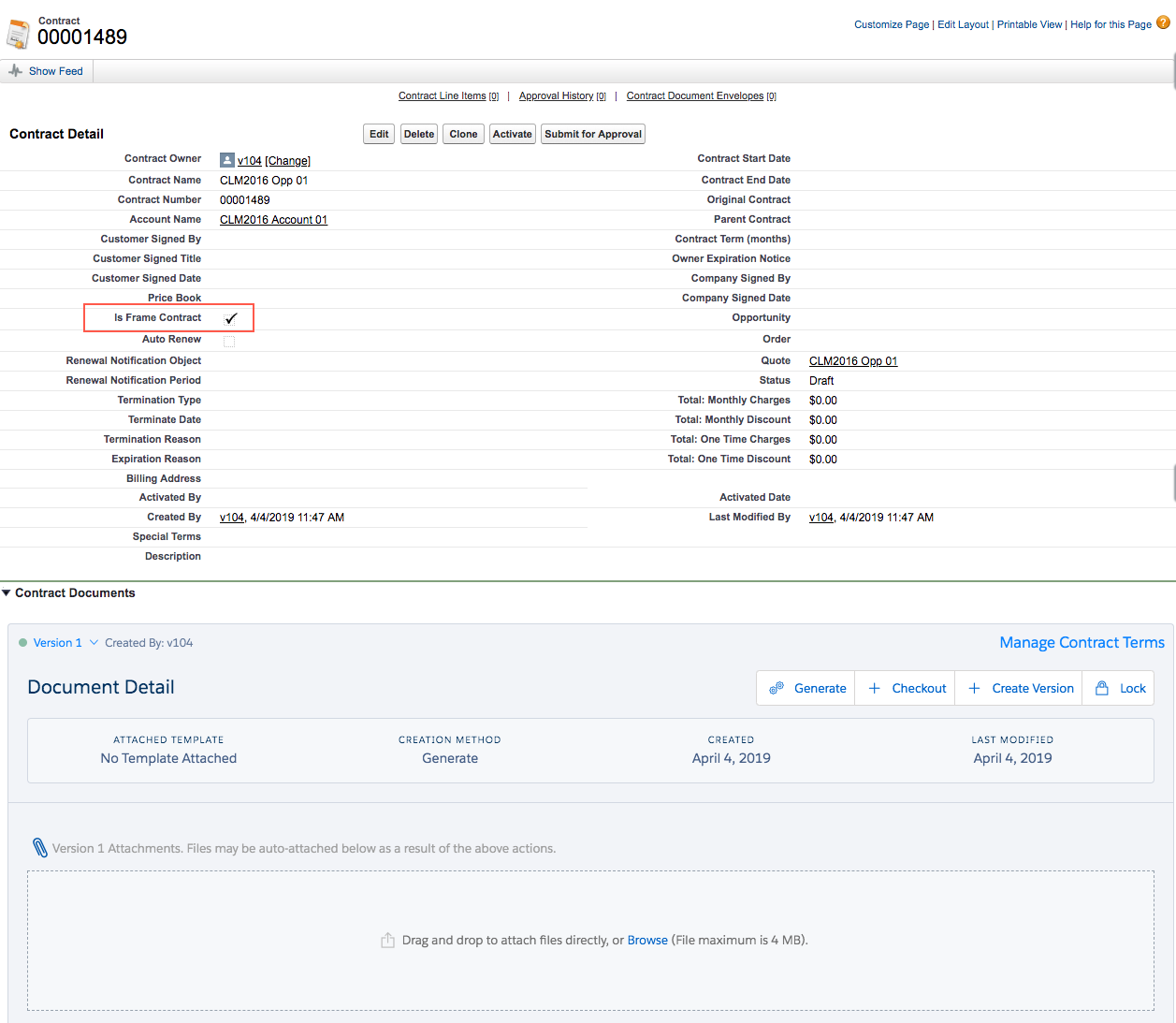
- When Vlocity returns you to the Contract Detail page, you can see the Is Frame Contract checkbox is selected.
- Define the Contract Start Date. Otherwise, you will not see the effective start dates and end dates for the discounts and the discounts will not apply.
- Click Edit on the Contract Detail page.
- In the Contract Start Date field, enter a start date that you want the discounts to take effect.
- Optional: Enter the Contract Term in months.
- Click Save.
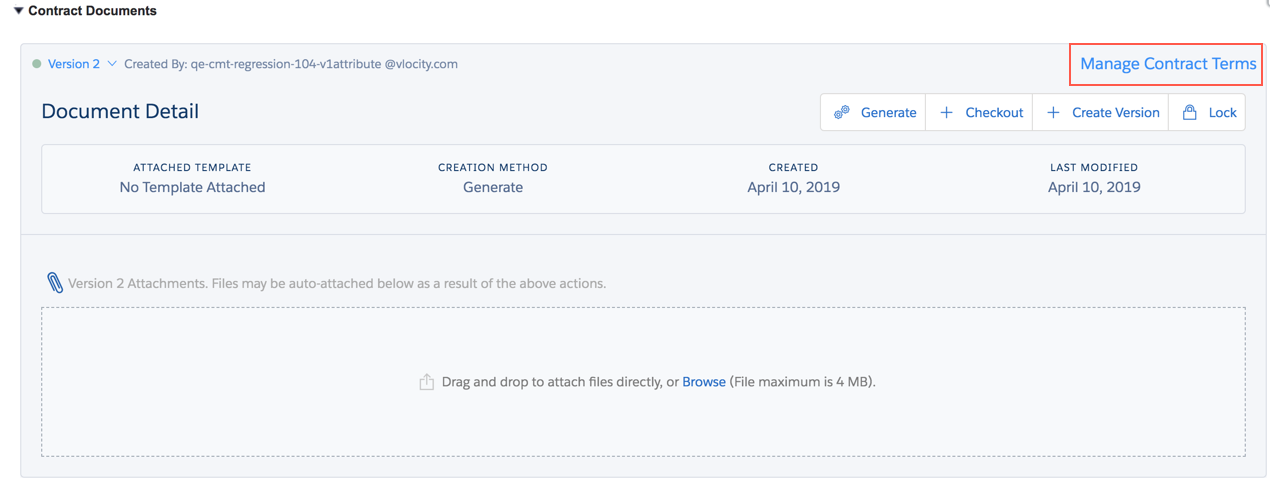
- Scroll down the page to the Contract Documents section, and click Manage Contract Terms.
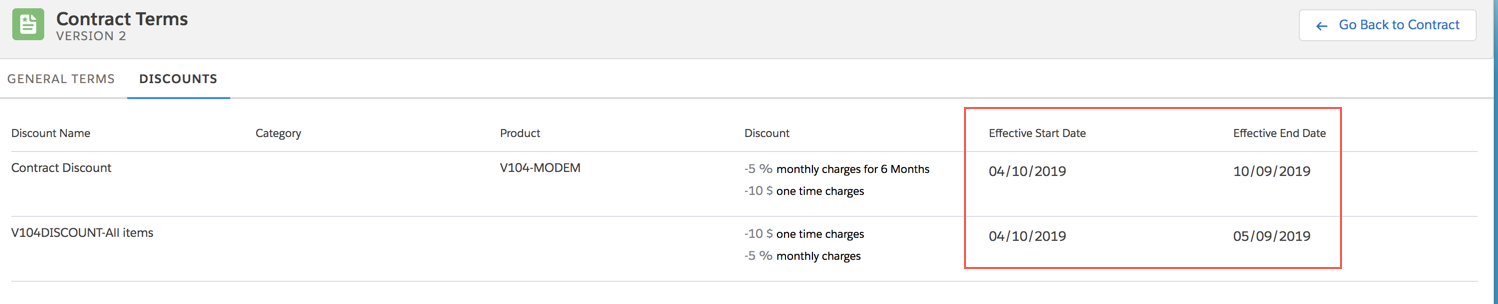
- Click Discounts to see the pricing terms with the effective start and end dates.
- Optional: Click General Terms to add other general terms to the frame agreement.
For more details about General Terms, see Creating General Terms. You can search for general terms if you know the names.
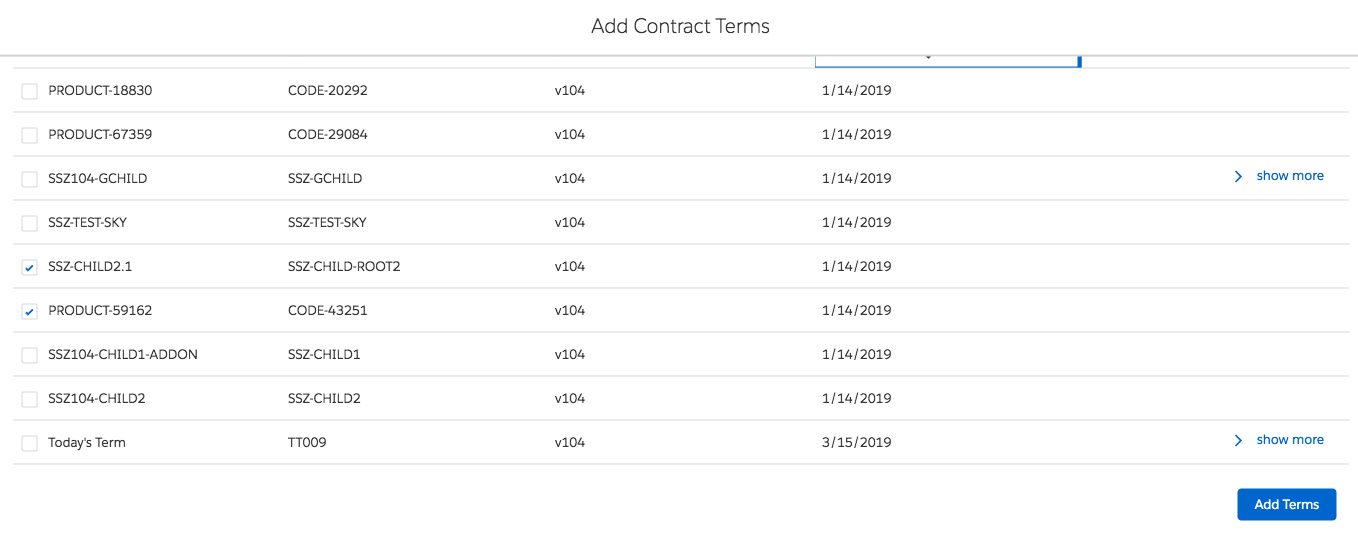
- Optional: Click Add Existing Terms if you want to add other general terms available from the Terms Library.
- Select the terms to add, and click Add Terms.
Vlocity adds the terms to the list of General Terms for this frame agreement.
- Click Go Back to Contract to view the Contract Detail page again.
- Click Generate.
- Select the document template you want to use and generate the contract.
- Click Check In.
- If applicable, go through the state model (submitting it for approval, sharing or sending it for review, sending for e-signature, signing).
- Click Activate Frame Agreement to set the status to active.