You are here:
Map Image Tokens in the Omnistudio Data Mappers
Using image tokens in the Microsoft Word or Microsoft PowerPoint document templates, you can insert dynamic images in the generated .docx and .pdf files. The image token must start with IMG_, for example, {{IMG_header}}. Salesforce supports the use of single image, multiple image, and loop image tokens. Using Omnistudio Data Mappers you can extract the images from the org and also define the height and width of the images.
- Create a Microsoft Word document with image tokens.
For more information, see Tokens in Microsoft Word or Microsoft PowerPoint Documents.
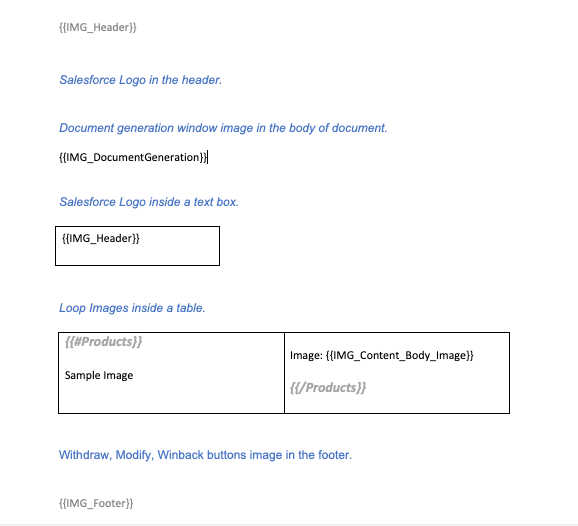
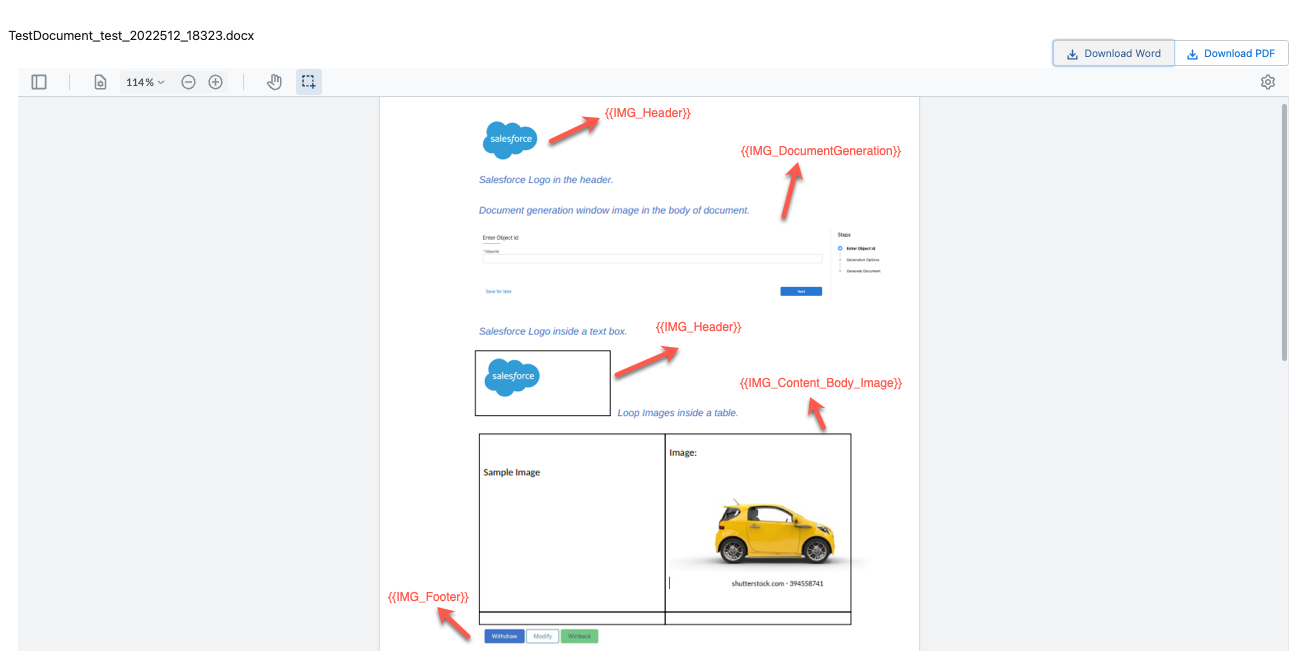
You can place the image tokens anywhere within the document template body, such as paragraphs, tables, and text boxes. You can also place the image token in header and footer, or within a repeating content section to pass an array of images. Here's an example of a .docx document with image tokens.
- Create a Microsoft Word template.
For more information, see Creating a Microsoft Word or Microsoft PowerPoint Template.
- From the Token Mapping Method, select Data Mapper.
- Enter a Mapping Data Mapper Bundle Name. The Data Mapper Transform maps the field with the Id to the token in the document template. The Data Mapper Transform then transforms the tokens with actual data in the document.
- Enter a Data Extract Data Mapper Bundle Name. The Data Mapper Extract retrieves the field with the Id that identifies the image to be used in tokens.
- From the Token Mapping Method, select Data Mapper.
- Enter a Mapping Data Mapper Bundle Name. The Data Mapper Transform maps the field with the Id to the token in the document template. The Data Mapper Transform then transforms the tokens with actual data in the document.
- Enter a Data Extract Data Mapper Bundle Name.
- Click
 icon next to the Data Extract Data Mapper Bundle Name field to open the Data Mapper Extract in a new browser tab.
 - Create a Data Mapper Extract. For more information, see Data Mapper Extract Overview.
- Define the Initial Extractions. For more information, see Define the Initial Extraction.
- From the list of Salesforce object tables, select one based on where you’ve uploaded your image.
-
Files: ContentDocument
-
Notes & Attachments: Attachment
-
Documents: Document
-
Static Resources: StaticResource
 Important
All the images that you want to render in the same generated document must be stored in a single repository.
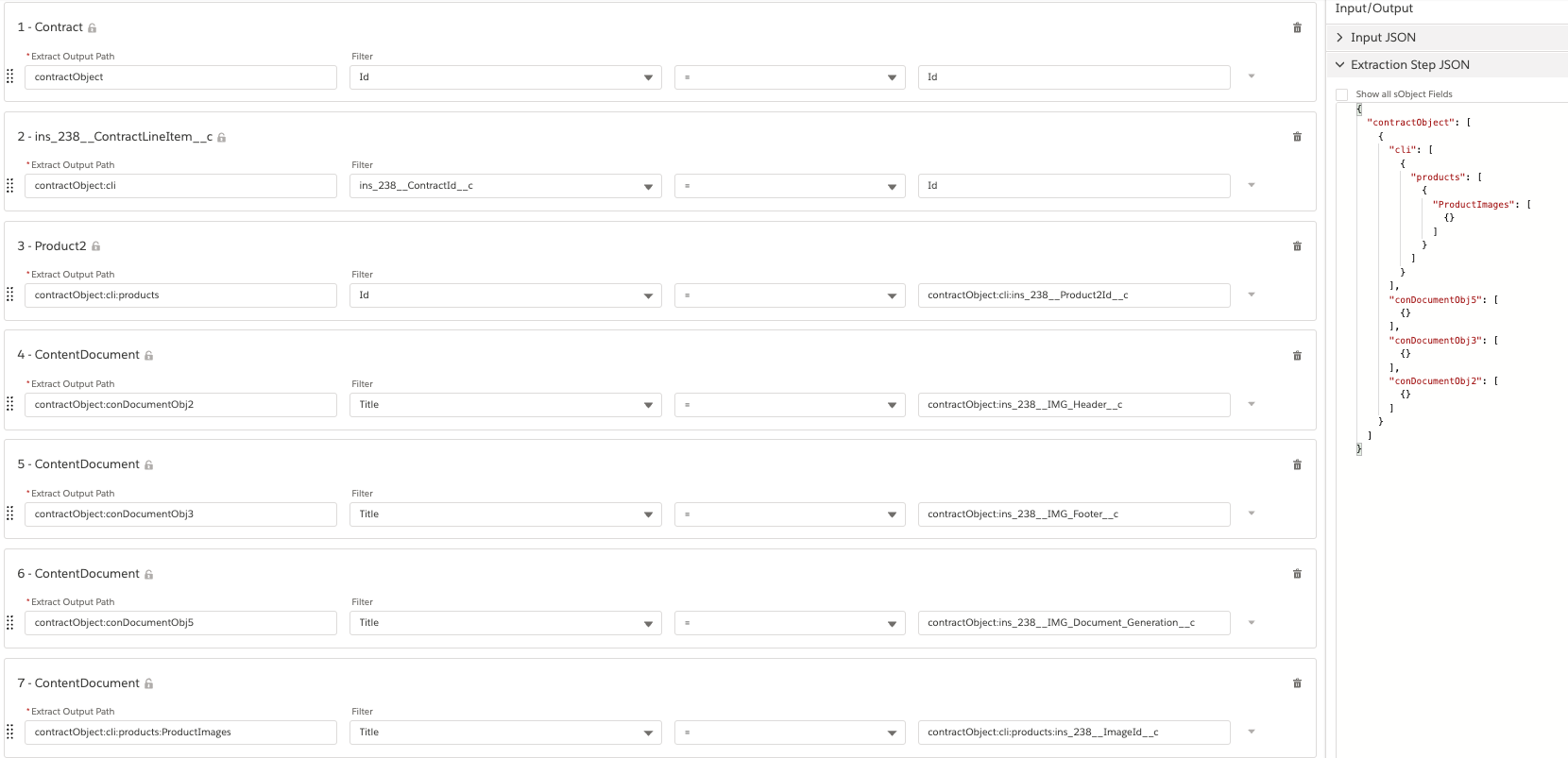
In this example, we use the content document table to retrieve the content Id of the image from the object using the title as filter.
Set the Extract Output Path to contractObject:<contentdocumentname> and the filter to Title = contractObject:<custom image field API name> to map the content document with the custom image field Id. For example, contractObject:ins_238__Header__c.
 Note
NoteHere, ins_238__Header__c is the image API field name where the image is stored. With this image name the system queries the content document table to fetch the content Id. Alternatively, you can use the sObject Id to pass to the Data Mapper Extract.
ImportantFor images uploaded in documents, you must use name as the filter instead of title.
-
- Repeat the steps a to c to map all the images with custom image source fields.
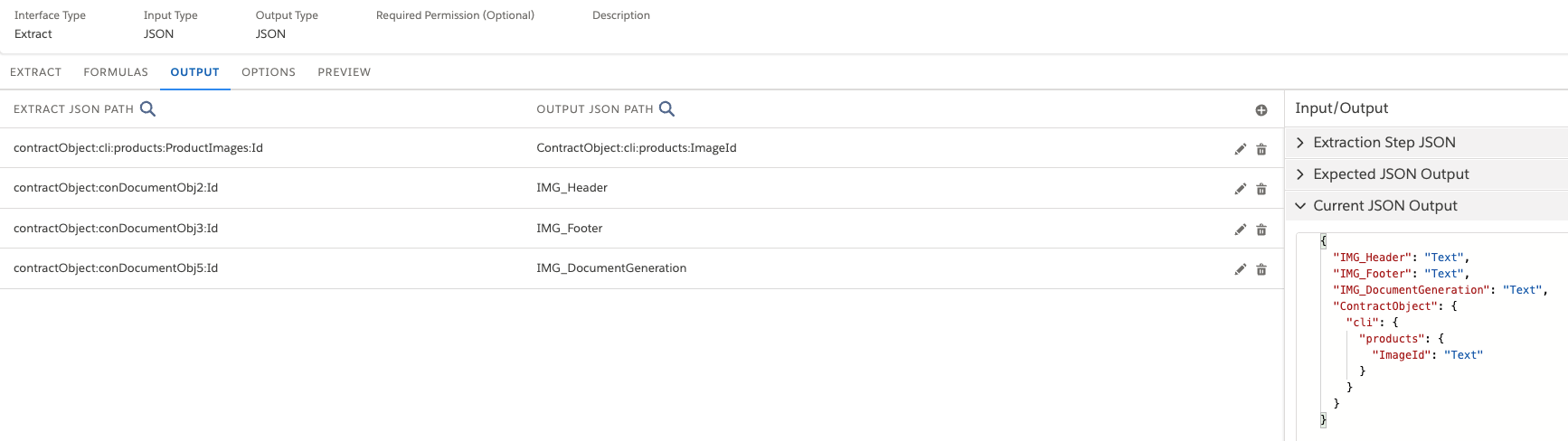
- Define Data Mapper Extract Output. For more information, see Data Mapper Extract Output.
- In the Extract JSON Path field, select the source field for extraction.
- In the Output JSON Path field, specify the desired output path.
- Repeat the steps f and g to add all the tokens in the document template with a source field.
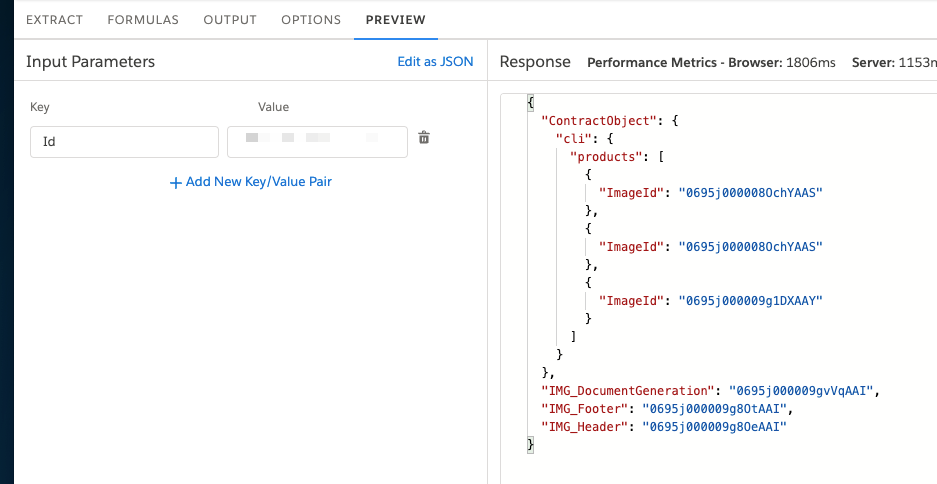
- In the Preview tab, enter the Salesforce object Id and execute to verify that the response pane displays a JSON structure containing the desired output.
- Go to the Output tab, copy the Current JSON Output, and save to use it later in your Data Mapper Transform. The Current JSON Output pane displays the structure that your output mappings specify.
- Click icon next to the Mapping Data Mapper Bundle Name field to open the Data Mapper Transform in a new tab.
- Create a Data Mapper Transform. For more information, see Data Mapper Transform Overview.
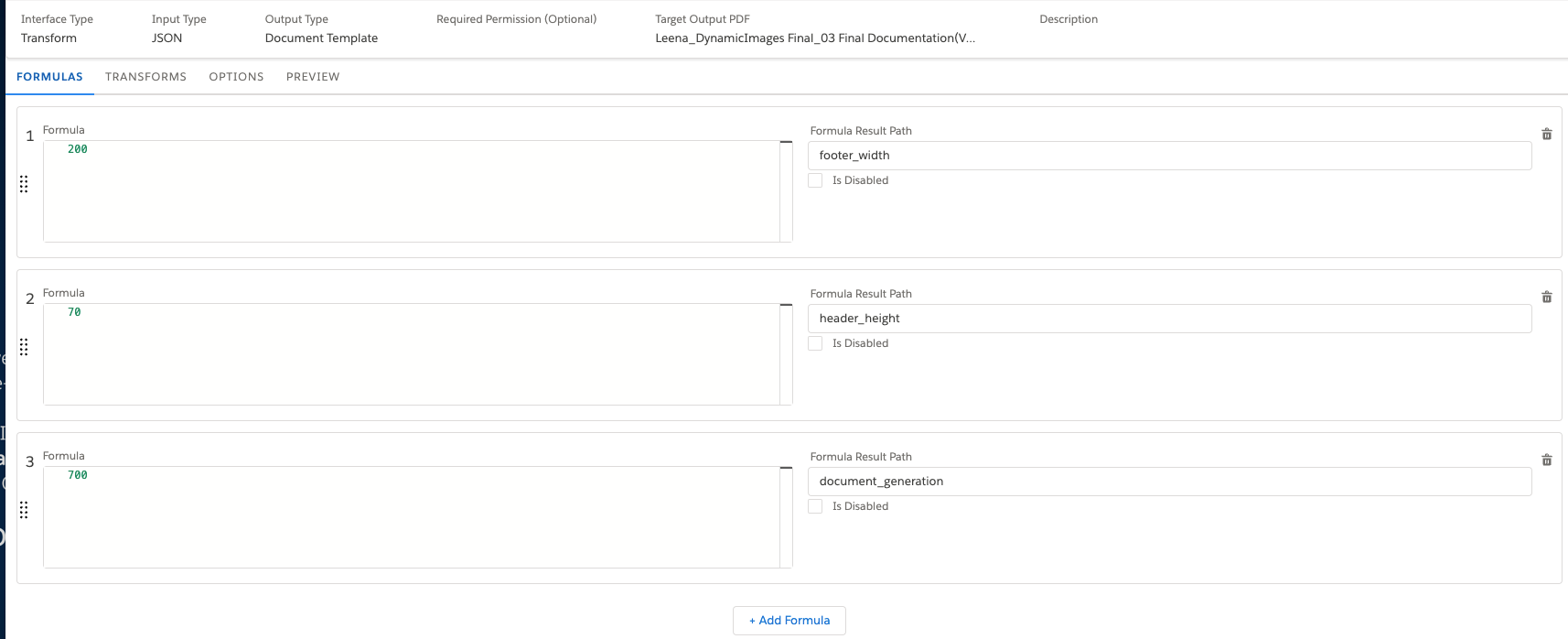
- Additionally, you can define formulas in a Data Mapper to specify the height, and width of the images. When you define a formula, you map its output to the output JSON (for extracts and transforms). For more information, see Use Formulas in Data Mappers. Note
Salesforce recommends defining either height or width for an image so that the ratio of the original image between height and width is maintained.
-
If height or width isn’t defined, the image is rendered in its original size.
-
If only height or only width is defined, the system proportionally scales the image size based on the original height and width.
For example, if the original image size is 100 x 100 pixels and you define the height as 20, then the application sets the size to 20 x 20 pixels.
-
If height and width are defined, the image is rendered based on the defined height and width.
-
- In the Transform tab, paste the Current JSON Output code that you copied from the Data Mapper Extract into the Input JSON panel.
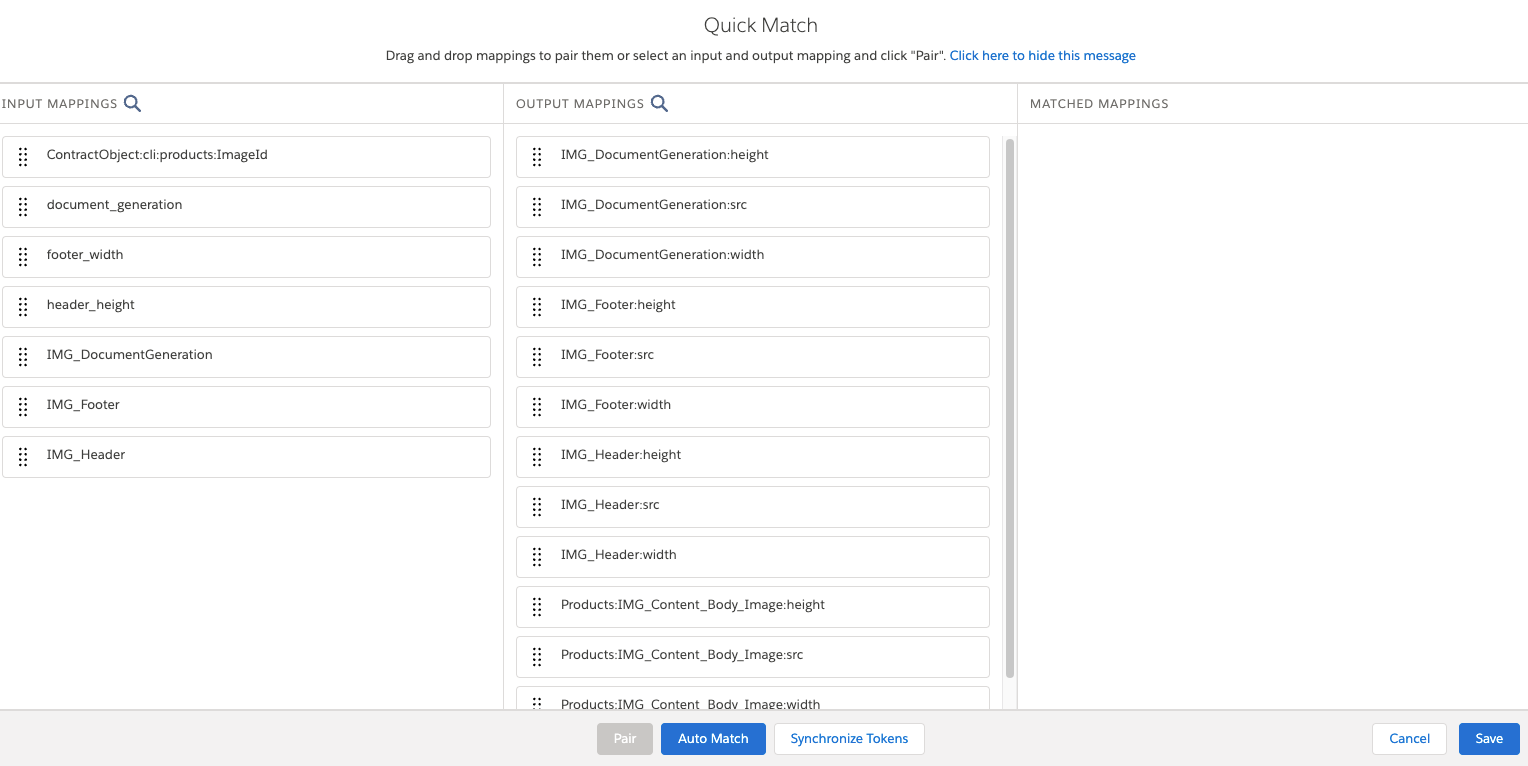
- Click Quick Match. The fields in the Input Mappings column come from the JSON code you pasted into the Input JSON panel and the formulas you defined in the Formulas tab. The fields in the Output Mappings column come from the document template.Note
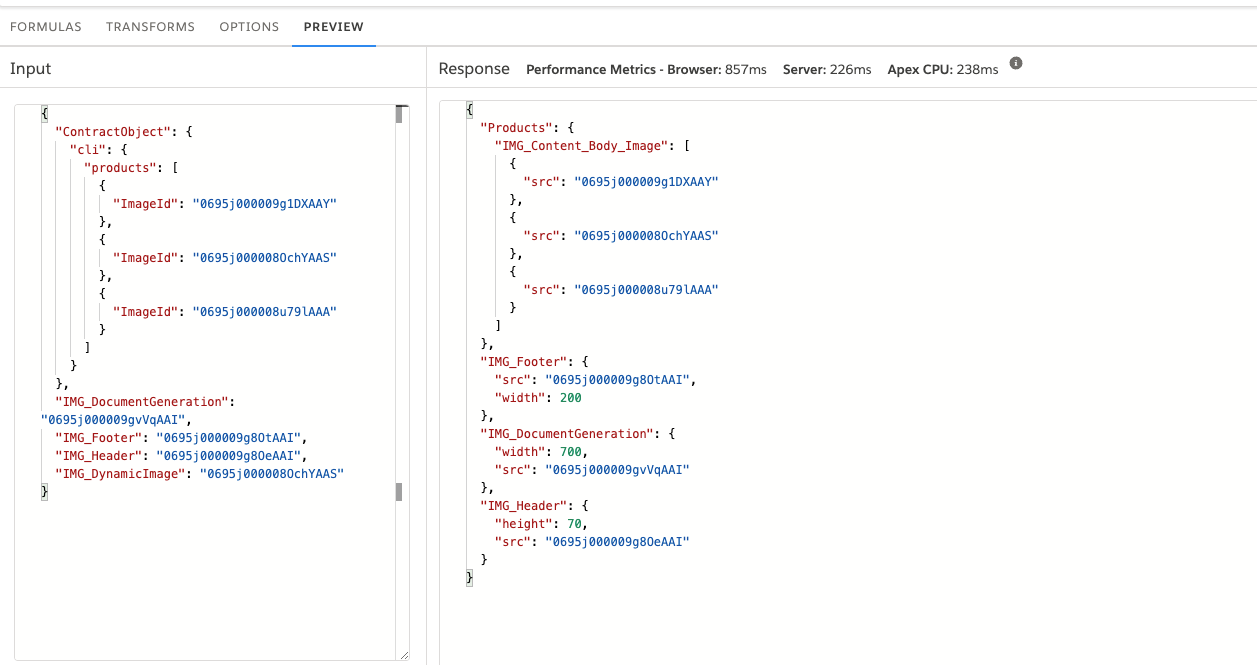
For each image token in the document template, there are three output mappings: height, source (src), and width. The src is mandatory because it uses the image Id. The height and width are optional. If you don't define the height and width, the image renders in its original size in the document.
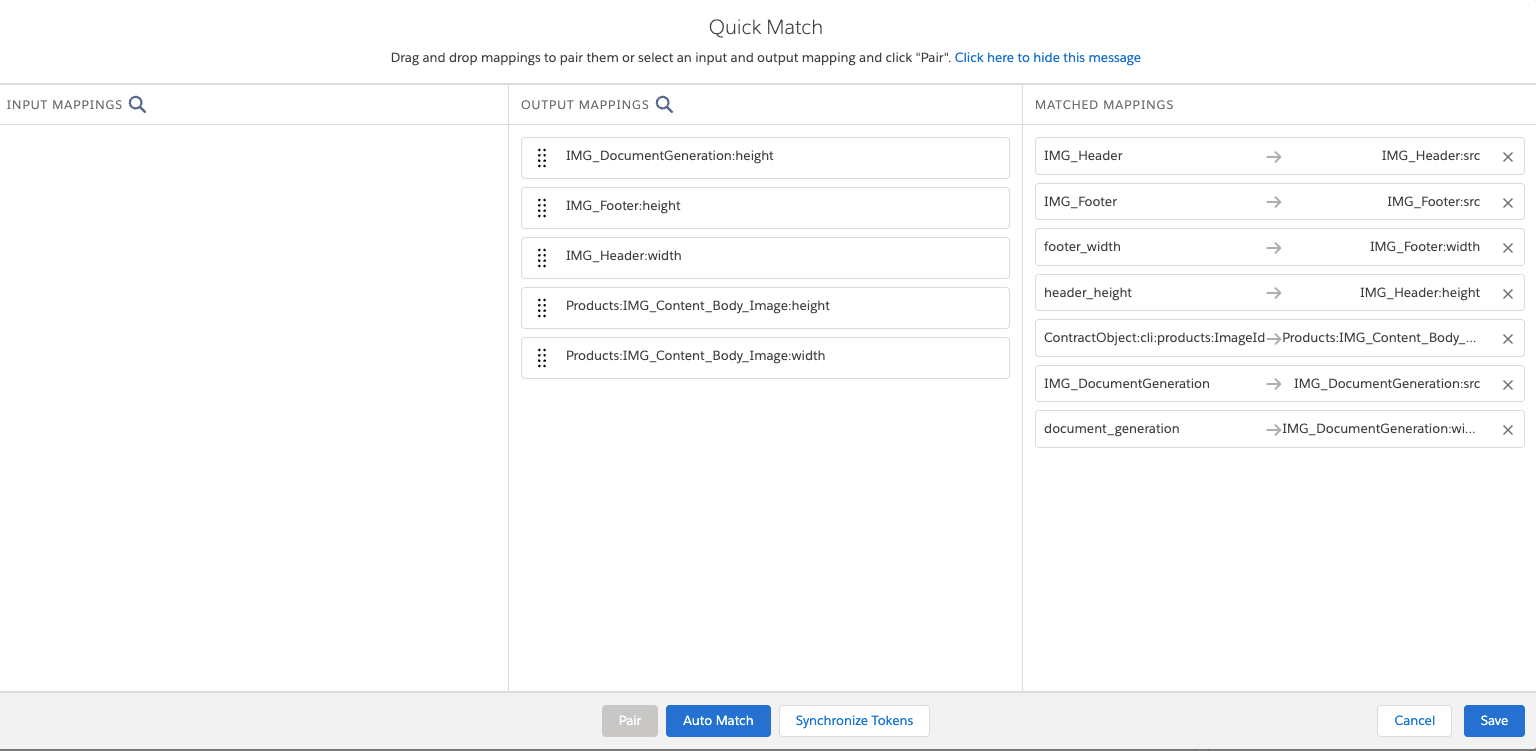
- Drag fields from the Input column to the Output column to match the fields.
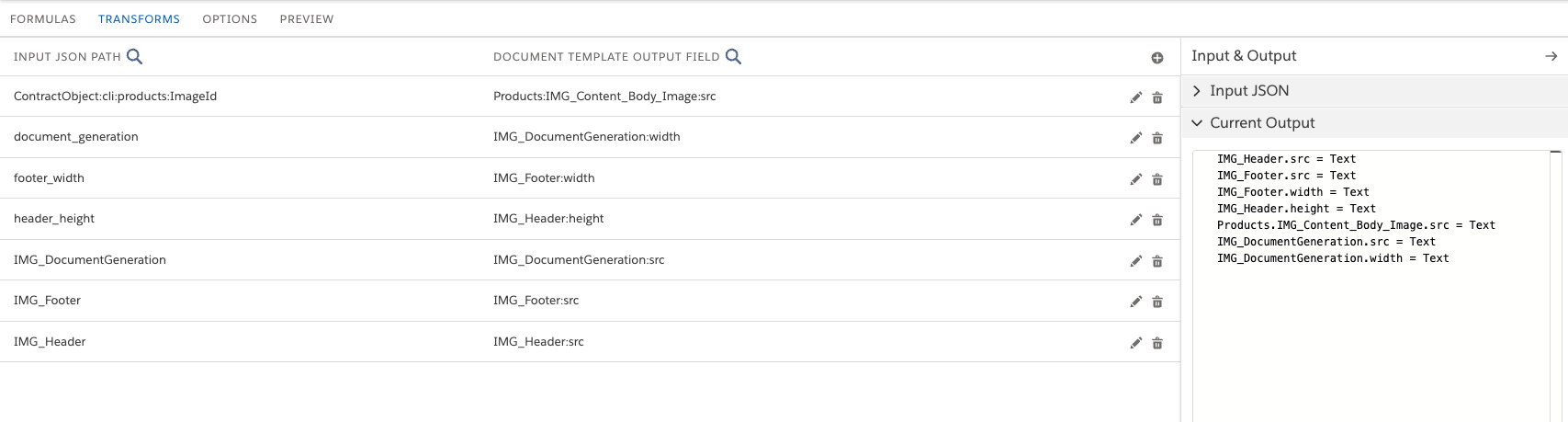
- Click Save. The Transform tab is populated. The Input JSON path matches the output from the Data Mapper Extract. The Output JSON path matches the tokens in the document template.
- Click Edit and change the Output Type to JSON, and then click Save.
- Go to the Preview tab, and verify the sObject source (src) for the image tokens.
- Verify that the Data Mappers pull the information from the Contract object and populate the document template.
- In the Document Template Designer, click Test Template.
- In the Object ID box, enter the object ID from where you want to pull the information and then click Next. The document is generated and the tokens are replaced with the images.You can download the generated document either in .docx, or .pdf format by using the Download Word, or Download PDF button, respectively.