You are here:
Previewing a Contract
You can preview a contract in HTML format. You can also generate a PDF or Microsoft Word document from the HTML document and attach that document to the Contract object. You can do this for both active and inactive versions of the contract document.
For example, version four is the active contract document version. You can also view versions one, two, and three and create Microsoft Word or PDF files from those versions. This is useful if someone deleted Vlocity CLM-generated Microsoft Word or PDF file for an older, inactive version, and you need to examine that version.

The version you see could have just been generated from a template, customized, or imported as part of Microsoft Word reconciliation (Microsoft Word reconciliation is supported only for contracts generated from Web document templates). Clicking View shows you the latest data.
You can download a Microsoft Word or PDF file. You can attach a Microsoft Word or PDF file. The contract document view is read-write.
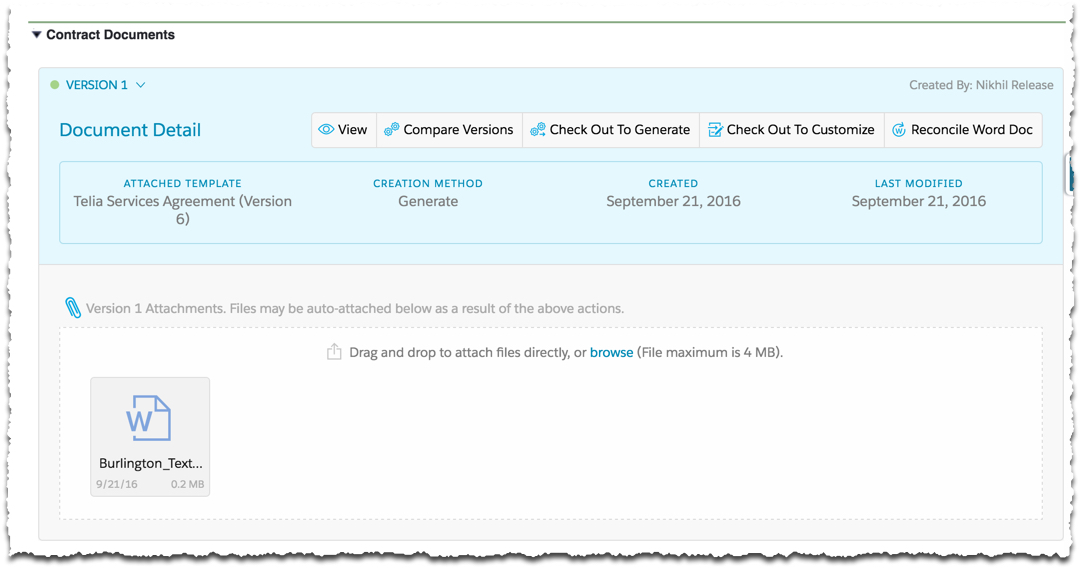
- On the Contract record detail page, expand the Contract Documents Visualforce page.
- Expand the contract document version to preview.
- Click View.
-
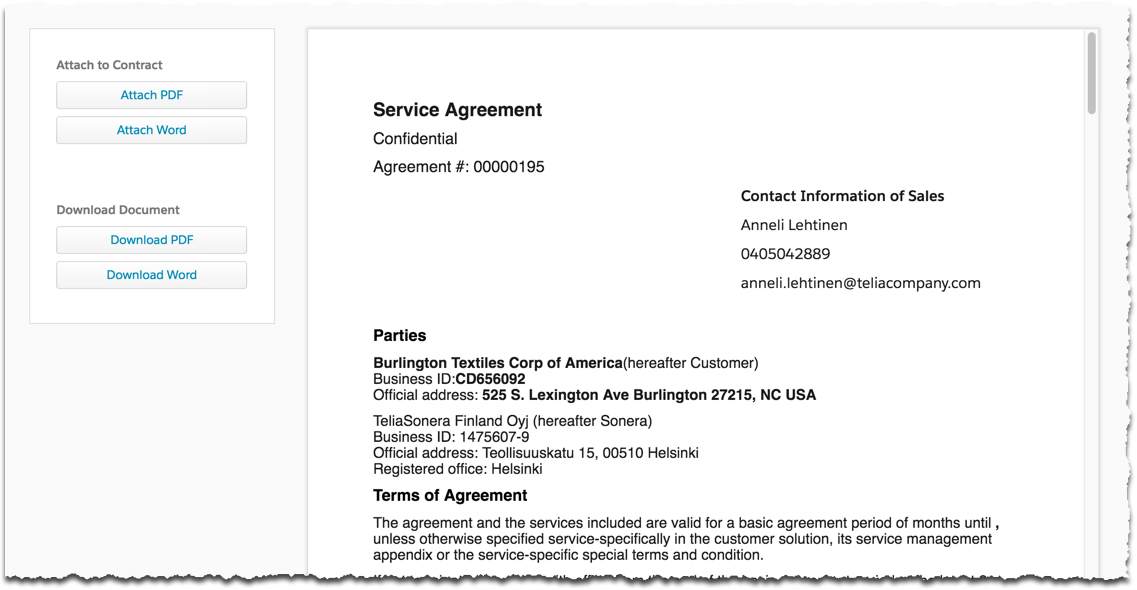
From the preview, you can attach a Microsoft Word or PDF document to the
contract document.
-
To attach a PDF file, click Attach PDF.
Vlocity CLM uses the Salesforce.com PDF rendering service to create PDF documents. This service has its limitations. For more information, see "Visualforce PDF Rendering Considerations and Limitations," in the Visualforce Developer Guide.
-
To attach a Microsoft Word file, click Attach Word.
-
- From the preview, you can download the contract document as a Microsoft Word or PDF file.