You are here:
Reconciling Contract Documents
You can use Vlocity CLM to generate a Microsoft Word document. After that, you can download that document, edit it, send it to others in your organization, and have them edit it as well. When you receive the edited document, you can import the document into Vlocity CLM and reconcile the changed Microsoft Word document with the online contract document. Note that restricted sections are not modified.
Vlocity CLM creates a new contract document version and attaches the Microsoft Word file to the new version. Vlocity CLM can sync variable information from the changed Microsoft Word document with the Salesforce fields, if those values were changed.
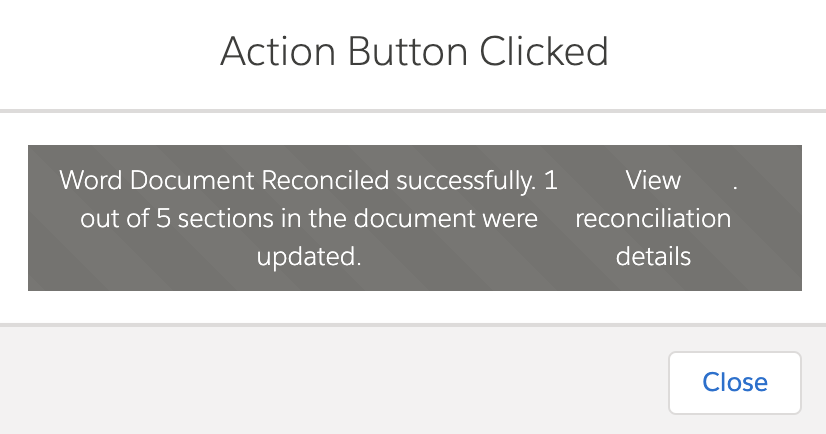
Sections marked as restricted in Vlocity CLM cannot be changed. However, as of this writing, there is no indication in Microsoft Word that a section is restricted. The only way to know that a section is restricted is to pay attention to the reconciliation message. The message includes how many changes there are in the Microsoft Word document and how many changes were implemented. For example, there may be four changes made, but only two implemented. The other two were in a restricted section. It is very important to view the reconciliation details and note the restricted sections that were not changed.

- Server-side document generation isn’t supported with Vlocity CLM operations such as compare, check out to generate or customize, and reconcile.
- Reconciling contract documents isn’t supported for Web templates that run in batch mode.
- Creating Vlocity Web templates using the inbuilt template editor prevents compatibility issues between HTML and Microsoft Word formatting.
To reconcile a contract document:
- Using the App Launcher, go to Contracts.
- Open the contract with the document.
- Scroll down to the Contract Documents area, and expand it.
- Expand the contract document version to reconcile.
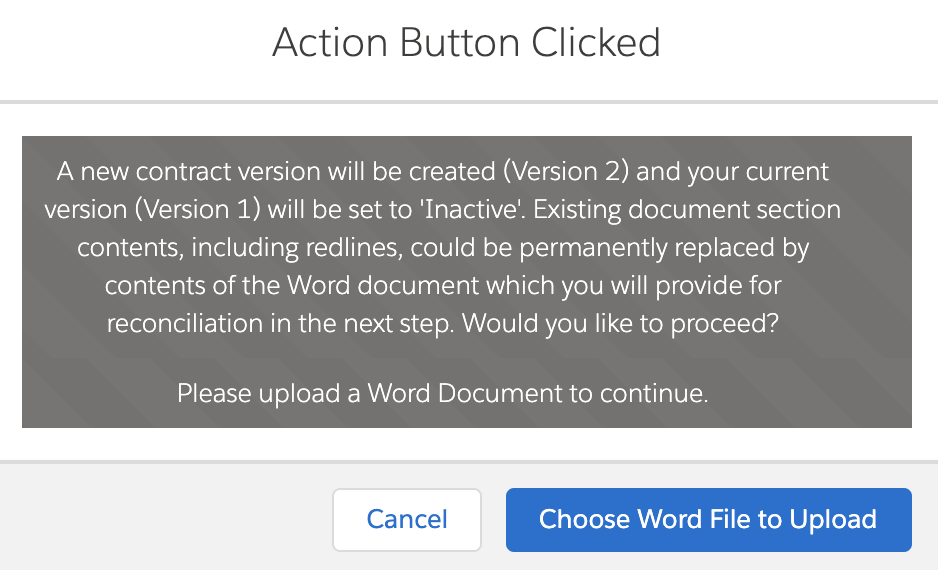
- Click Reconcile Word Doc.
- Click Choose Word File to Upload.
-
Find and select the Microsoft Word file, and then click
Open.
When you import the Microsoft Word document into Vlocity CLM, Vlocity CLM creates a new contract document version and locks it.
For Web templates, Vlocity CLM updates the HTML contract document version with sections from the imported Microsoft Word document. To enable this, you must have the following contract type settings for the Default Contract Type set to Yes:
-
IncludeWordTrackChangesinReconciliation
-
IncludeWordTrackChangesinSectionContent
For Microsoft Word DOCX templates, Vlocity CLM updates the context sections and clause sections from the imported Microsoft Word document. To enable this, you must complete the setup procedure in Reconcile Documents for Microsoft Word DOCX Templates.
When the reconciliation is complete, Vlocity CLM checks in the contract document version. Vlocity CLM converts the contract document version to Microsoft Word, PDF, or both, and attaches it to the current contract document version. In addition, Vlocity CLM attaches the reconciled Microsoft Word document to the contract document version. Vlocity CLM unlocks the contract document version.
-
-
To view the reconciled document, click View Reconciliation
Details.
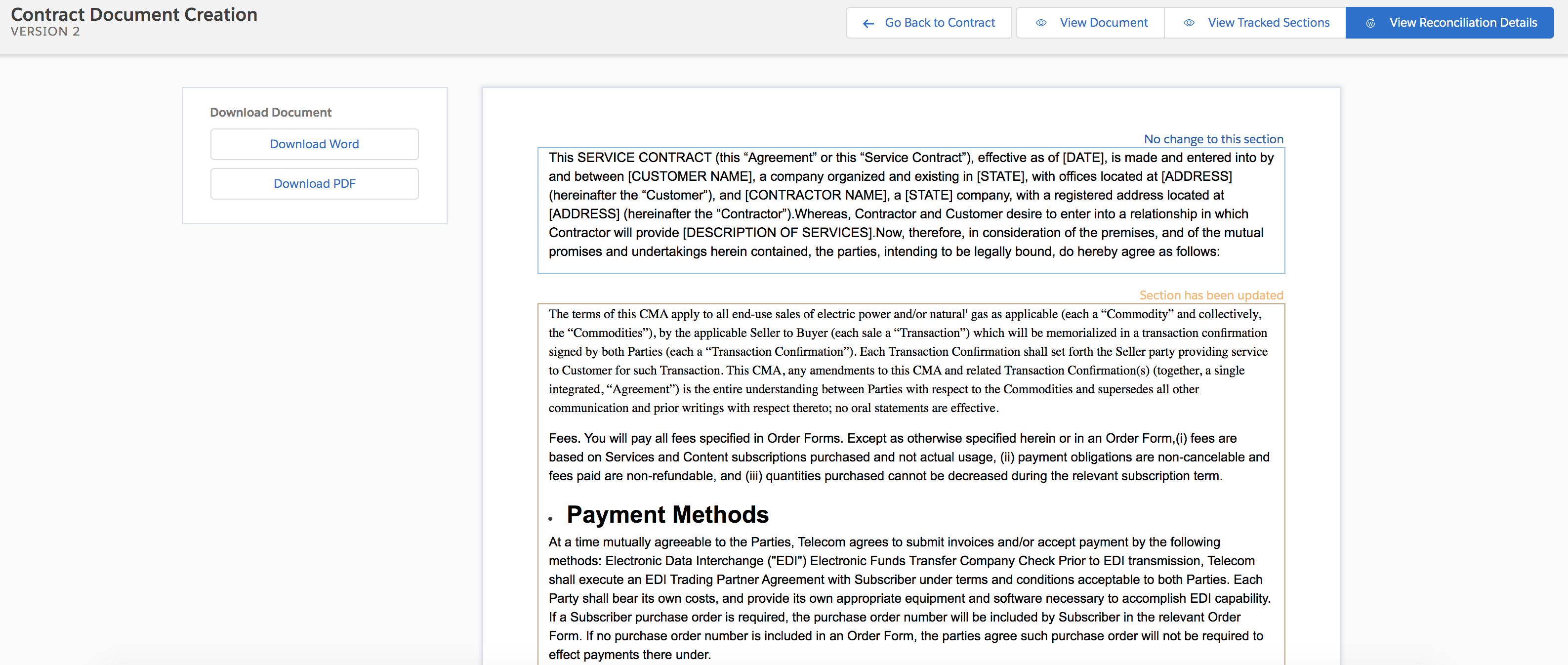
Vlocity CLM displays which sections were changed and which sections were not. Some sections might be restricted, and you'll see a message for those, "Section was not updated because it is a restricted section." You can select one of the following viewing options:
Option
Description
View Document
View the entire document.
For Microsoft Word DOCX templates, this means you see all the sections in addition to any part of the document that is not in a section.
View Tracked Sections
For Microsoft Word DOCX templates only (Web templates do not need this option because everything in the document is in a section). View only the document sections.
View Reconciliation Details
View the entire document with section boundaries, and details about which sections have changed.