You are here:
Renewing a Contract
Vlocity CLM can generate renewal notifications before contract expiration.
If contracts are not flagged for automatic renewal, a person must work to renew the contract. The person searches for contracts expiring within a specified amount of time and then initiates the renewal process. Vlocity provides a sample renewal process in an Omniscript. Alternatively, Vlocity can notify the a person that a contract is coming up for renewal, using the Renewal Notification feature.
-
Vlocity CLM converts the contract and line items to a new opportunity and opportunity line items, called the renewal opportunity. Vlocity CLM sends a notification to the appropriate person. The contract administrator configures when Vlocity CLM generates the renewal opportunity. For example, the default lead time may be three months before expiration.
Use this process for complex contracts, including B2B contracts.
-
Vlocity CLM automatically generates a new quote or order. The lead time is typically shorter. Vlocity CLM can send the new contract document to the customer for signature. After the customer signs the contract, the contract goes into effect.
Use this process for simple contracts, such as customer and small business contracts.
You can send renewal notifications for expiring contracts and create renewal Opportunities and assign them to the proper salesperson.
The renewal process uses the Renew Contract reference process, which Omniscript implements.
To renew a contract:
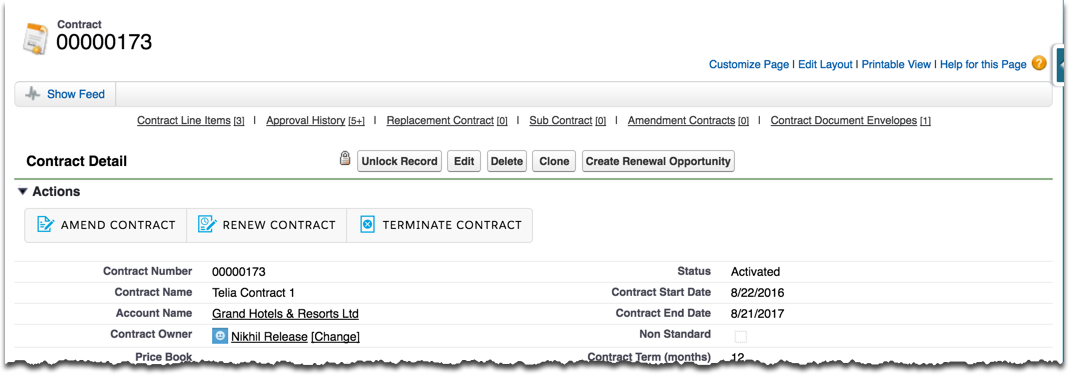
- On the Contract record detail page, click Renew Contract.
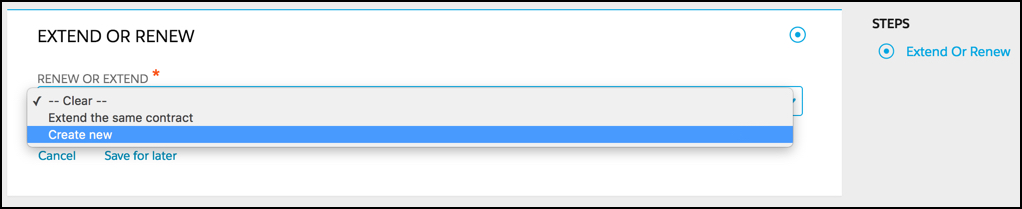
- From the Renew or Extend picklist, select one of the following options:
-
To extend the existing contract, select Extend the same contract.
-
To create an entirely new contract, select Create new.
-
- Click Next.
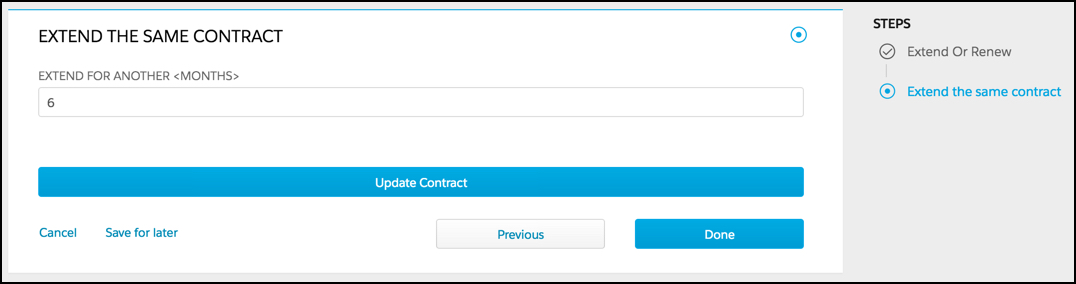
- If you chose to extend the same contract, follow these steps:
- Enter the number of months for which to extend the contract.
- Click Update Contract.
- Click Done.
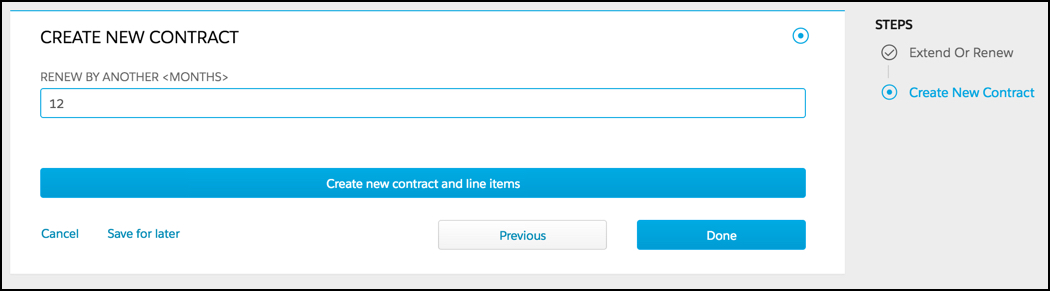
- If you chose to create a new contract, follow these steps:
- Enter the number of months for the new contract term.
- Click Create new contract and line items.
- Click Done.