You are here:
Submitting a Contract for eSignature
DocuSign manages the contract document signature flow. After DocuSign gathers the signatures, DocuSign sends the signed contract document back. Vlocity CLM can automatically attach the signed contract document to the latest version of the contract. Vlocity CLM and DocuSign are integrated to use eSignatures.
When a contract document is available to send for eSignature, Vlocity CLM notifies the recipients, and can include a message. You can configure who the recipients are, where in the contract they sign, and the labels and other text used. Recipients are associated with Contacts.
A contract goes into effect when it is signed and executed. The Contract Status field indicates the current contract state, for example:
-
negotiating
-
finalizing
-
awaiting approval
-
signed
-
active
-
expired
Vlocity CLM is integrated with DocuSign. Contracts are sent to all parties using secure email. After all parties have signed, the contract state becomes Approved.
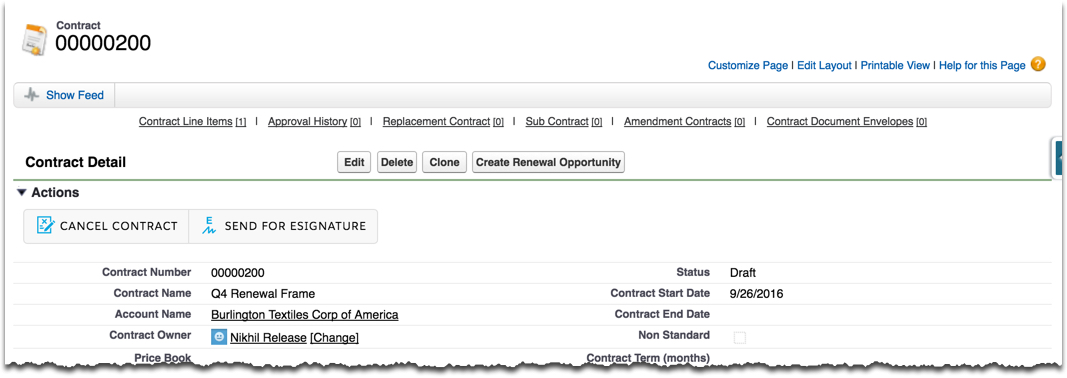
- On the Contract record detail page, click Send for eSignature.
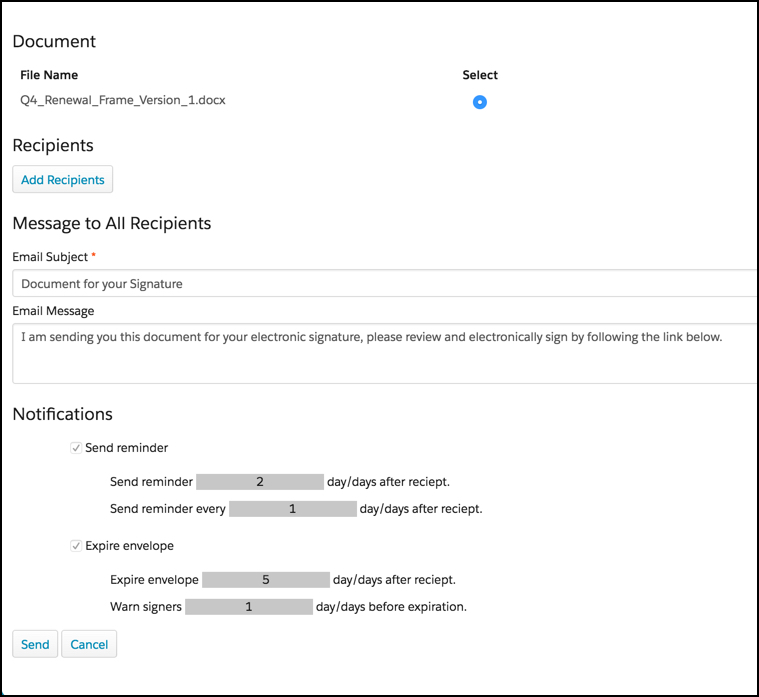
- Click Add Recipients.
-
Enter the following information:
-
Routing Order is the sequence in which the messages are sent.
-
Recipient Name is the name of the recipient, which can be taken from contacts.
-
Email is the recipient’s email address, which can be taken from contacts.
-
The Type is the role that the DocuSign recipient plays. A user might be required to sign the document, or may just be copied on the message.
-
The Signer Role is based on the signer roles the contract administrator created in the DocuSign integration. For more information, see Setting Up DocuSign Integration.
-
Access Code is a password that the recipient must use to access the document. DocuSign provides this as an additional security feature.
-
- In Email Subject, enter a subject line for the email message.
- Enter the Email Message itself.
-
Select the notifications to send and when to send them.
Envelope is a DocuSign signature session. The envelope expires if the signatories do not sign the document within the specified time frame.
- Click Send.