You are here:
Creating a New JSON-Based Template
In JSON-based document templates, data in JSON format can come from any source and can be mapped to tokens using Omnistudio Data Mapper, Omniscript, Apex code, or other available tools. The data is merged into the document when you generate the document.
For more information about JSON-based mapping document templates, see Understanding JSON-Based Mapping Contract Templates.
The Data Mapper bundle mapping is optional. You must provide the mapping if you do not use Data Mapper to map tokens. The Apex method to fetch all the tokens for a given template is DRDocTemplateIntegrationUtilityService.getAllTokensForJSONBasedTemplate(Id templateId).
To create a JSON-based document template:
- Follow steps 1 through 5 in Creating a New Vlocity Web Template . Make sure you have selected the JSON Based and Contract options.
- (Optional) Enter a Mapping Data Mapper Bundle Name.
- (Optional) Enter a Data Extract Data Mapper Bundle Name.
- (Optional) To generate a Microsoft Word document from this template, enter a Word Document Template Name.
To use a static resource document, enter the exact name of the Static Resource Document in the Word Document Template Name field. The name you provide in the Word Document Template Name field must match the name of the static resource exactly for the template to work correctly.
- To show tokens that have not been mapped, select Display Unmapped Tokens.
If a token is not mapped, when Display Unmapped Tokens is selected, the token appears as %%tokenname%% in the output document. If Display Unmapped Tokens is not selected, the space for the token is left blank.
 Note
NoteIf a token is mapped and the data is null, Vlocity CLM can replace it with empty string.
- To extract the tokens in an embedded template, select Extract Embedded Template Tokens.
If you select this, CLM extracts tokens from embedded child templates into the mapping Data Mapper of this template. You must map these extract tokens in the Data Mapper.
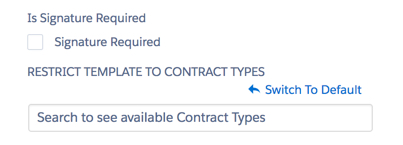
- To allow a template to be used for all contract types, in the Restrict Template to Contract Types area, select All Contract Types.
- To restrict a template to specific contract types, follow these steps:
- Clear the All Contract Types check box.
- Search for the appropriate contract type.
- After setting the remaining template settings, you can edit the template's default styles. For more information, see Formatting a Web Template.
- Follow steps 8 through 12 in Creating a New Vlocity Web Template.