
You are here:
Create and Activate Vlocity Web Template
Create a Vlocity web document template from scratch without using existing material.

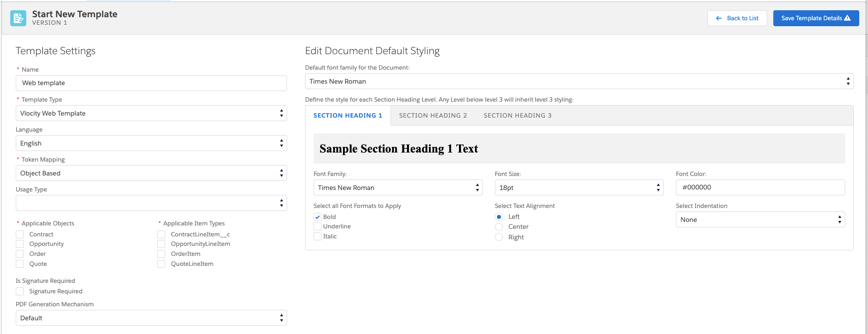
To create a Web document template:
- Using the App Launcher, go to Vlocity Document Template.
- Click New.
- Enter a Name.
- From the Template Type list, select Vlocity Web Template.
-
From the Language list, select your preferred
language.
Default language is set to English.
-
From the Token Mapping list, select the source for
document variables, or tokens. For more information, see Mapping Tokens in a Section.
-
To map tokens to fields on Salesforce objects, select Object Based.
-
To map tokens to information from a JSON data source, select JSON Based.
NoteUsing Document Generation in Vlocity Government, you can’t use object-based templates. You must use JSON-based templates. Object-based templates apply only to specific objects, such as Contract, Opportunity, Order, and Quote.
-
-
From the Usage Type list, select what this template
is used for. To use this template for contracts, select
Contract.
You can use the usage type as a filter in Omniscripts or custom user interfaces to filter document templates so that only the templates that apply to a particular task are displayed.
If the tokens in this document template are JSON-based, the usage type specifies that the document template is used for contract management. For documents with JSON-based tokens, you can further categorize the template to belong to all contract types or a list of specified contract types.
-
The remaining template settings depend on whether you chose
Object Based or JSON Based in step
6.
-
If you chose Object Based, go to Creating a New Object-Based Template.
-
If you chose JSON Based, go to Creating a New JSON-Based Template.
-
- After setting the remaining template settings, you can edit the template's default styles. For more information, see Format a Document Template.
-
Click Save Template Details.
Note
You can’t add sections to a document template until you save the template.
- Add sections to the document template. For more information, see Creating a Document Template Section in CLM.
- To activate the template, click Activate.
- Click Save All Sections.
- If you click Activate, the Save Template Details message opens. Click Yes, Save Template.
- Creating a New Object-Based Template
In an object-based document template, each token is mapped to a Salesforce object field. The object data is merged into the document when the document is generated. Object-based templates apply only to specific objects, such as Contract, Opportunity, Order, and Quote. - Creating a New JSON-Based Template
In JSON-based document templates, data in JSON format can come from any source and can be mapped to tokens using Omnistudio Data Mapper, Omniscript, Apex code, or other available tools. The data is merged into the document when you generate the document.
