
You are here:
Using the docGenerationSample/multiDocxVF Omniscript
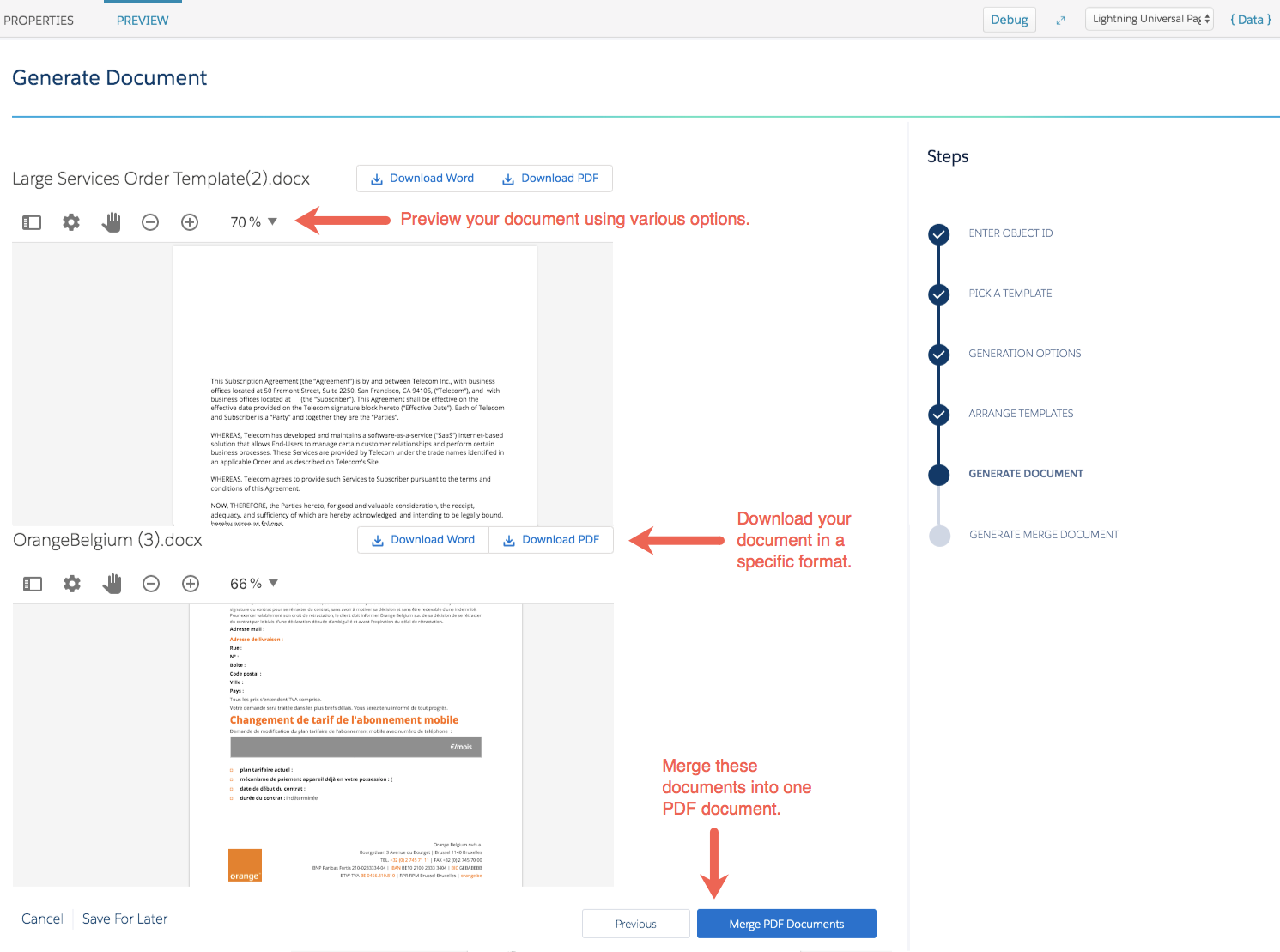
This Omniscript generates documents from your Microsoft Word templates or your Microsoft PowerPoint templates. In addition, this Omniscript can generate documents from more than one document template at a time. You enter the Object ID, pick a template, select different options for generating, and CLM generates the document.
In Spring '25, Salesforce has retired Visualforce-based document generation Omniscripts included in the Install DocGenerationSample datapack from the Industries Communications, Media, Energy & Utilities (CME), and Insurance (INS) managed packages. Salesforce won't support or upgrade the sample or cloned versions of the retired VF Omniscripts. You must transition to the Lightning Web Components-based Omniscripts, which are already available in the Install DocGenerationSampleLwc datapack of these managed packages. See Visualforce-Based Document Generation Omniscripts Are Being Retired.
Omniscript Steps
-
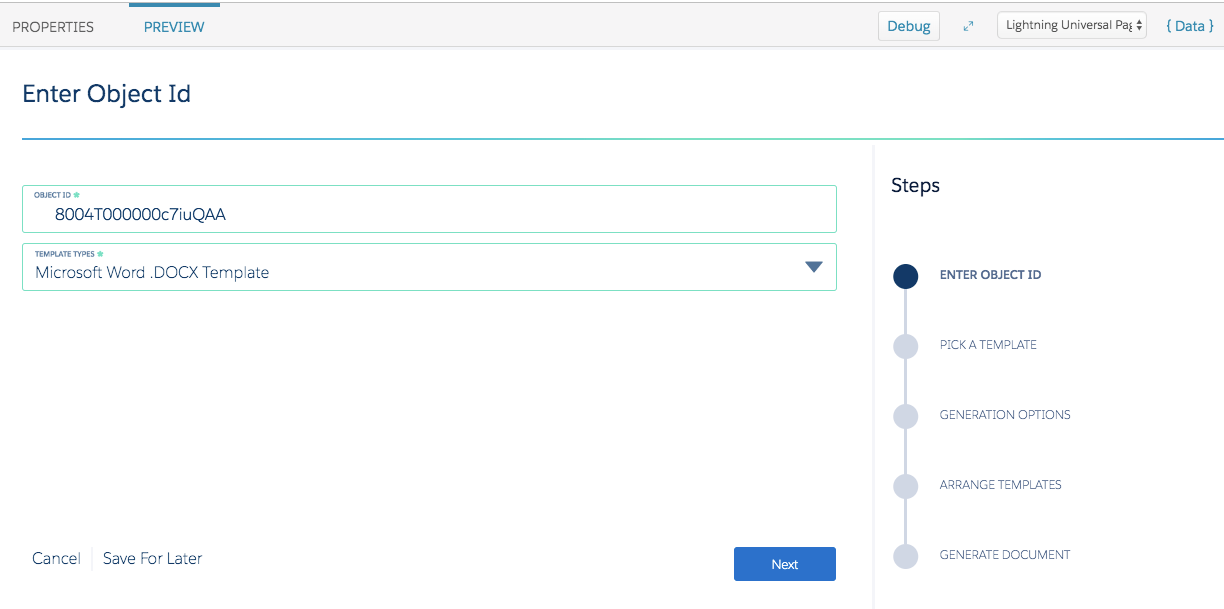
Enter Object ID
You are required to make a selection for both fields.
Template Type Microsoft Word DOCX document template or Microsoft PowerPoint PPTX document template
-
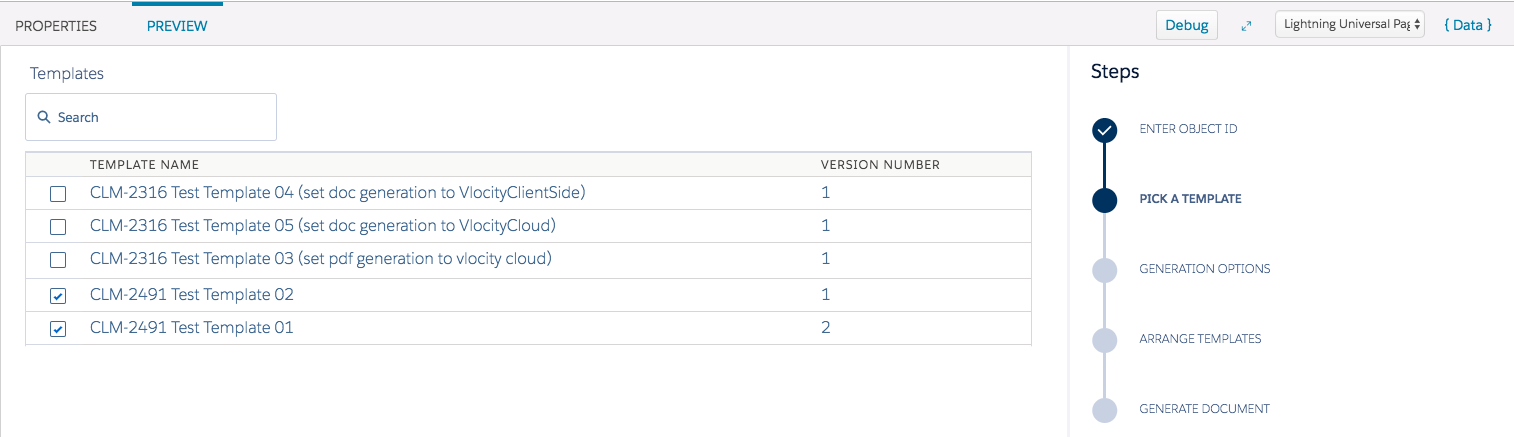
Pick a Template
You can select more than one document template, but you must select at least one. Also, you can search for document templates in the Search box.
-
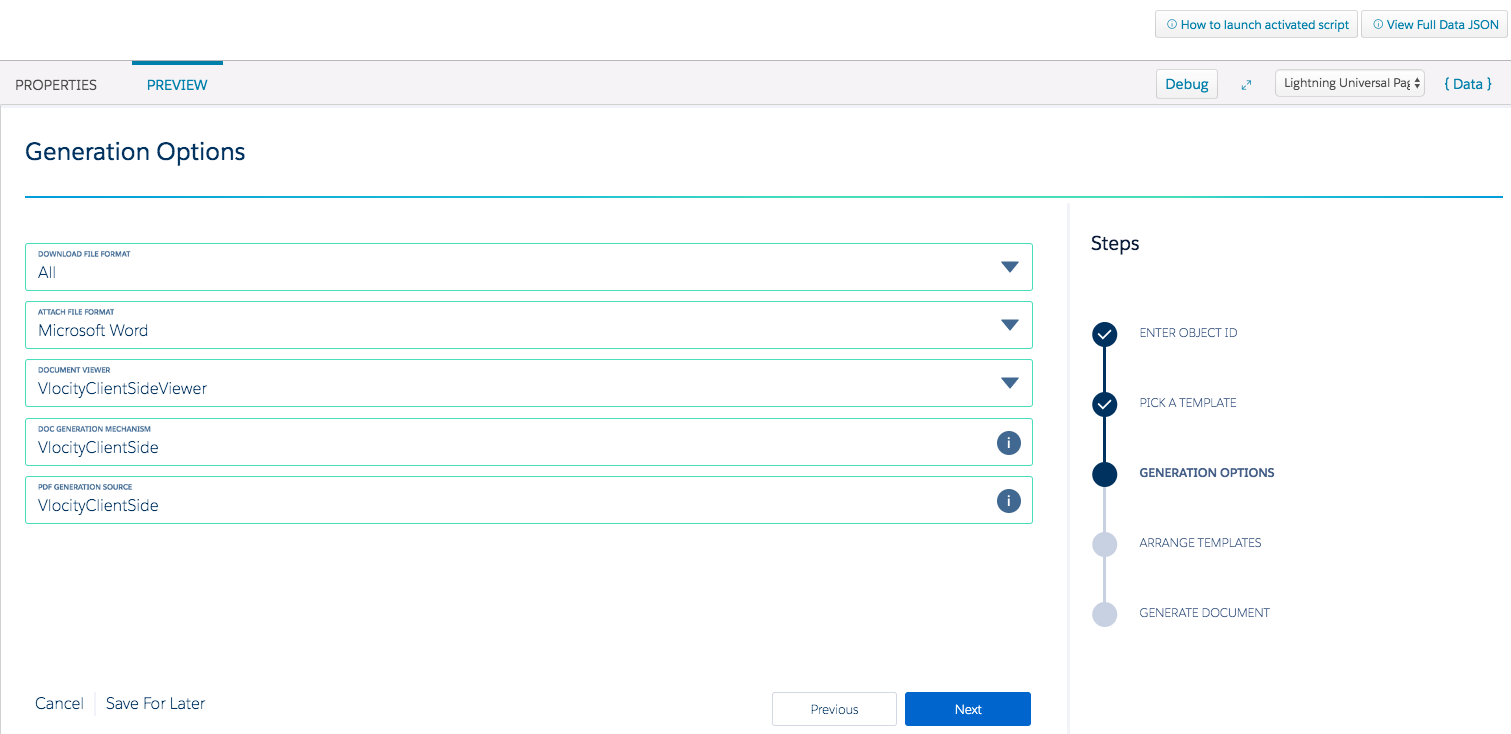
Generation Options
Optional: Select options for downloading, attaching, document generation, and PDF generation. Defaults are displayed in the fields, but you can select the option of --clear-- if you do not want to use those values.
For document generation and PDF generation, the Omniscript uses the settings in the document template and if they aren't set there, the Omniscript uses the organization-level settings.
-
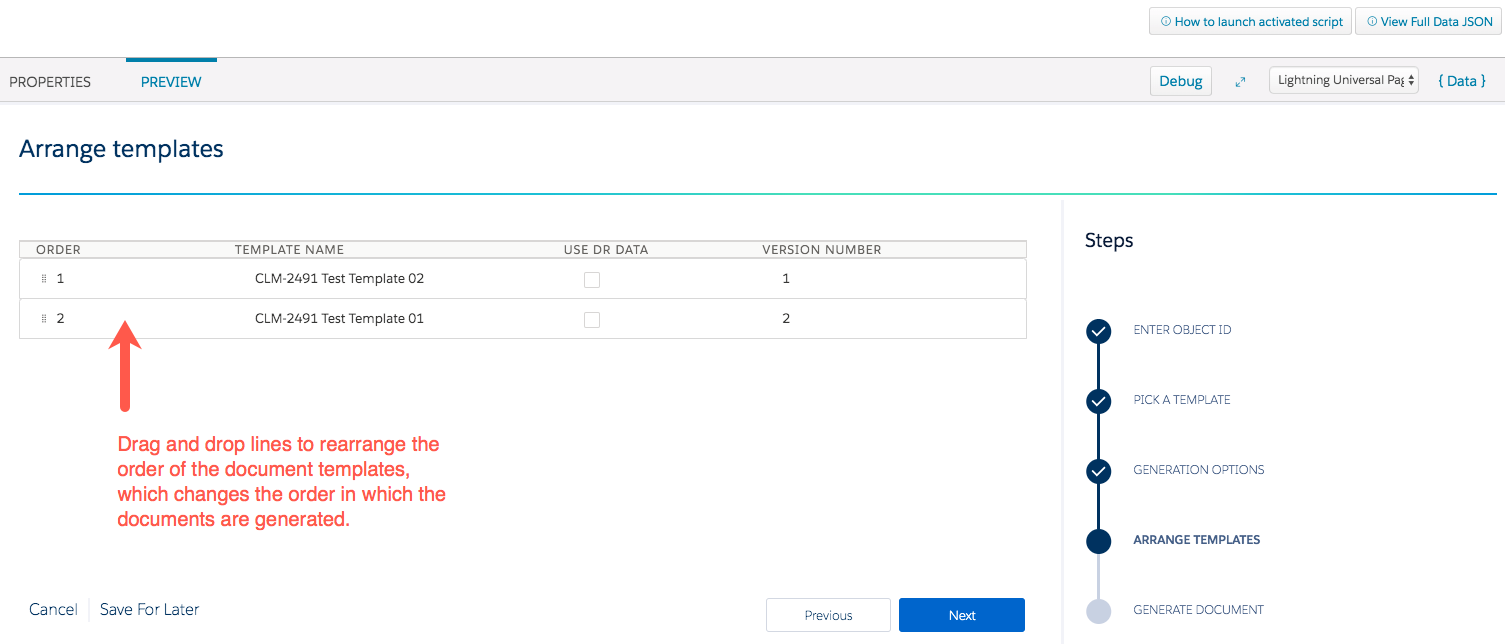
Arrange Templates
Change the order of the templates by dragging and dropping. Also, select whether you want to use the Omnistudio Data Mapper data or not.
-
Generate Document
After you generate the document, you can merge your multiple documents into one PDF document if you'd like. If you selected only one template, you do not see this option.
-
Generate Merge Document
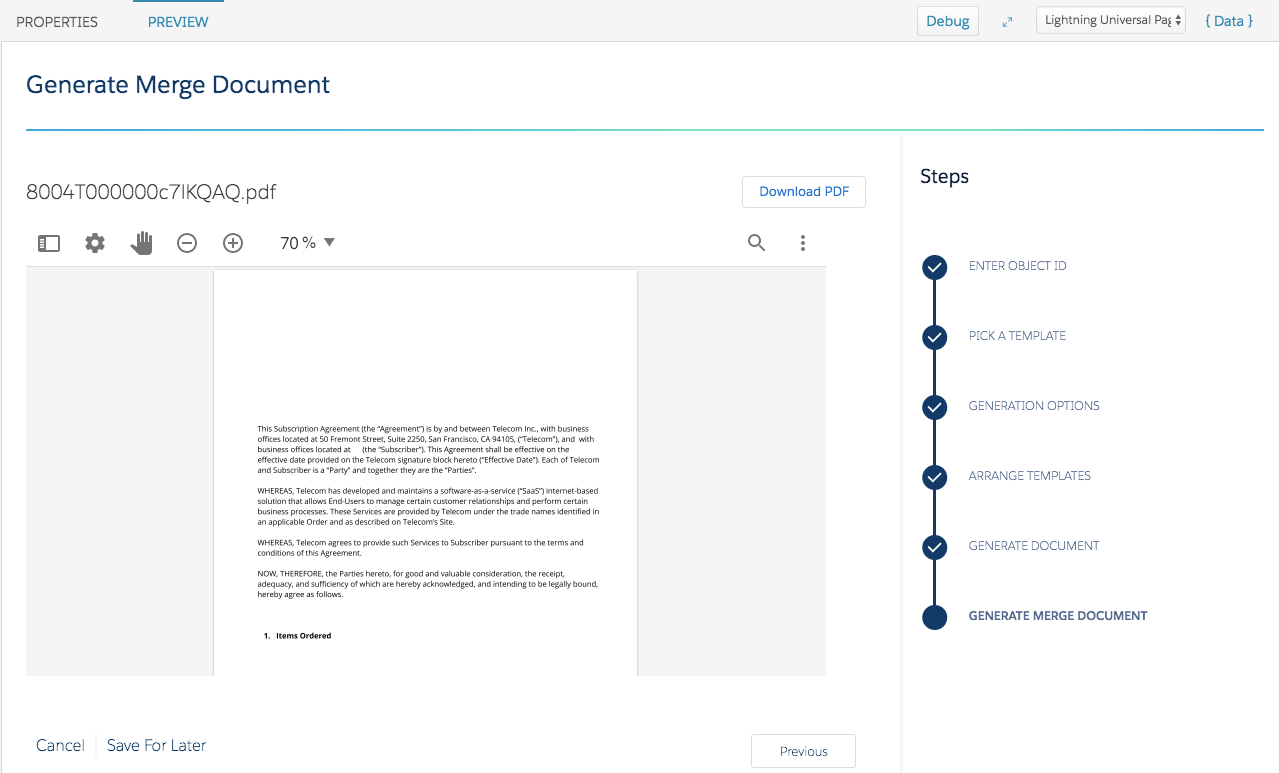
Download the PDF of the merged documents after the Omniscript generates it.
Omniscript Structure
Review these properties in this Omniscript. If you want to make changes to the structure, Vlocity recommends that you clone a copy of this Omniscript and rename it.
-
Script Configuration
-
EnterDetails
objectId This is the Salesforce Object ID that will be assigned to contextID later in the Set Values step.
TemplateType You can use either a Microsoft Word (DOCX) document template or Microsoft PowerPoint (PPTX) document template.
-
GetDocumentTemplates
This Data Mapper extract step retrieves all active all active DOCX or PPTX document templates (JSON Based) using the DocGenSample-GetDocumentTemplatesForType Data Mapper Interface.
-
PickTemplate
This step captures the different IDs of the document templates using the DocumentTemplate selectable list.
-
Set Values
This step sets the required variables for document generation.
contextId Salesforce Object ID
templates Selected template IDs
templateType Microsoft Word (DOCX) document template or Microsoft PowerPoint (PPTX) document template
-
GenerationOptions
DownloadFileFormat What type of document do you want to download?
-
all (default) You can download all file formats.
-
docx You can download Microsoft Word files.
-
pptx You can download Microsoft PowerPoint files.
-
pdf You can download PDF files.
-
none You cannot download any files.
AttachFileFormat What file type do you want to attach?
-
docx (default) You can attach Microsoft Word files.
-
pptx You can attach Microsoft PowerPoint files.
-
pdf You can attach PDF files.
-
docx, pdf You can download Microsoft Word and PDF files.
-
pptx, pdf You can attach Microsoft PowerPoint files and PDF files.
-
none You cannot attach any files.
Document Viewer What do you want to use to preview your document?
-
VlocityClientSideViewer (default) You use the Vlocity Client Side Viewer to preview the document.
-
None You cannot preview the document.
DocGenerationMechanism What do you want to use to generate your document?
-
VlocityClientSide (default) You use Vlocity Client side to generate the document.
-
VlocityCloud This feature is for beta users only.
-
VlocityClientSide (default) The PDF is generated by Vlocity Client Side.
-
Salesforce The PDF is generated by Salesforce.
-
Vlocity Cloud This feature is for beta users only.
UseTemplateDRExtract Do you want to use the Data Mapper in the document template or do you want to provide data extracted within the Omniscript?
-
Yes (default) Token values are extracted from the Data Mapper associated with the document template you're using.
-
No Token values need to be available in Omniscript data and mapped in the document template's Data Mapper mapper. You must make sure that all the token mapping of that Data Mapper in the document template is mapped with the Omniscript data.
-
-
Set Generation Options
This step maps the values from the previous one to corresponding variables.
-
RearrangeSelectedTemplateList
This steps gives the option of changing the order of the document templates you picked in the PickTemplate step.
-
GenerateDocument
This step generates the document with the option to send an email with the generated document attached.
Generation uses docgensample-object-document-multi-generation-docx-sample that uses Javascript to invoke Apex classes for document generation.
The components ValidateVariables and ValidateMessage are used for validation to make sure that the required variables (templateId, contextID, templateType) are correctly set before document generation.
-
GenerateMergeDocument
This step combines multiple PDF documents into one document.
