
You are here:
Using the docGenerationSample/singleDocxLwc Omniscript
This Omniscript generates one document from your Microsoft Word DOCX document templates or your Microsoft PowerPoint PPTX document templates. You enter the Object ID, pick a template, select different options for generating, and CLM generates the document.

This feature is available for Salesforce Industries Communications, Media, and Energy Spring '20 and higher users only.
You can use this Omniscript, which is a Salesforce Lightning Web Component, as a starting point for your own custom Omniscript. If you want to customize it, clone the existing version and make your changes to that Omniscript.
You can add this Omniscript to different objects, not just contracts. You can use this Omniscript for other objects like quotes, orders, or opportunities. For example, you can add it to the Quotes page to easily access it from there.
If you don’t see the docGenerationSample/singleDocxLwc Omniscript available in Vlocity Templates, import and activate it. Click the upper-right dropdown arrow and select Install DocGenerationSampleLwc.

Unlike other CLM Omniscripts, you must activate the docGenerationSample/singleDocxLwc Omniscript before you can preview it. You preview this Omniscript in the LWC Preview tab.
Lightning Web Components used in this Omniscript
For details on each LWC, click the name in the following list:
Omniscript Steps
-
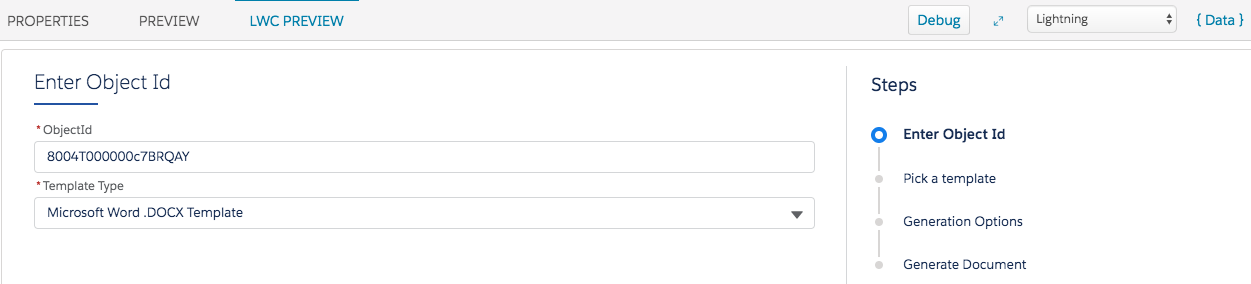
Enter Object ID and Template Type
You enter the object ID, such as the contract ID and select the document template type.
You can only choose a Microsoft Word DOCX or Microsoft PowerPoint PPTX document template.
-
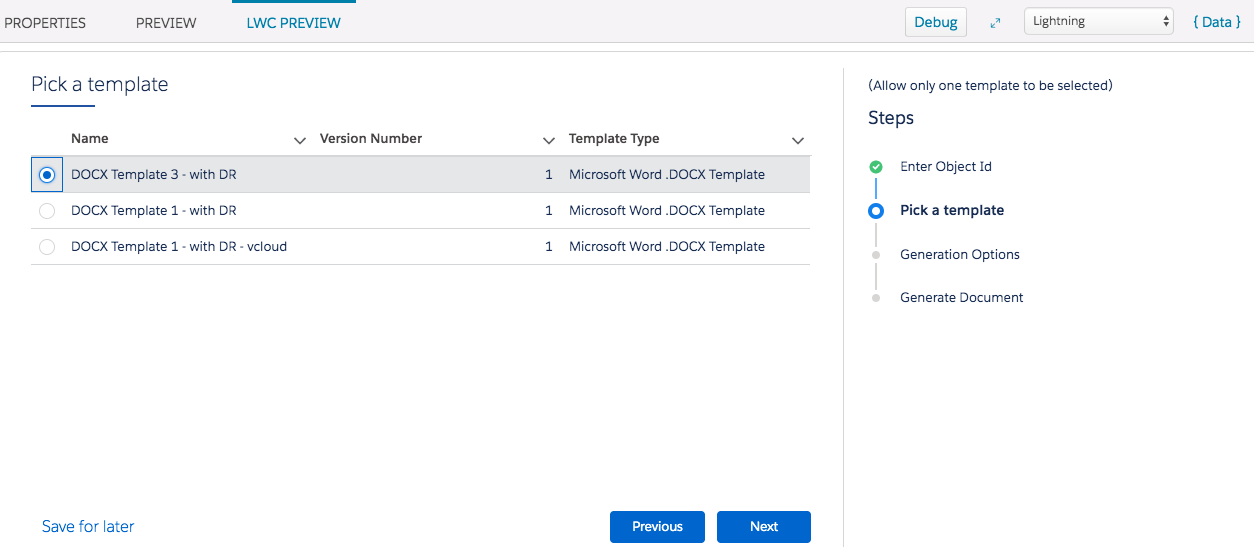
Pick a Template
-
Generation Options
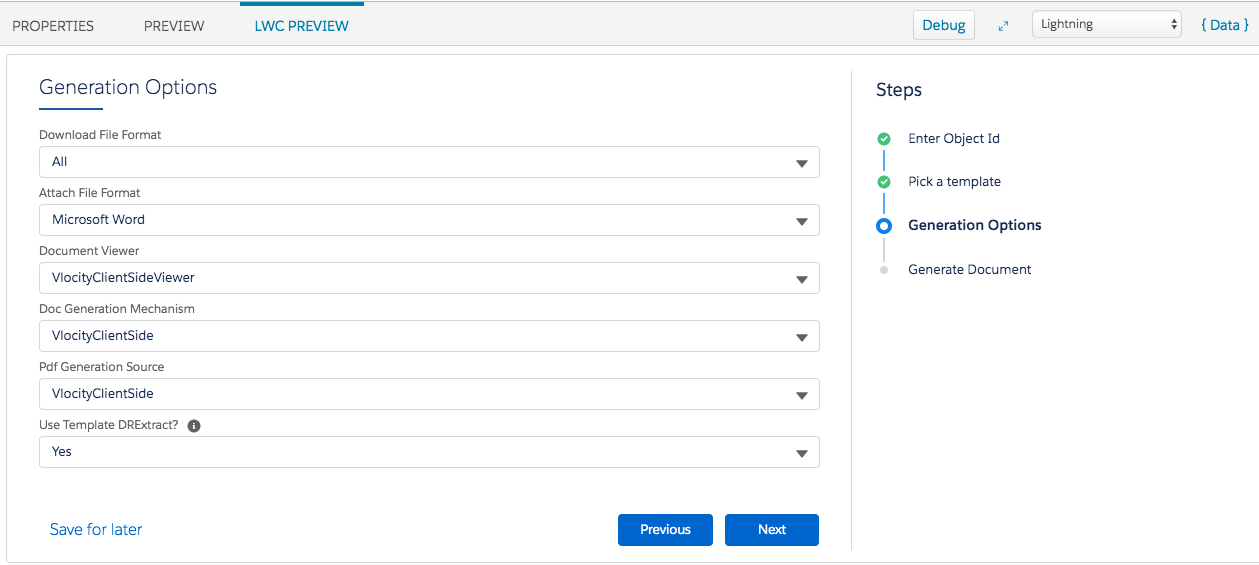
Select different download, attach, generation, and Data Mapper options. For setting up these options and the details, see Generation Options in the Omniscript Structure. Or if you clear all these fields, the Omniscript uses the org-level settings.
Download File Format File format to download
Attach File Format File format to attach
Document Viewer Setting that displays a preview of the generated document or a thumbnail (Microsoft Word icon)
Doc Generation Mechanism Source of the document generation
Pdf Generation Source Source of the PDF generation
Use Template DRExtract? Whether you want to use values extracted from the associated template or do you want to provide data
-
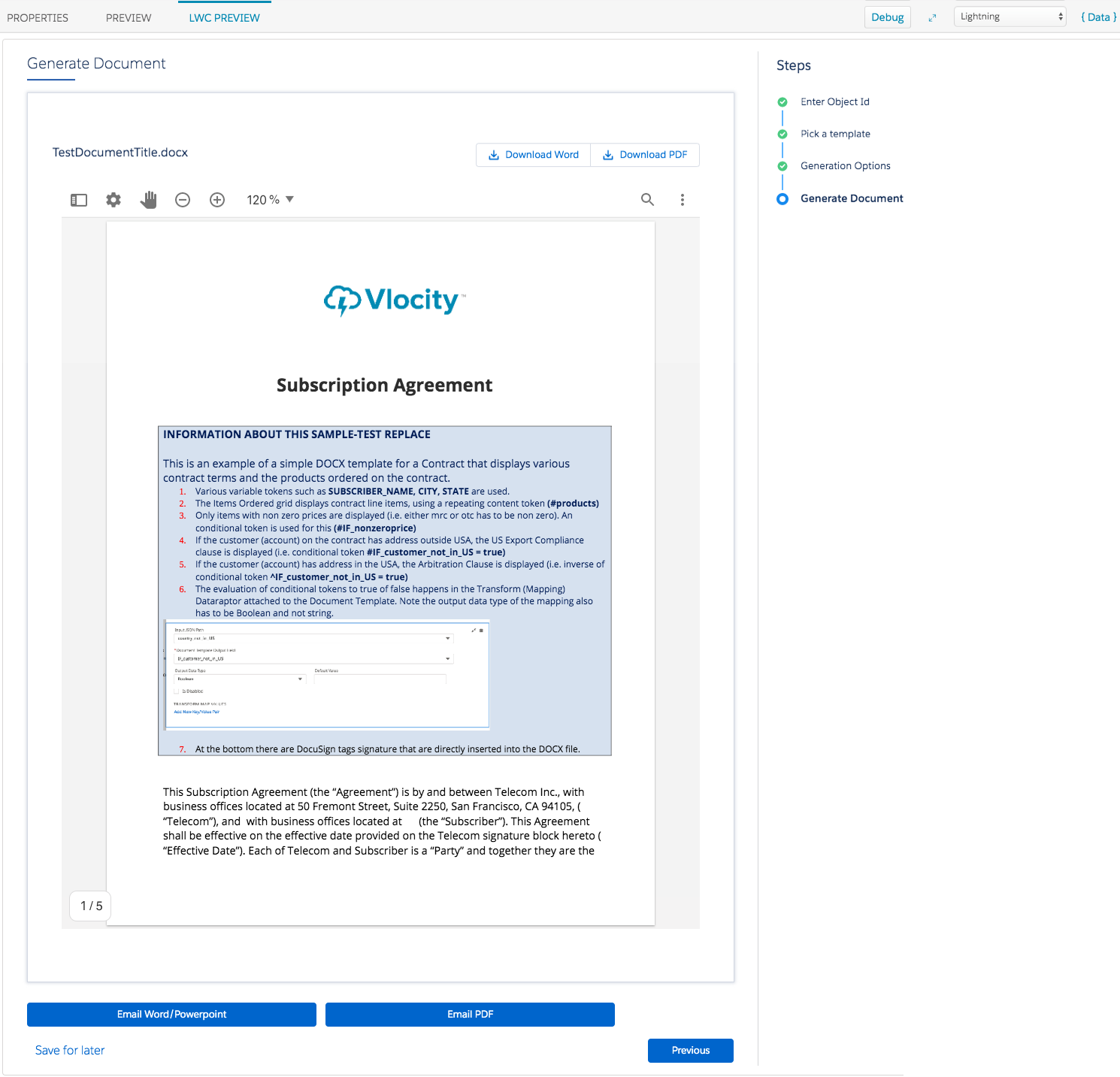
View Your Generated Document
You can email the generated document or PDF if you've set up the email address list.
Omniscript Structure
-
Script Configuration
When you select the Enable LWC check box, you can see the code necessary to embed this LWC in your own code:
The component tag is <c-doc-generation-sample-single-docx-lwc-english></c-doc-generation-sample-single-docx-lwc-english> -
EnterObject
ObjectID: This captures the Salesforce ID of the object on which the document is generated. This ObjectId is used in the SetValues step to set the contextID.
TemplateType: This Omniscript supports only DOCX or PPTX template types, so you can’t change these values.
-
GetDocumentTemplates
The DocGenSample-ExtractDocumentTemplatesLWC Data Mapper extracts all the templates with the Microsoft Word DOCX or Microsoft PPTX document template type. Click the link next to the Data Mapper field if you want to edit the Data Mapper filters based on your requirements.
-
PickTemplate
This component displays the list of templates and is created from the clmSelectableItems LWC. You’re required to define the following parameters for this LWC:
template-list: Displays the list of templates from the extract results of the Data Mapper.
clear-state-on-change: Clears the previously selected template if the user goes back in the Omniscript because they want to change their previous selection.
-
SetValues
You’re required to define the following parameters for this LWC because they’re necessary for document generation.
contextId Salesforce Object ID for which the document is needed. If not available, the LWC looks for contextId or ContextId in the Omniscript's Data JSON, so you must define one of these items.
selectedTemplate Select the document template data from the previous step.
templateType The only options are Microsoft Word DOCX or Microsoft PowerPoint PPTX document templates. The LWC uses templateType from the Omniscript DataJSON, and if it doesn’t exist, the LWC gets it from the Template Query.
-
GenerationOptions
attachFileFormat What are the file formats you want to attach?
-
None (default)
-
PDF
-
DOCX
-
PPTX
-
DOCX, PDF (both DOCX and PDF are attached)
-
PPTX, PDF (both PPTX and PDF are attached)
documentViewer How do you want to view the generated document?
-
VlocityClientSideViewer (displays preview of document)
-
None (displays thumbnail, which is a Microsoft Word icon)
docGenerationMechanism What does the LWC use to generate the document? VlocityClientSide is the only option because Vlocity Cloud is for beta users only.
pdfGenerationSource Where does the LWC use to generate the PDF? VlocityClientSide is the only option.
downloadFileFormat What are the file formats you want to download?
-
all (default)
-
word (only Microsoft Word files)
-
ppt (only Microsoft PPT files)
-
pdf (only PDF files)
-
none (Download button is hidden)
useTemplateDRExtract Do you want to use the Data Mapper in the template or do you want to provide data extracted within the Omniscript?
-
Yes Token values are extracted from the Data Mapper associated with the template you're using.
-
No Token values need to be available in Omniscript data and mapped in the template's Data Mapper. You must make sure that all the token mapping of that Data Mapper in the template is mapped with the Omniscript data.
-
-
Set Generation Options
The Omniscript sets the options that you defined in the GenerationOptions step.
-
Generate Document
GenerateDocumentWord The clmOsDocxGenerateDocument LWC generates documents and attaches them to the object. Documents using DOCX templates are stored in Content Version. The list of documents is available in the Notes & Attachments section on the Related tab of the page. The Type is File for documents because they are stored in Content Version.
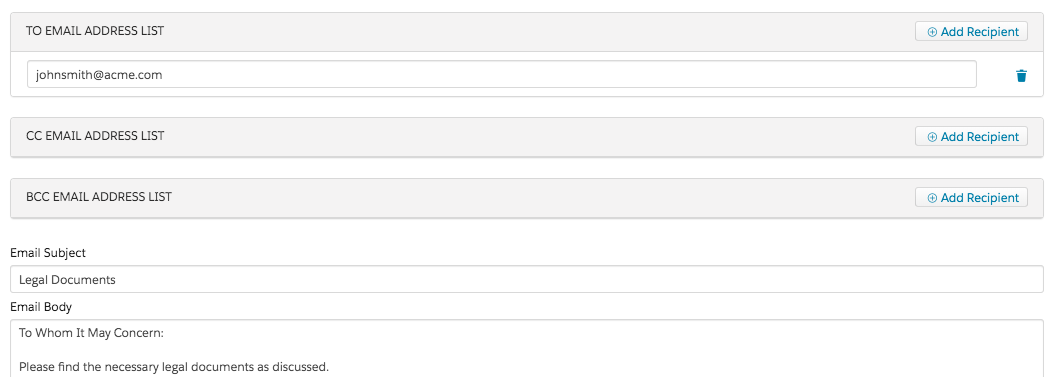
EmailWordDocument Define the email address lists and your email content if you want to send the documents in email after generating them.
EmailPDFDocument Define the email address lists and your email content if you want to send the document in email after generating them.
- Adding the docGenerationSample/singleDocxLwc Omniscript to Pages
Your users can easily access the docGenerationSample/singleDocxLwc Omniscript from Contracts, Quotes, Orders, or Opportunities.
