
You are here:
Using the docGenerationSample/singleWebLwc Omniscript
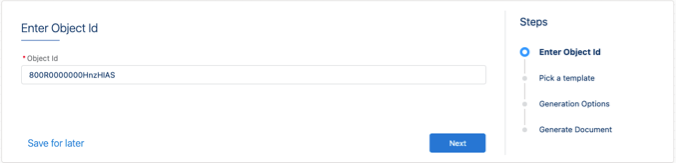
This Omniscript generates documents from Web templates. You enter the Object ID, pick a template, and the Omniscript generates the document, which you can download or email as a Microsoft Word file or PDF file.
singleWebLwc Omniscript Steps
-
Enter Object ID
-
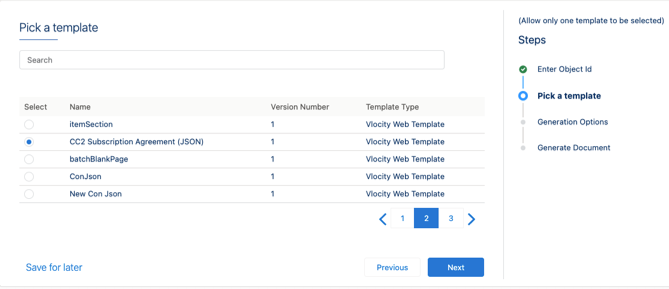
Pick A Template
Select a template, or search for a template and then select it.
The list only displays all available Vlocity Web Templates type.
-
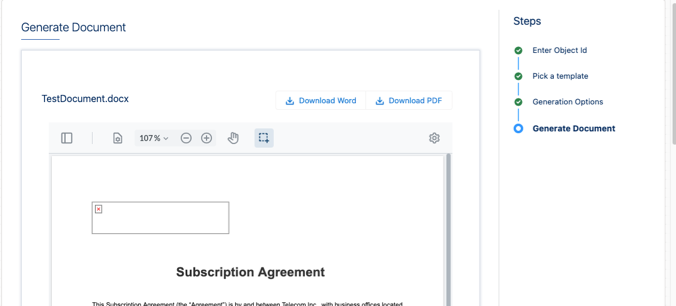
Generate Document
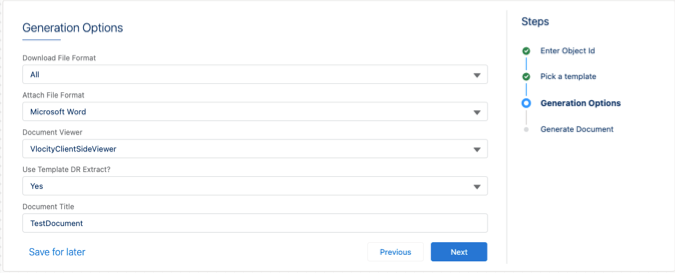
Optional: Select the file formats and other options. Each option is set to its default unless you change it. See the Omniscript step properties table for further details.
Then you can download or email the file. Define the email recipients before you can email the file. For details, see the GenerateDocument step in Omniscript Structure.
singleWebLwc Omniscript Structure
Review these properties in this Omniscript. If you want to customize the Omniscript, cloning and renaming a copy is recommended.
-
Script Configuration
-
EnterObject
ObjectId This is the Salesforce Object ID that is assigned to contextID later in the Set Values step.
-
GetDocumentTemplates
This Data Mapper extract step retrieves all active Web templates using the DocGenSample-GetDocumentTemplatesForType Data Mapper Interface.
-
PickTemplate
This step captures the different IDs of the templates in the DocumentTemplate selectable list using the LWC component clmSelectableItems.
-
GenerationOptions
DownloadFileFormat What type of document do you want to download?
-
all (default) You can download all file formats.
-
docx You can download Microsoft Word files.
-
pdf You can download PDF files.
-
None You can’t download any files.
AttachFileFormat What file type do you want to attach?
-
docx (default) You can attach Microsoft Word files.
-
pdf You can attach PDF files.
-
docx, pdf You can attach Microsoft Word files and PDF files.
-
None You can’t attach any file.
Document Viewer What do you want to use to preview your document?
-
VlocityClientSideViewer (default) You can use the Vlocity Client-Side Viewer to preview the document.
-
None You can’t preview the document.
UseTemplateDRExtract What do you want to use to generate your document?
-
Yes (default) Token values are extracted from the Data Mapper associated with the template you’re using.
-
No Token values must be available in Omniscript data and mapped in the template's Data Mapper. Ensure that all the token mapping of that Data Mapper in the template is mapped with the Omniscript data. The SetValues Omniscript property stores the data.
DocumentTitle This gives the option to overwrite the file name for display purposes in the document preview.
-
-
Set Values
This step sets the required variables for document generation.
-
contextId Salesforce Object ID of the object on which the document is generated. The ObjectID is used in the SetValues step to set the contextID.
-
templateID Web template ID
-
documentTitle File name of the generated document
-
attachFileFormat Attachment formats supported are DOCX, PDF, or both
-
documentViewer Displays the document in the viewer
-
downloadFileFormat Download formats supported are DOCX, PDF, or both
-
useTemplateDRExtract Determines whether you want to use the Extract Data Mapper specified in the document template you’re generating the document with or provide data extracted within the Omniscript to the template. The SetValues Omniscript property stores the data.
-
-
Generate Document
This step generates the document with the option of sending an email with the generated document attached as a Microsoft Word file or PDF file. Generation uses the LWC component clmOsWebGenerateDocument that uses Javascript to invoke Apex classes for document generation. The mandatory input fields are context Id, template Id, and document-title.
If you're going to send emails with the generated document as an attachment, you can set up the email recipients and the email message here.
