You are here:
Using the Generic Document Generation Omniscript
This Omniscript generates documents from your Web document templates, Microsoft Word document templates, or your Microsoft PowerPoint document templates. In addition, this Omniscript can generate documents from more than one document template at a time. You enter the Object ID, pick a template, and CLM generates the document.

To get the latest Generic Document Generation Omniscript, open the App Launcher and go to the Omniscript Designer tab. Choose to deactivate the Omniscript, and then activate it again. When you do this, you will overwrite any custom changes made to the previous version of the Generic Document Generation Omniscript.
Omniscript Steps
-
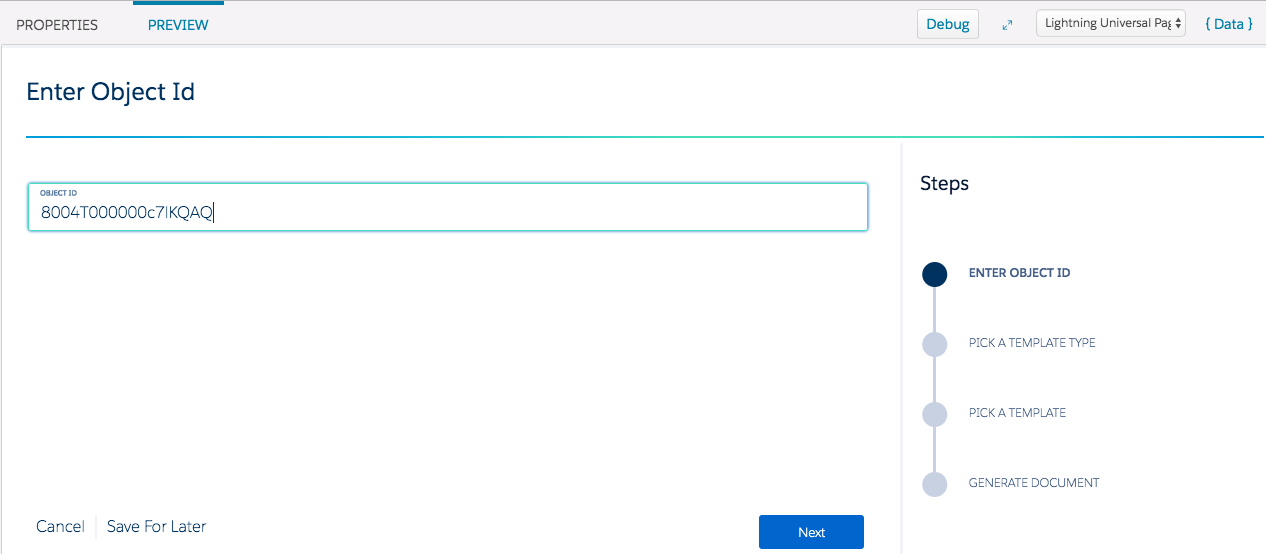
Enter Object ID
-
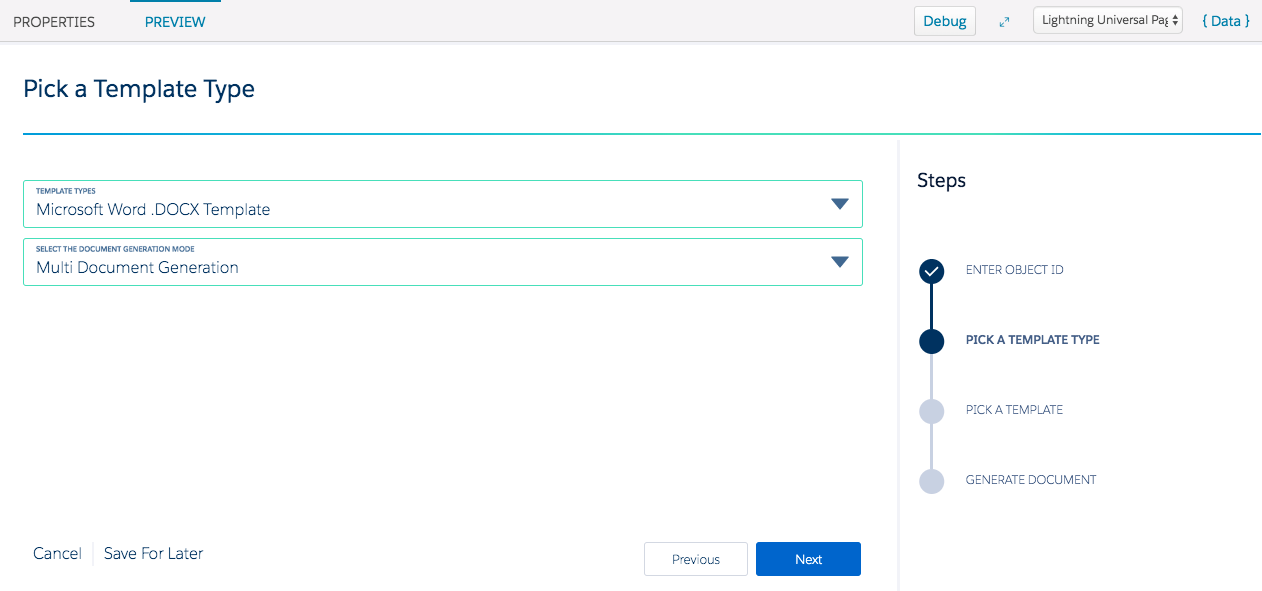
Pick A Template Type
You can select a Web document template, Microsoft Word DOCX document template, or Microsoft PowerPoint PPTX document template.
If you select a Microsoft Word DOCX document template or Microsoft PowerPoint PPTX document template, you have an additional option of choosing whether you are generating a document from one document template or you want to use multiple document templates.
-
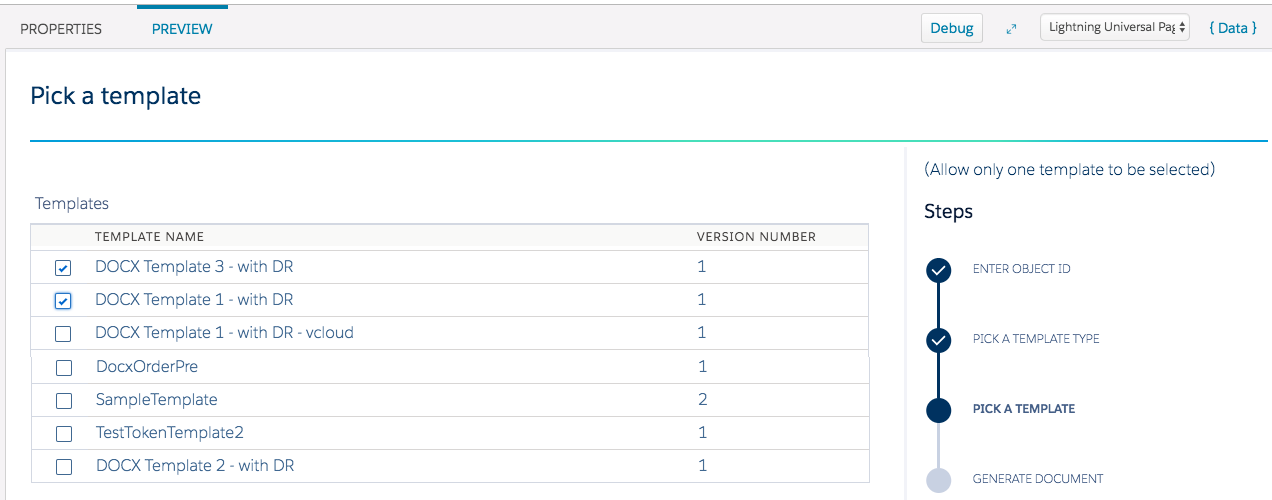
Pick a Template
You can select more than one document template, but you must select at least one.
-
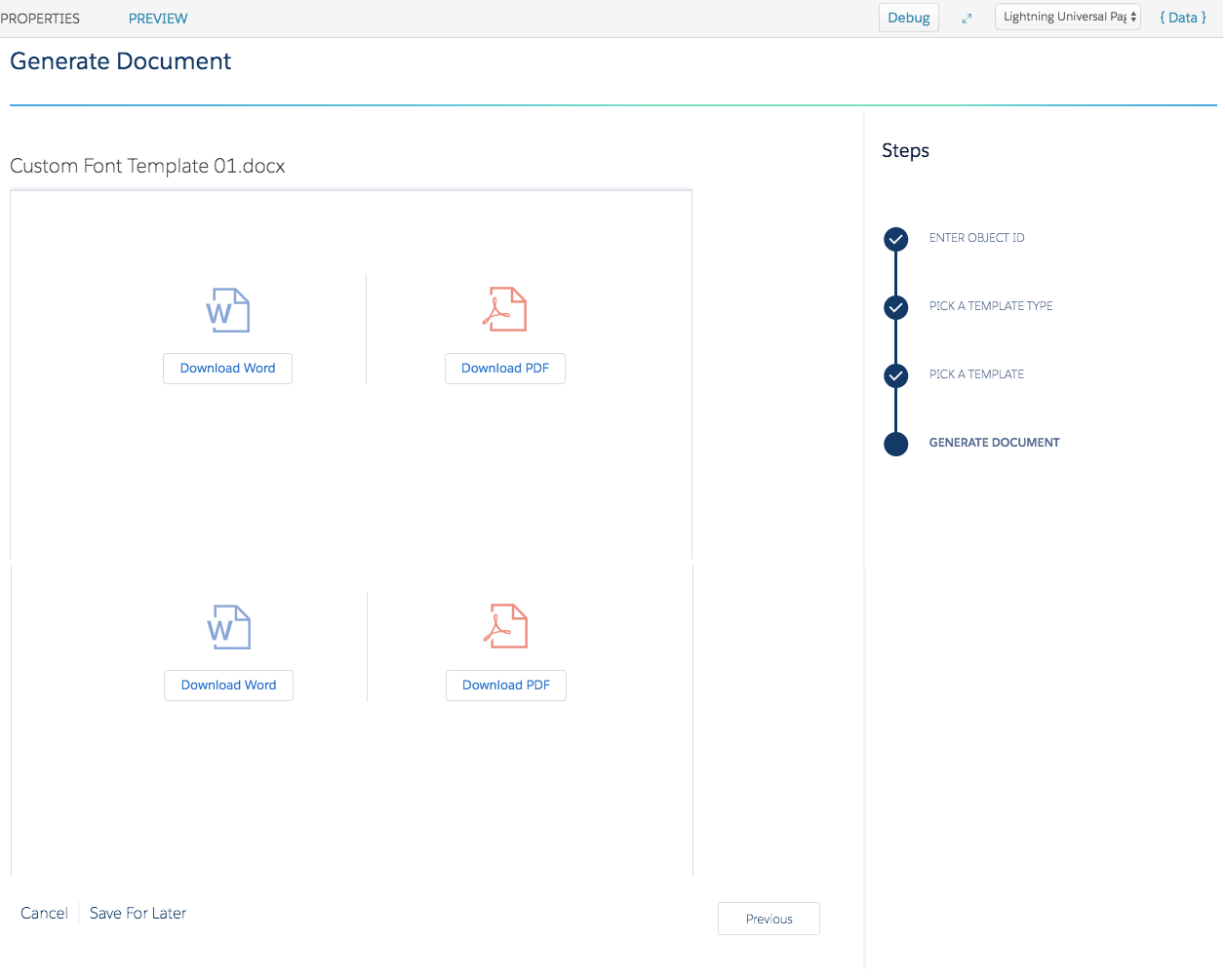
Generate Document
After you generate the document, you can download your document as a Microsoft Word file or a PDF file if you have set those up in the Omniscript Structure (see Step 7, Set Values).
Omniscript Structure
Review these properties in this Omniscript. If you want to make changes to the structure, Vlocity recommends that you clone a copy of this Omniscript and rename it.
-
Script Configuration
-
EnterObject
objectId This is the Salesforce Object ID that will be assigned to contextID later in the Set Values step.
-
Pick a Template Type
Template Type You can set the default, and the options are Vlocity Web Template, Microsoft Word .DOCX Template, or Microsoft PowerPoint .PPTX Template.
DocumentGenerationMode You can set the default, and the options are whether you are generating a single document or multiple documents.
multiDocumentGenerationValue This contains the condition that displays the option to select multiple document generation if the user selects a document template that is not a Web document template. Multiple document generation is supported only for Microsoft Word DOCX document templates and Microsoft PowerPoint PPTX document templates.
-
GetDocumentTemplates
This Data Mapper Extract uses the Data Mapper Interface GetDocumentTemplatesForType to retrieve all available active document templates depending on the document template type.
-
GetMultiDocumentTemplates
This Data Mapper Extract uses the Data Mapper Interface GetMultiDocumentTemplatesForType to retrieve all available active document templates depending on the document template type.
-
PickTemplate
DocumentTemplate This step captures the different IDs of the templates using the DocumentTemplate selectable list.
MultiDocumentTemplate This step captures the different IDs of the templates using the MultiDocumentTemplate selectable list.
-
Set Values
This step sets up the values for the Omniscript. The first four values are used in Step 8 for the remote call. You can add more mappings if your remote action requires them for processing.
templateId Selected template IDs
templateType This values determines whether you're using a Web document template, Microsoft Word (DOCX) document template or Microsoft PowerPoint (PPTX) document template.
contextId Salesforce Object ID
attachFileFormat You can set this value to attach your generated document in a certain file format. The options are:
-
None (No files are attached)
-
PDF (only PDF files are attached)
-
DOCX (only DOCX files are attached)
-
PPTX (only PPTX files are attached)
-
DOCX, PDF (both file types are attached)
-
PPTX, PDF (both file types are attached)
generateMultipleDocument This value sets up generating documents from multiple Microsoft Word (DOCX) document templates or Microsoft PowerPoint (PPTX) document templates.
documentType This value sets up the file format of the document that you're allowed to download after you generate the document. The options are:
-
all
-
Word
-
PPT
-
PDF
pdfViewer This displays a preview of your documents if you are generating from multiple Microsoft Word DOCX document templates or Microsoft PowerPoint PPTX document templates.
displayTitle If you want to override the document file name that displays after you generate your document, you can define the value in this field to a different name. However, you must deactivate the Omniscript first, add the display title, and activate the Omniscript again.
-
-
CreateObjDocument
This is a remote action to create a document on objects. Vlocity uses the input parameters set up in Step 7 for the remote action.
Vlocity accesses data in the remote action class in the following ways:
-
The Inputs map: This map contains all the Omniscript data and it may be costly to pass all the data to the remote action.
-
The Options map: This map uses selective key-value pair data. In the Generic Document Generation Omniscript, Vlocity passes required data through the Options map. The Context ID, TemplateID, and useTemplateDRExtract are set on this map.
The class name is ObjectDocument Service. The Method Name is createObjectDocument.
The class generates all the document section with its section content in HTML. It is a managed package class and not directly accessible to partners.The method "createObjectDocument" requires the following input parameters for generating the document.
contextId This is an optional and case-sensitive key that must always be passed in the Options map.
templateId This is a required and case-sensitive key that must always be passed in the Options map.
UseTemplateDRExtract Do you want to use the Data Mapper in the template or do you want to provide data extracted within the Omniscript?
-
Yes (default) Token values are extracted from the Data Mapper associated with the template you're using.
-
No Token values need to be available in Omniscript data and mapped in the template's Data Mapper. You must make sure that all the token mapping of that Data Mapper in the template is mapped with the Omniscript data.
Remote Timeout (ms): By default, the response of the remote call must return in 30 seconds or the call will time out. If you need to set up requests longer to complete, you can configure a longer timeout (up to 120 seconds).
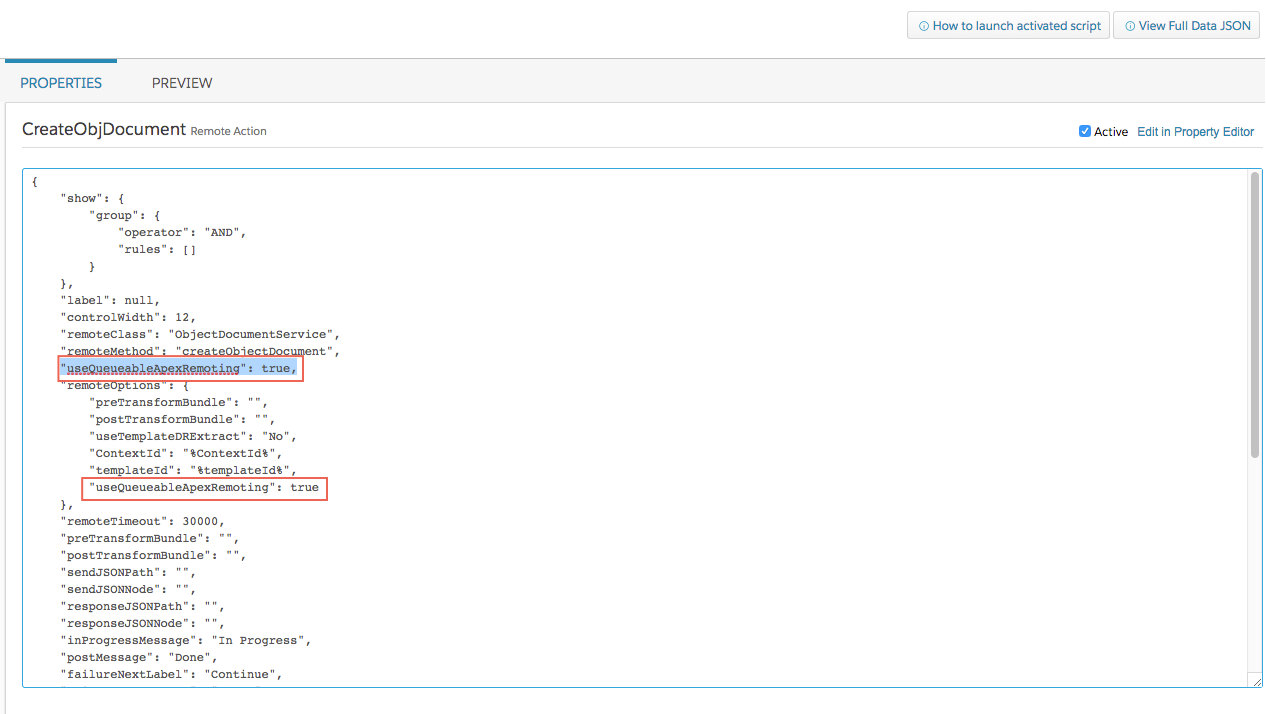
Remote action in the queue: To run the remote action in the queue, you must first select CreateObjDocument. After that, click "Edit as JSON." Then set the useQueueableApexRemoting as true in the Create Object Document Remote Action. You must add it in two places.
-
-
Generate Document
This step generates the document with the option to send an email with the generated document attached.
Generation uses HTML template Ids that use Javascript to invoke Apex classes for document generation.
-
For single Microsoft Word DOCX document templates or Microsoft PowerPoint PPTX document templates, generation uses object-document-creation-docx-template.
-
For single Microsoft Word DOCX document templates or Microsoft PowerPoint PPTX document templates, generation uses object-multi-document-creation-docx-template.
-
For Web document templates, generation uses object-document-creation-default.
Web Document Templates
Vlocity accesses the document generated in the GenerateDocumentWebTemplate step by using the token %docGenAttachmentId%. The values for docGenAttachmentId are assigned in the JSON of the Vlocity template object-document-creation-default with the Event Listener.
The EmailWebTemplate-Word and EmailWebTemplate-PDF steps are executed for Web document templates and give the option to email a Word file or PDF file of your document. Before Vlocity executes the step, you must add recipients to the list. After you finish the configuration, when you click the Email button in the preview or Omniscript, Vlocity sends email to the listed recipients.
Microsoft Word DOCX Document Templates and Microsoft PowerPoint PPTX Document Templates
The GenerateDocumentWordPPT and MultiGenerateDocumentWordPPT steps are executed for Microsoft DOCX or PPT document templates. Vlocity accesses the document generated in the GenerateDocumentWordPPT step by using the token %docGenContentVersionId%. The value for docGenContentVersionId is assigned in the JSON of the Vlocity template object-document-creation-docx-template with the Event Listener.
The EmailWordPPT and EmailPDFPPT steps are executed for Microsoft DOCX or PPT document templates. Before Vlocity executes the step, you must add recipients to the list. After you finish the configuration, when you click the Email button in the preview or Omniscript, Vlocity sends email to the listed recipients.
-