
You are here:
Using the GenericDocuSign/sendEsignature Omniscript
The sendEsignature Omniscript sends one or more generic documents (not generated from contracts) to DocuSign for eSignatures. You can send documents generated from other objects, such as quote, order, or opportunity, or send documents from custom objects.

This Omniscript is available only for users on Salesforce Industries Communications, Media, and Energy Fall '20 package version and higher.
sendEsignature Omniscript Steps
You can use sendEsignature Omniscript to send your documents for eSignature.
-
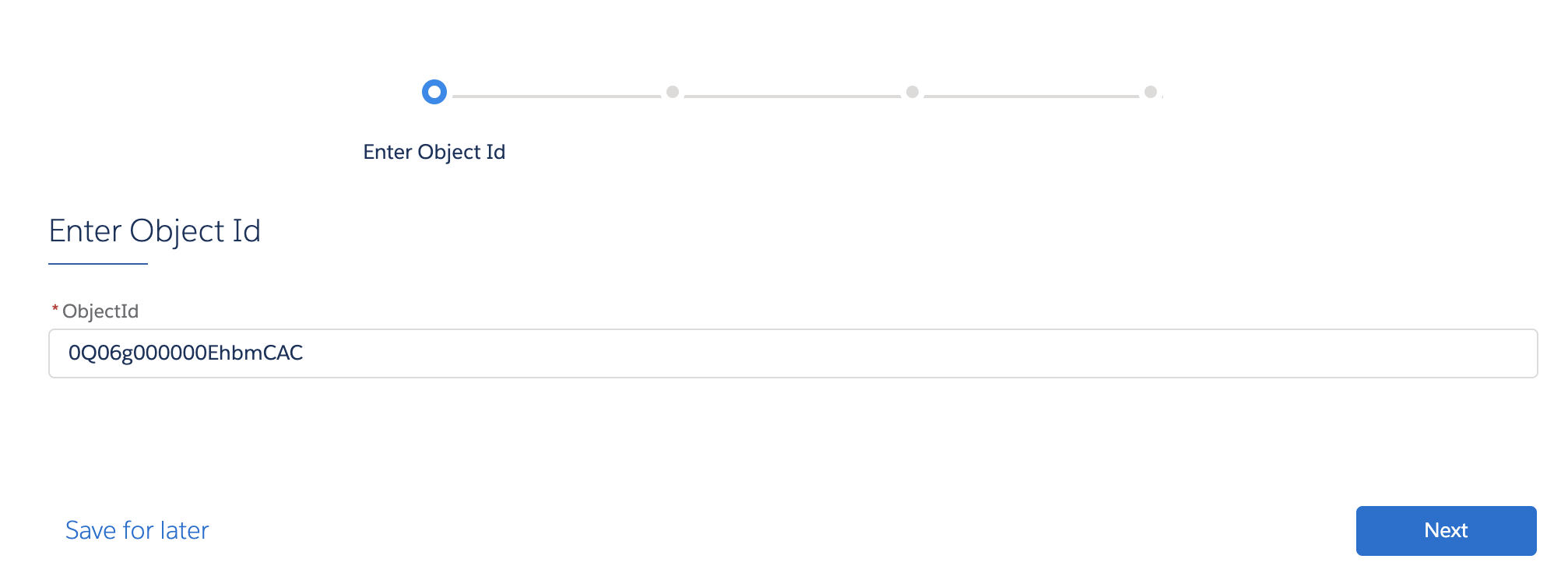
Enter an Object ID
-
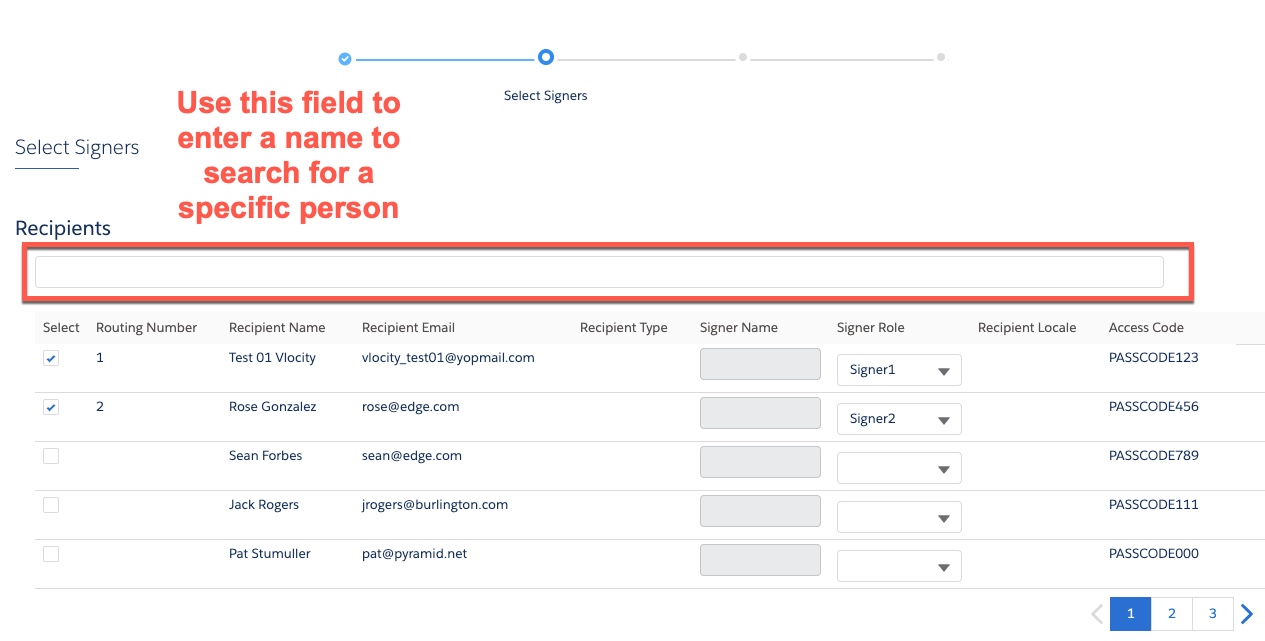
Select Signers
You select the signers who need to sign this document. This list of recipients and their emails is populated by the Omnistudio Data Mapper.
-
Routing Number: Automatically populated when you select a recipient. This determines the order in which DocuSign sends the document for signing. You can edit the routing numbers to control the order. Later, when you finalize these details, you'll have a chance to change the routing number if you'd like.
 Tip
TipIf you want the recipients to receive the document at the same time, you can edit the routing number to be the same. For example, if you want Rose and Sean to receive the document at the same time, edit their routing numbers to both be 1.
-
Recipient Name: Automatically populated.
-
Recipient Email: Automatically populated.
-
Recipient Type: DocuSign values (Signer, Host in Person, Carbon Copy, Certified Delivery). For details, see EnvelopeRecipients Resource.
NoteThese fields are processed correctly when you run the Omniscript, but not in the Vlocity Omniscript Designer.
-
Signer Name: Value required dependent on what you selected in recipient type.
-
Signer Role: This field determines which signer token gets filled out by their signature in the document.
Not needed if you select Certified Delivery.
-
Recipient Locale: Language of the recipient.
-
Access Code: This field acts a pin code before the signer can sign the document in the DocuSign website.
-
-
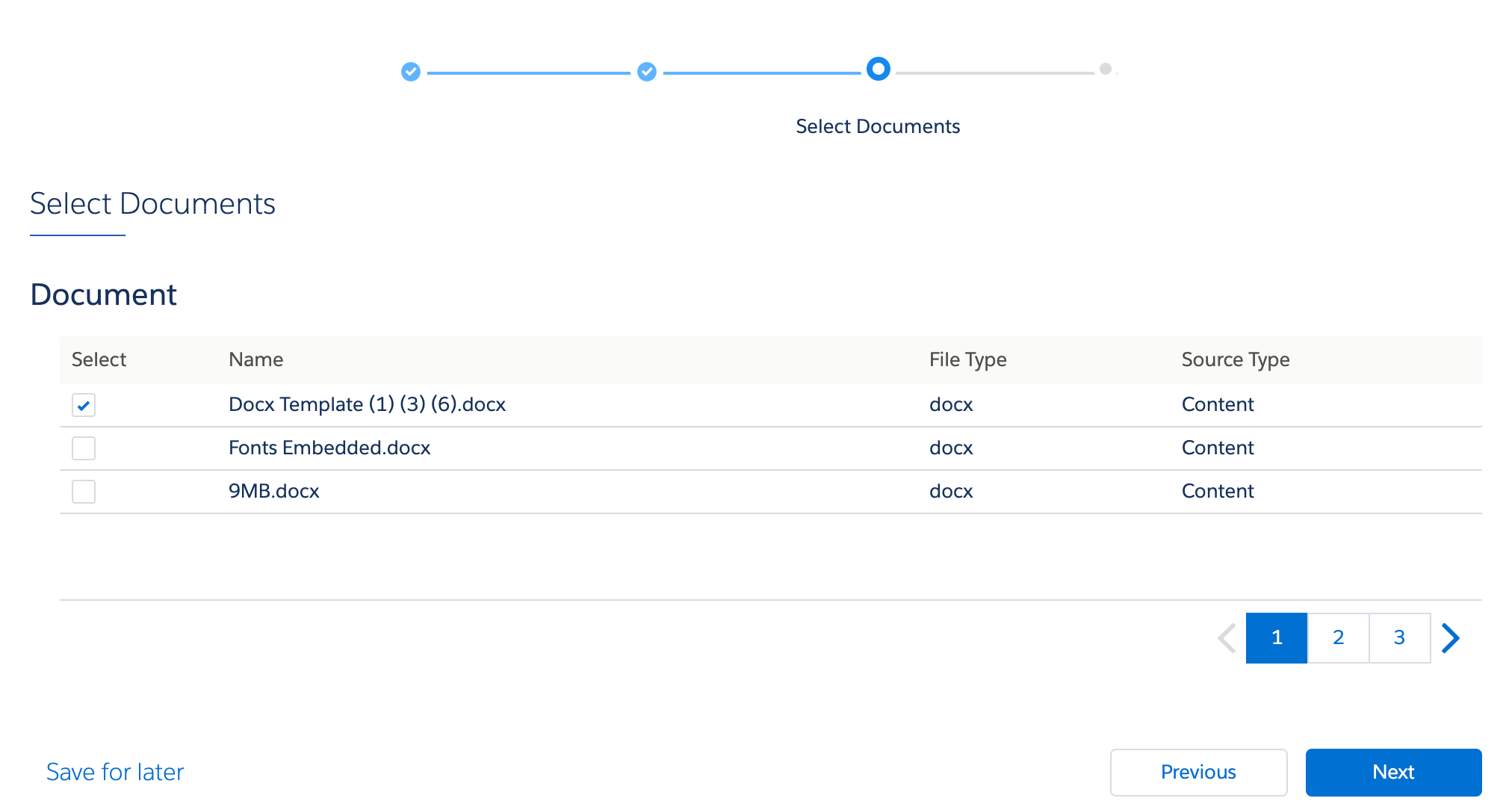
Select Documents
You select the documents you want to send for eSignature. The document list is from documents generated by other CLM Omniscripts or documents that you uploaded into the Notes & Attachment section.
For details about CLM Omniscripts, see CLM Omniscripts Overview.
-
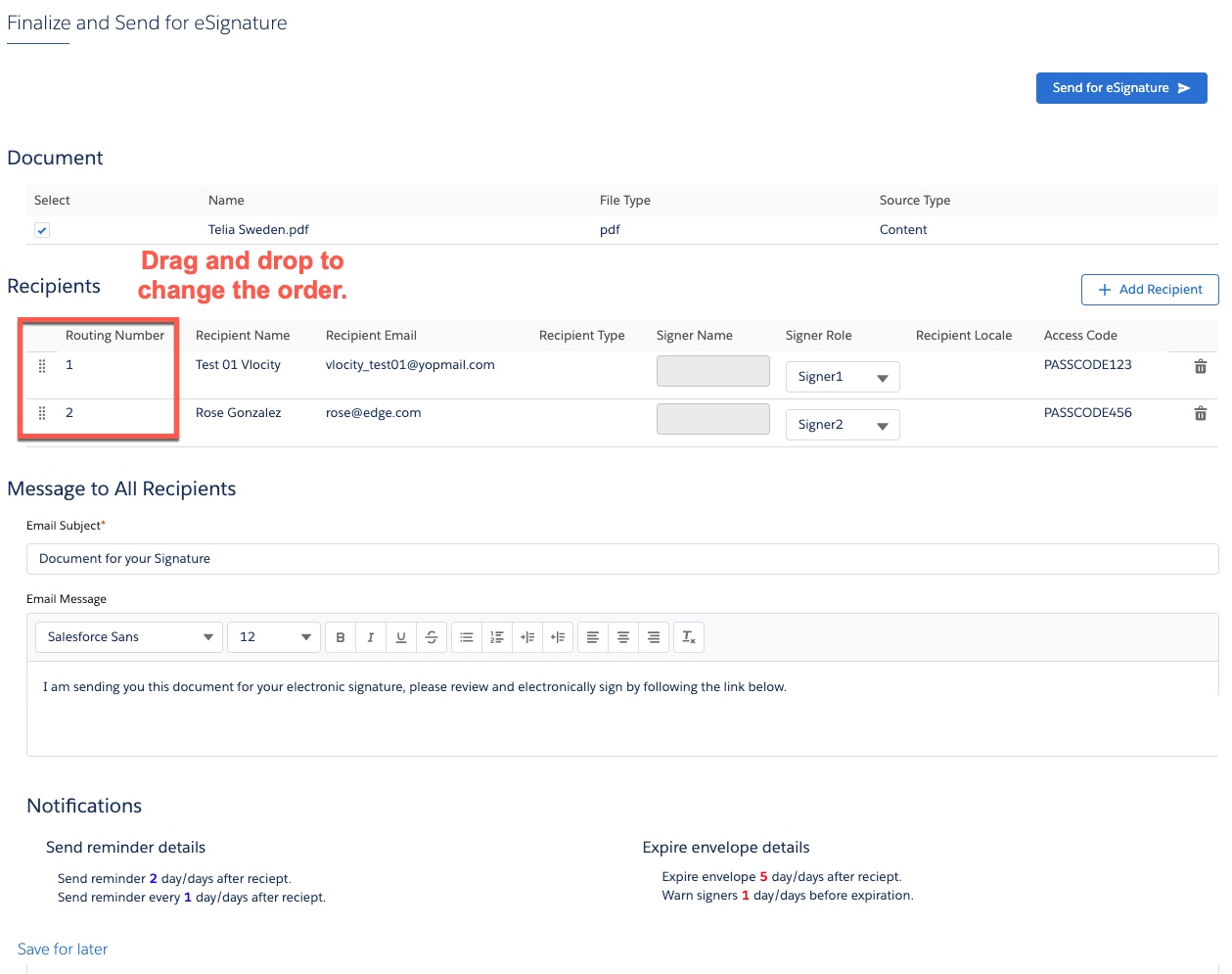
Finalize and Send for eSignature
You review what you're sending, the recipients, and the message that accompanies the documents. In the Recipients section, you can drag and drop to change the order of the routing number. You can also add a recipient here before you send for eSignature.
sendEsignature Omniscript Structure
Review the properties in the sendEsignature Omniscript. If you want to make changes to the structure, Vlocity recommends that you clone a copy of this Omniscript and rename it.
-
GetContacts
This Data Mapper extract step retrieves the recipients list that contains the names and email addresses of who you want to sign documents. This uses the GenericDocuSignGetContacts using the GenericDocuSignGetContacts Data Mapper Interface.
-
EnterObject
-
SelectSigners
This step displays a list of signers using the clmOsSelectRecipients see clmOsSelectRecipients Lightning Web Component.
-
GetDocuments
This Data Mapper extract step retrieves the documents available for sending for eSignature using the GenericDocSignGetDocuments Data Mapper Interface.
-
SetDocumentColumns
This step defines the columns on Select Documents based on key value pairs.
Click Edit Properties As JSON to see the definitions.
{ "HTMLTemplateId": "", "controlWidth": 12, "disOnTplt": false, "elementValueMap": { "documentColumns": [ { "fieldName": "name", "label": "Name" }, { "fieldName": "fileExtension", "label": "File Type" }, { "fieldName": "sourceType", "label": "Source Type" } ] }, "label": "Set Document Columns", "message": {}, "pubsub": false, "show": null, "showPersistentComponent": [ false, false ], "ssm": false, "wpm": false } -
SelectDocuments
This step displays the documents you can select to send for eSignature using the clmOsGenericSelectableItems see clmOSGenericSelectableItems Lightning Web Component.
-
FinalizeEnvelope
This step displays the final details using the clmOSGenericDocuSignSendEnvelope see clmOsGenericDocuSignSendEnvelope Lightning Web Component.
