
You are here:
Use a Connector in Tableau to Pull Reports from Marketing Cloud Intelligence
Connect to Marketing Cloud Intelligence from Tableau Desktop, Tableau Server, Tableau Online, or Tableau Prep using the Marketing Cloud Intelligence connector.
Required Editions
| User Permissions Needed | |
|---|---|
| To use the Marketing Cloud Intelligence connector: | Admin |
If your Tableau version is 2021.1 or earlier, download the Marketing Cloud Intelligence connector and driver from the Tableau Exchange.
If you use Tableau 2021.2 or later, the Marketing Cloud Intelligence connector is included, you still need to download the driver from the Tableau Exchange.

Note The Marketing Cloud Intelligence Connector in Tableau is supported in Tableau 2020.3 and
later.
- In Tableau, click Connect.
- Select Marketing Cloud Intelligence [Datorama] by Salesforce.
-
Enter your Intelligence information:
- From the Environment Platform dropdown list, select your Intelligence platform, which you can obtain from the Marketing Cloud Intelligence URL.
-
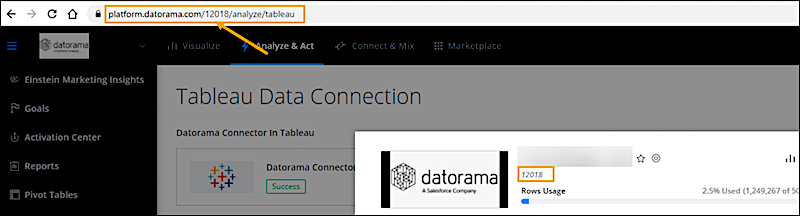
Enter your Intelligence workspace ID. You can find the ID either inside the URL or
by going to your workspace settings.
-
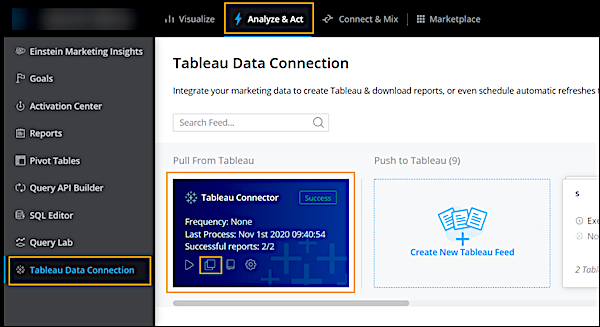
For your access token, in Marketing Cloud Intelligence, go to Analyze
& Act and select Tableau Data Connection.
Click Copy Token, and paste the token into Tableau.
Note If this is the first time you’re activating, you must first generate a token in Marketing Cloud Intelligence. Click Activate Tableau Connector, and then click Generate.
- As part of the activation, determine when to refresh the tables that the connector accesses.
- The token is generated at the workspace level, so all users in the workspace have the same token. You can change the token or revoke it.
- When using the connector, you don’t need to create feeds of Tableau reports for delivery in Marketing Cloud Intelligence, use your Tableau Reports instead.
-
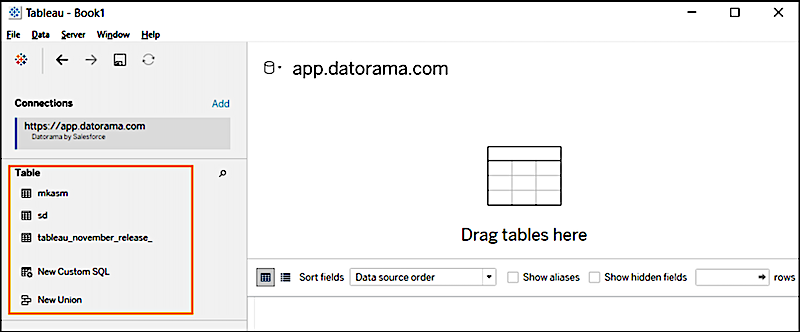
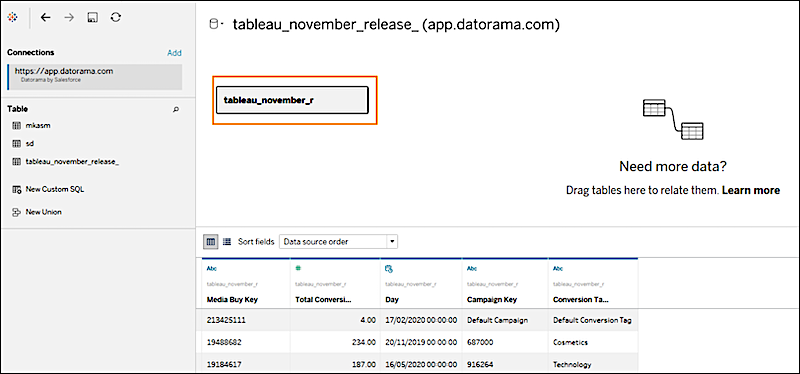
Click Sign In. All your Tableau reports from Marketing Cloud
Intelligence appear under Table.
-
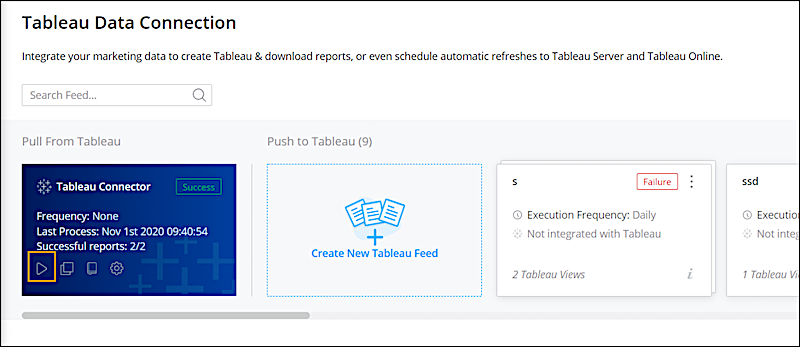
If you don’t see a new report under Table, go to the Marketing Cloud
Intelligence [Datorama] Connector in Tableau tab and click
Run Now to refresh the reports.
-
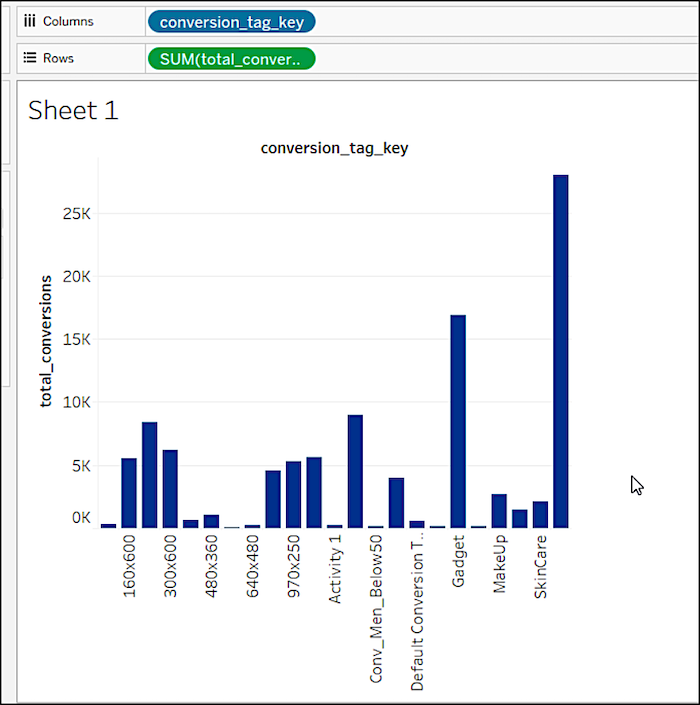
When you see the reports that you need, drag them in Tableau and visualize your
data.
Did this article solve your issue?
Let us know so we can improve!
