
Loading
Feature Disruption - Service Cloud VoiceRead More
Feature degradation | Gmail Email delivery failureRead More
Integrate and Analyze Marketing Data with Marketing Cloud Intelligence
Table of Contents
Select Filters

          No results
          No results
          Here are some search tips

          Check the spelling of your keywords.
          Use more general search terms.
          Select fewer filters to broaden your search.

          Search all of Salesforce Help
          Import Data via Technical Vendor

          Import Data via Technical Vendor

          Importing data via technical vendors schedules the data stream to update automatically via a remote server. This method tells the platform to import files from remote servers according to the delivery method of your choice. The settings are dynamic and based on the technical vendor you select. Typically, you use this method when you want to retrieve data from an external source and have it update automatically. Available for TotalConnect data streams.
          Required Editions

          User Permissions Needed
          To edit a data stream: Admin

          For example, if you have monthly reports in a Dropbox folder, you can use this type of connection to pull the reports from the source monthly.

          1. Navigate to the Connect & Mix tab.
          2. Expand Data Streams, and then expand Data Streams List.
          3. Select the data stream that you want to modify.
          4. At the top right-hand corner of the page, click Automate Data Refresh.
            Automate Data Refresh
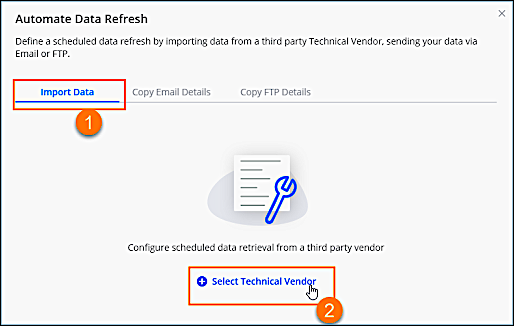
          5. To configure the automatic pull from a technical vendor, click Import Data (1) and then click Select Technical Vendor (2). The settings can vary per technical vendor, but some of them overlap. This example shows the settings when configuring a connection to Dropbox.
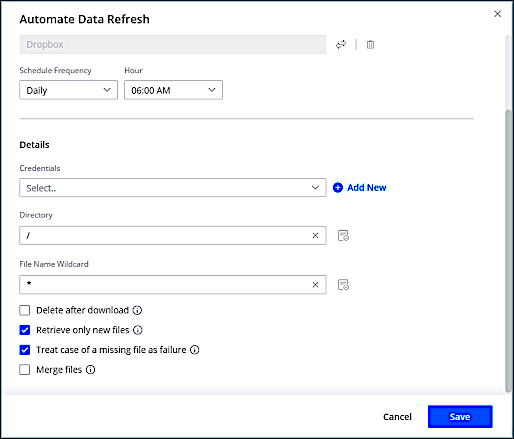
            Configuring refresh with Dropbox
            Schedule Frequency Select the frequency with which the data stream pulls files from the external source. You can choose once, hourly, daily, weekly, bi-weekly, monthly, quarterly, and yearly.
            Credentials Select your credentials to authenticate with the platform where your files are stored. If a set of credentials hasn’t been added to Marketing Cloud Intelligence previously, to create a new authentication, click Add New.
            Directory Enter the directory where your files are located. To evaluate any Marketing Cloud Intelligence functions that were used as part of the directory or file name, use the Evaluate button.
            File Name Wildcard

            Set a wildcard to instruct the data stream which file to pick from the directory or folder. For example, use the asterisk for a part of a file name that could vary. For example, *.report.xls covers both May.report.xls and June.report.xls. To evaluate any Marketing Cloud Intelligence functions that were used as part of the file name, click Evaluate next to the text box.

            • If you want to pull a specific file, for example, an Excel file, you can use the File name wildcard option and enter *.xlsx. If you want to include certain parts of the names of the files you want to retrieve when uploading the data, you can also use the File name wildcard match option. For example, let’s say you have 100 files in your directory and you want to retrieve only those files that contain the word “Campaign”. Because only 20 files contain the word, we expect only 20 files to be retrieved.
            • In this case, you can use the wildcard option using this syntax: *Campaign*. Because this is a file name, not a file extension, you must use the correct syntax.
              • Add two asterisks around the word that you want used in the filtering. You can also retrieve files from cloud storage daily in a directory named with today’s date by adding to the directory path [code]FORMATDATE(TODAY(), 'yyyy-MM-dd')[/code].
              • Functions like TODAY() and NOW() always return the date in UTC timezone (not the timezone of the workspace) when they’re used in this feature.
            Delete after download Enable this checkbox to delete the files from your vendor or file storage after they’re downloaded by the platform.
            Retrieve only new files Enable this checkbox to only retrieve files that were modified after the most recent retrieval.
            Merge files Enable this checkbox to merge multiple files into a single file before processing. All files must have identical headers.
           
          Loading
          Salesforce Help | Article