Use the Query Builder to create the query without having to manually create the query in
SQL. All you have to do is select the dimensions and measurements and then a query is created
automatically. You can convert a query from the query builder into SQL and use it as a regular
SQL query. For example, you can save or export the converted query.
Required Editions
User Permissions Needed
To create a Granular Data Center query:
Admin
Note If you want to pull data from different tables in the Granular Data Center, first define
the fusions between the dimensions on the Granular Data ERD tab.
From the Connect & Mix tab, select Granular Data
Center, and then Query Granular Data.
Click Create New Query.
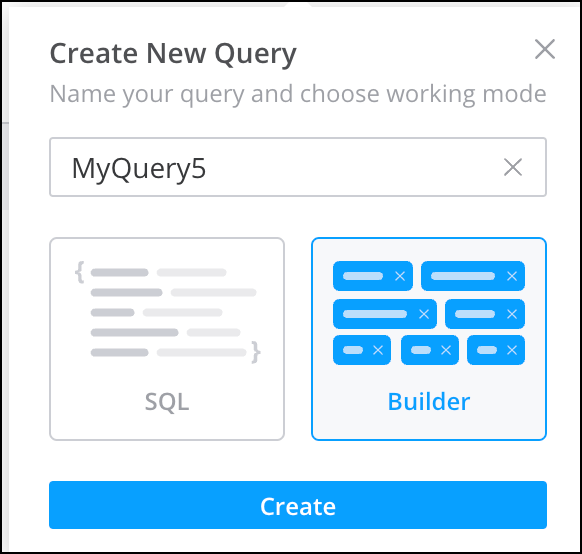
Select Query Builder and then click Create.
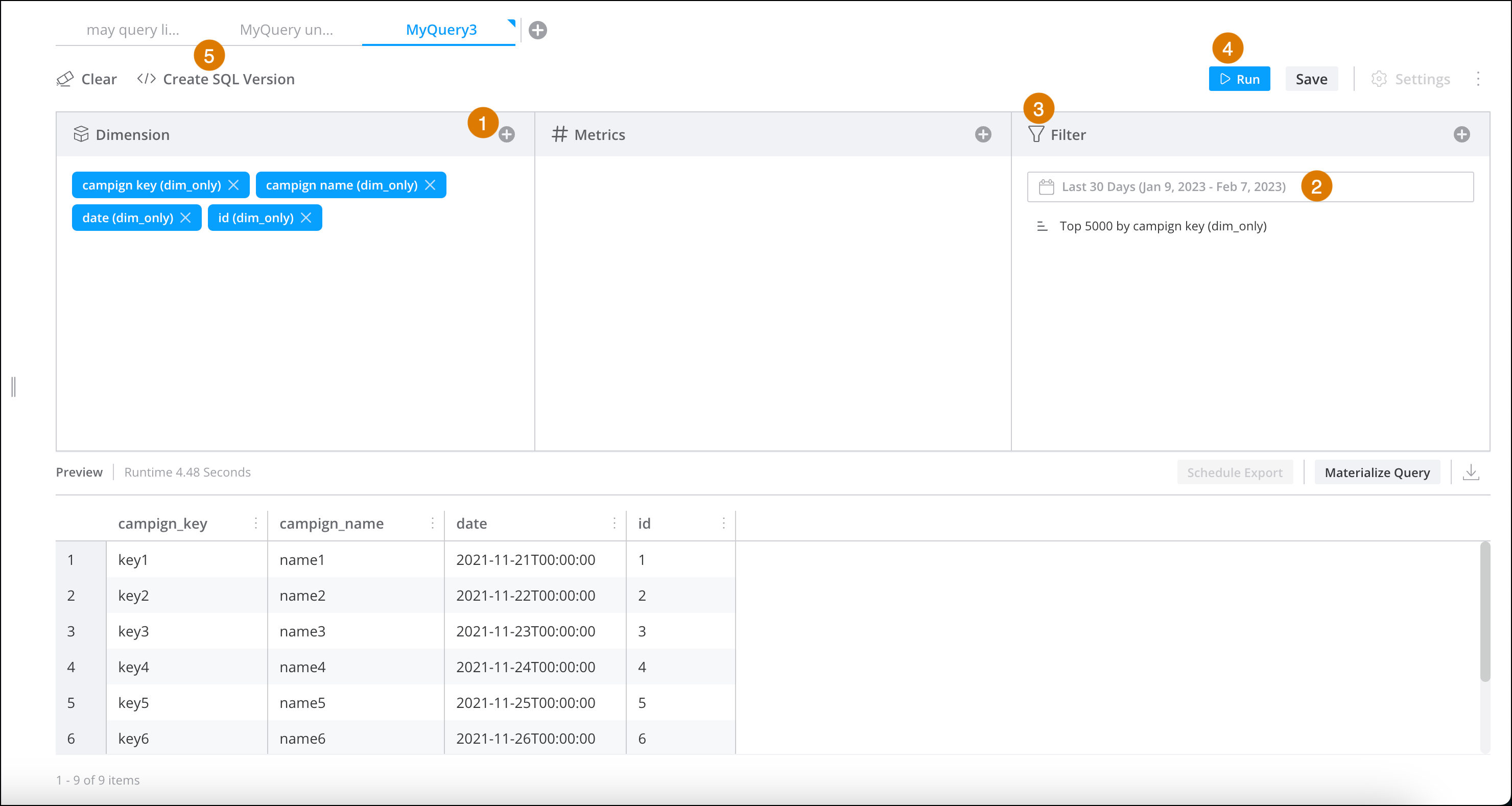
Click the plus sign next to the entity that you want to add (1). For example, add a
dimension. A list of all the dimensions that exist in the Granular Data Center appears.
Select the dimensions for the query.
Repeat the same steps to add measurements. After you add measurements, you can change the
dates for which you’re applying the query (2). The date is the past 30 days.
To add a filter, click the plus sign in the Filter column (3). For
example, if you want to only query a specific campaign.
Click Run (4). The query results appear at the bottom of the page.
To convert the query builder to SQL, click Create SQL Version at the
top of the dialog.
A new tab opens with the SQL, allowing you to edit the code if necessary.
Note The converted SQL query isn’t saved automatically. If you want to save the query click
Save. For more information, see Create a Query Using SQL.
Did this article solve your issue?
Let us know so we can improve!
Loading
Salesforce Help | Article
Cookie Consent Manager
General Information
Required Cookies
Functional Cookies
Advertising Cookies
General Information
We use three kinds of cookies on our websites: required, functional, and advertising. You can choose whether functional and advertising cookies apply. Click on the different cookie categories to find out more about each category and to change the default settings.
Privacy Statement
Required Cookies
Always Active
Required cookies are necessary for basic website functionality. Some examples include: session cookies needed to transmit the website, authentication cookies, and security cookies.
Functional Cookies
Functional cookies enhance functions, performance, and services on the website. Some examples include: cookies used to analyze site traffic, cookies used for market research, and cookies used to display advertising that is not directed to a particular individual.
Advertising Cookies
Advertising cookies track activity across websites in order to understand a viewer’s interests, and direct them specific marketing. Some examples include: cookies used for remarketing, or interest-based advertising.