You are here:
Adobe Analytics Data Warehouse API Connector
Adobe Analytics is a Web Analytics service that tracks and reports website traffic and interaction.
This connector retrieves data from the ‘Data Warehouse’ reports section in Adobe Analytics. Pulling data from Data Warehouse means that you can’t retrieve Calculated Metrics —— you can only retrieve data for a selection of supported Segments.
- Channel: Web Analytics
- Data Stream Type:
- Web Analytics
- Web Analytics Pages
- Data Lag: 1 Day
Prerequisites
To connect to Adobe Analytics, you need valid OAuth credentials (Client Id + Client Secret).
Details
When Authenticating Adobe Analytics, you’re required to enter a Username and the Secret Key. For the Username value, you have to combine your User Name and Company Name values in the following format: Username:Company and the Secret Key, is your Shared Secret value in Adobe
If you’re not sure how to find your Shared Secret value in Adobe, go to the User Settings and under the Web Service section, you’ll see a string that is referred to as your Shared Secret.
General Setup
Select your Account. Account correlates to the ‘Report Suite’ value in Adobe Analytics. Only after segment can be selected at a time. To add more than one segment see the Extended Properties.
In the Fields dropdown list, all Dimension fields are identified with the prefix (ELEMENT) and metrics are prefixed with (METRIC). Calculated fields can’t be selected.
Extended Properties
- Override Segments – This setting is only relevant if you need to query on more than one Segment, as it allows you to enter up to 4 Segment values (which you can’t do from the Segment dropdown at the top). Enter the segment values ids separated by commas. Be advised that the values entered in the Override Segments section overrides any Segment selection you have made in the dropdown at the top. To obtain the Segment ID values from within the Adobe platform, edit a certain Segment and retrieve the ID value from the URL component.
- Data Stream Type – The data being pulled is unmapped, so select the Data Stream Type to which the retrieved fields should be mapped to.
Additional Information
- The Segment List in Marketing Cloud Intelligence populates ALL the available segments from Adobe, some Segments might not be compatible with Data Warehouse Report Type (as per Adobe’s internal limitation). Thus, if you select a Segment that isn’t supported in Data Warehouse, the Data Stream processing fails with an error message to that effect. If you’re unsure which Segments are supported in Data Warehouse, then as best practice we suggest you verify this from within the Adobe platform prior to creating the Data Stream. To do so, simply check which Segments were populated in the list of Segments in the DW Report Builder itself.
- As for your selection of Dimensions (identified with the prefix ELEMENT) note that you can only combine Dimensions from within the same ‘Group’ (or ‘Type Breakdown’) again, as per an Adobe limitation. The two available groups are ‘Traffic’ and ‘Commerce’. You can’t for example have both 'browserheight' (Traffic) and 'category' (Commerce) as 2 Dimensions queried within the same Data Stream, as each belongs to a different group and would, therefore, cause the Data Stream processing to fail.
- Not all Dimensions are supported in the Data Warehouse Report Type. To find out which Dimensions are supported, drag & drop a Dimension (Element) into the Segment Builder’s Definitions field to find out about its Report Type compatibility.
- In the Fields dropdown list, due to security reasons, all HTML tags are removed from the field names. As a result, field names that have HTML tags (such as < >) won’t match perfectly to their names in Adobe.
- The reporting UI (Adobe Workspace) doesn’t produce a flat CSV report, rather it provides a drill-down report with a limit of only 400 rows. This can be challenging when trying to compare data with maximum granularity.
Pulling Unique Measurements in Adobe Analytics
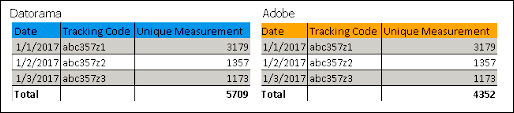
The Unique Measurement values will only match those on the Adobe platform for the exact same combination of Dimensions (including Date), but not at any other level and not as a total of these rows of data.
QA Your Data: Regular Measurements
- Generate a report in the Adobe Data Warehouse Report Builder with the exact same set of Dimensions and Measurements that exist in the Data Stream query, for a certain date range.
- Create a Report/Table Widget/Pivot table within Marketing Cloud Intelligence containing the exact same Dimensions and measurements for the same date range.
- Compare the measurement totals and make sure they’re aligned.
- Make sure that you’ve mapped correctly in terms of entity relationships. Filter the Adobe report for a certain dimension value and make sure that the list of associated Dimensions seen in the Adobe report corresponds to that seen in Marketing Cloud Intelligence when the same filtering is applied.
- Make sure that the metric values are aligned.
QA Your Data: Unique Measurements
- Generate a report in Adobe DW Report Builder that has the exact same set of Dimensions including Date and unique measurements that exist in the Data Stream query.
- Create a Report/Table Widget/Pivot table within Marketing Cloud Intelligence containing the exact same Dimensions and unique measurement/s, for the same date range.
- Instead of comparing the Measurement Totals, compare each line measurement.