
You are here:
Salesforce Marketing Cloud Data Extensions
Salesforce Marketing Cloud is a platform for delivering relevant, personalized journeys across channels and devices - enabling marketers to deliver the right message at the right time throughout all phases of the relationship.
The SFMC Data Extensions connector enables you to pull in data extensions, which are custom tables with fields of data about your contacts. They can be standalone or can be related to other data extensions.

- Don’t edit the data extension after creating a data stream. Removing or renaming any columns after creation, causes issues with automation. If for some reason you must edit the data extensions, contact Marketing Cloud Support.
- Make sure your data extension doesn’t contain these columns: date_id, location_id, dat_account_currency, dat_exchange_rate, pacing_period, pacing_end_date, row_count, or brand_id.
- Make sure the data extension doesn’t use the same column name more than one time.
- Only data extensions with less than 50M records are supported.
- Sendlog DEs aren’t supported.
- Your user must have Enterprise-level access.
- Your user must also be an Admin and Marketing Cloud Admin.
- This API connector supports the following:
- Enterprise 1.0
- Enterprise 2.0
- Core or Connect
- You must make sure your user has access to the parent member, otherwise the authentication fails.
- If for some reason the connection to the data extension failed, try deleting the automation of the data extension in Automation Studio. If this doesn’t help, contact Marketing Cloud support.
- Channel: Display
- Data Stream Type: Generic
- Data Lagging: 1 day
Details
- The data stream runs on an hourly basis, but usually pulls data once a day. The data is pulled after it becomes available from Marketing Cloud.
- Usually Marketing Cloud data isn’t available upon the creation of the data stream, and is only available 24–48 hours later. Therefore, if no data is pulled in during the first process, it’s recommended you check the data stream a day or two later. After initial provisioning the data stream is processed as expected, and data becomes available daily.
Prerequisites
To connect to the Salesforce Marketing Cloud API, you need a valid username and password with API access.
- Your user must have Enterprise-level access.
- It’s advised you check your Business Unit Marketing Cloud time zone. If it differs from Central Standard Timezone (Marketing Cloud Intelligence’s default time zone), you could see discrepancies in your data.
Enabling
- Log in to your Salesforce Marketing Cloud account and click your username on the top right of the screen.
- Under Settings, select Setup.
- Expand Users.
- Click Roles.
- Select the role you want to update permissions for. Your user must be an Admin and Marketing Cloud Admin.
- Scroll down and click the plus icon and expand Marketing Cloud Intelligence.
- Under Enable Marketing Cloud Intelligence Integration, select the Allow checkbox.
General Setup
After entering your credentials, select the following options:
- Account - Select the relevant account that you want to retrieve data for.
- Data Extension - Select the data extension you want to retrieve data for.
Advanced Settings
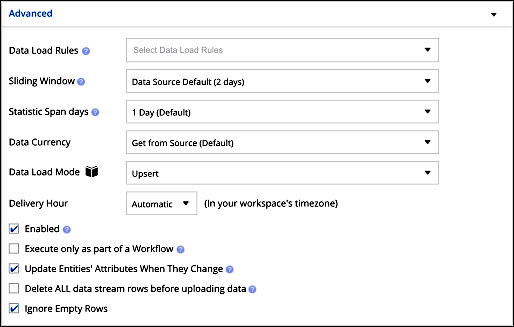
This section allows you to define advanced settings for your API connector. These settings are the same for all API connectors.
Extended Properties
In this section:
- Data Stream Type - Select the relevant data type for the data being pulled.
How to QA Your Data
- Create the desired report in the Salesforce Marketing Cloud platform for the required date range.
- Next, process the relevant Data Stream in Marketing Cloud Intelligence for the same date range.
- Compare the Measurement Totals and make sure they’re aligned.
