
You are here:
View Your User Activity in Marketing Cloud Intelligence
See the total active users in your account broken down by a time period, workspace and/or dashboards.
| REQUIRED USER ROLE | |
|---|---|
| To view user activity | Admin |
- To the right of the navigation bar, click the dropdown arrow, and click the Account Settings gear icon.
- In the account menu, select Account Analytics.
-
Click the User Activity tab.
 Note If you don’t see the User Activity tab, in Account settings, uncheck Hide Account Analytics User Level Data.
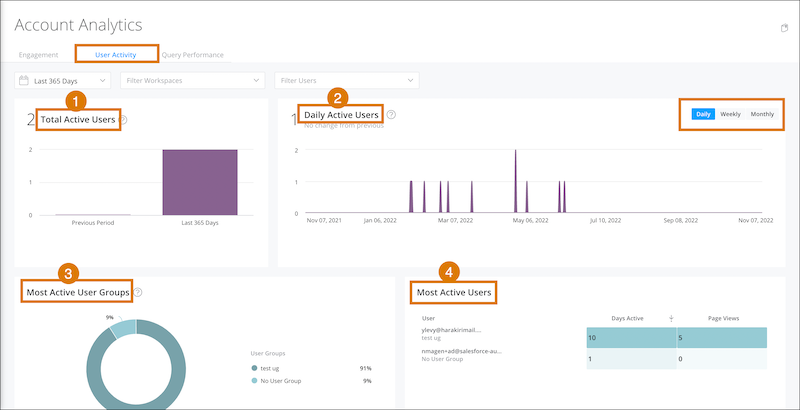 View the total number of unique active users [1] based on the time period. Compare the total number of active user views between time periods. For example, total number of active users during the past 90 days versus the 90 days before the selected period (previous period). View the Daily Active Users per day, week, or month [2].Note Days without active users are considered zero days and are included in the average.View the Most active User Groups during the total number of active days. [3] View the Most active users [4]Note Users who don’t belong to a user group are grouped under No User Group.
 -
Apply filters to change the data displayed on the page. For example, if you filter by a
specific workspace, only the data of the selected workspace is counted and displayed.
Note For Time Period, if you select Last 24 Hours, it doesn’t include the overtime chart because account analytics doesn’t support hourly analysis. The Workspaces filter is available only at the account level.
¿Resolvió este artículo su problema?
¡Háganos saber cómo podemos mejorar!
