
You are here:
Create a Support Ticket for Marketing Cloud Intelligence
Log a support case to enable permissions or if you are experiencing technical difficulties.
- At the top of the Help and Training page, click Contact Support.
-
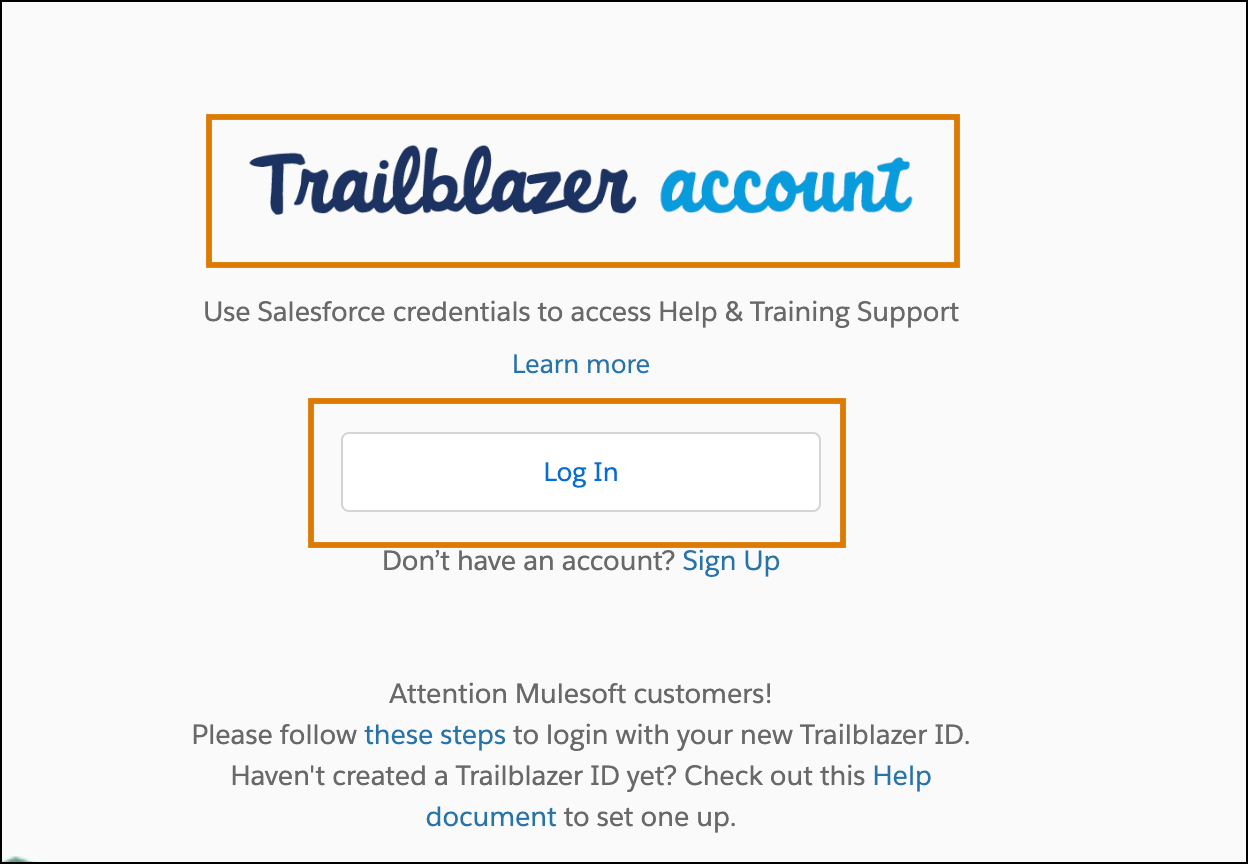
Under Trailblazer.account click Log In.
-
In the Email text box enter your Marketing Cloud
Intelligence email and then click Next.
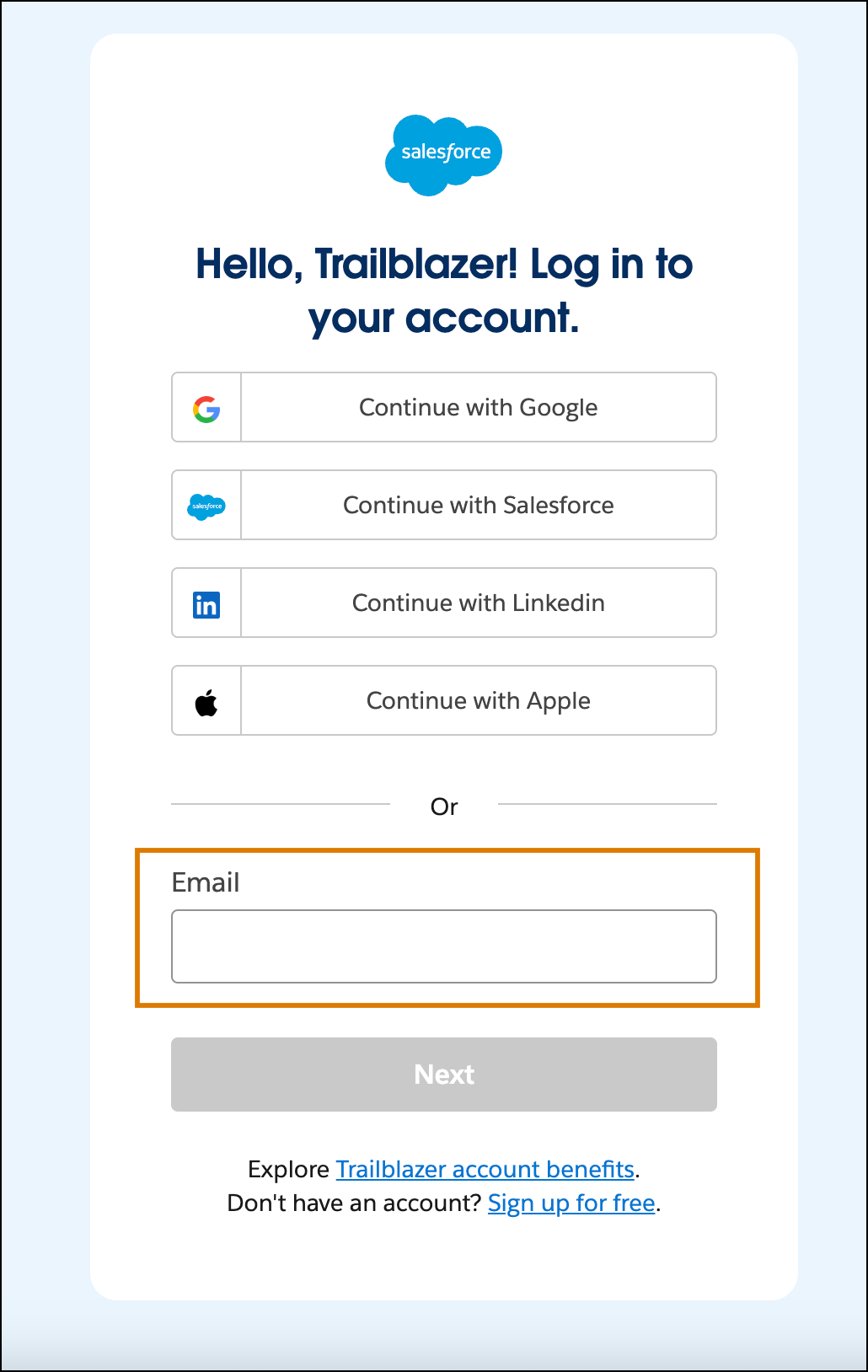 A single-use code is sent to your email address.
 - Copy and paste the code, and then click Continue.
- If you’re asked to connect a recovery account you can set up a recovery account or click Skip for Now.
- For the org that you need help with, click Get Support.
-
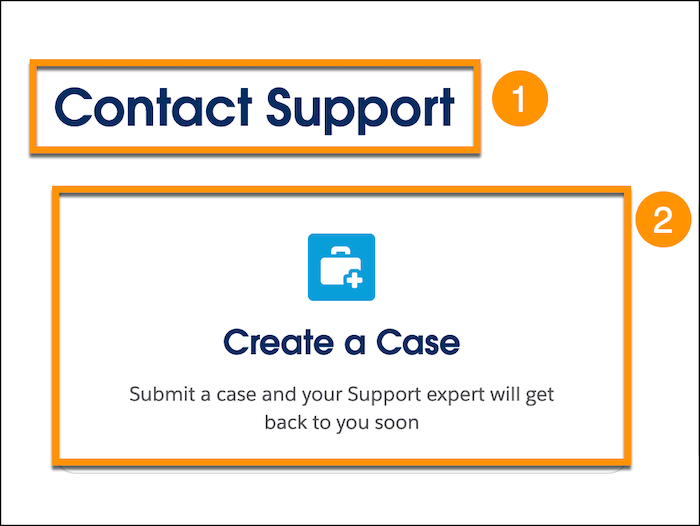
Under Contact Support (1) click Create a
Case(2).
-
Enter these details to make sure your case is created successfully.
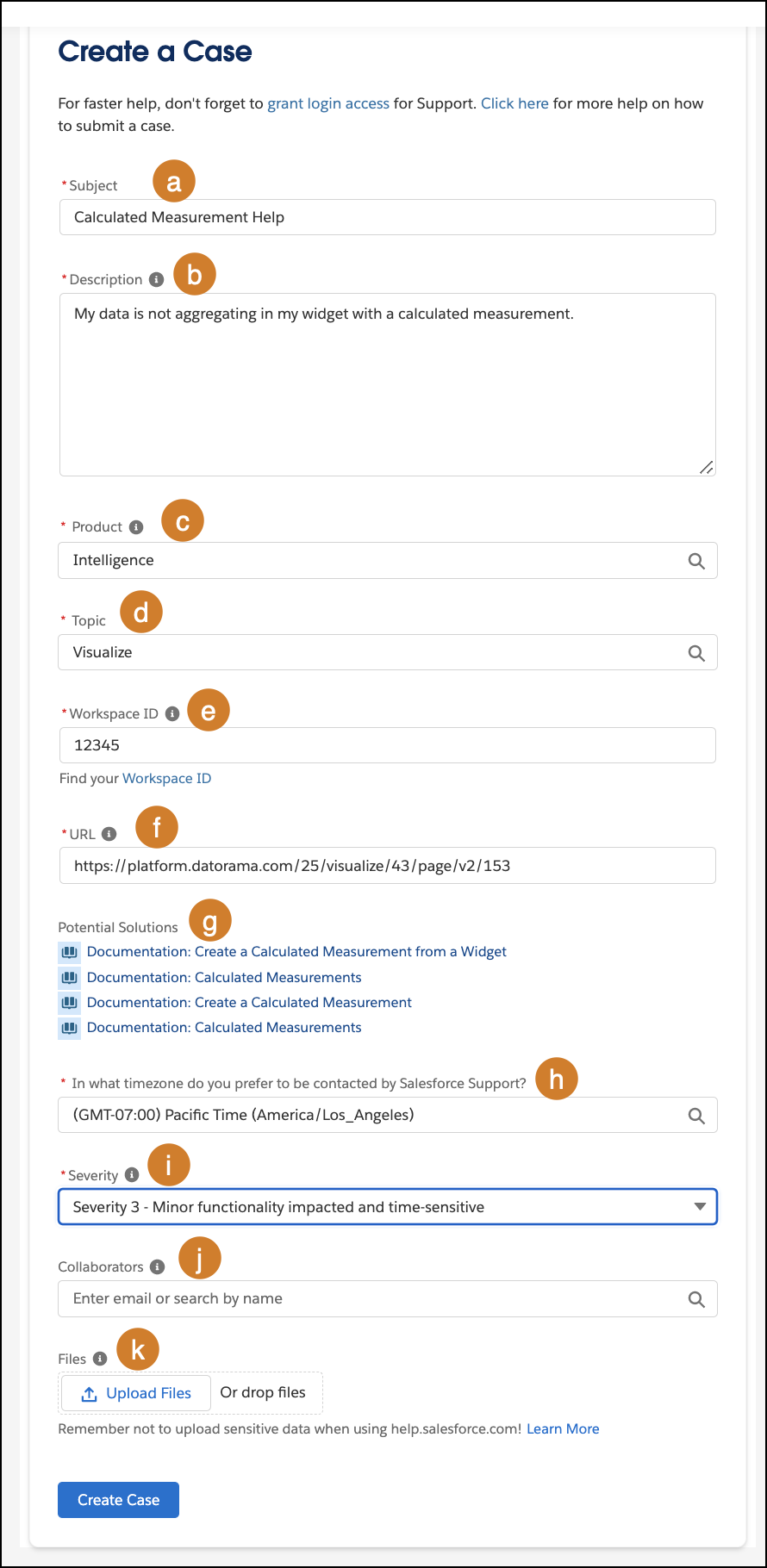
- Enter a subject.
- Enter a detailed description.
- From the Product dropdown menu, select Intelligence.
-
From the Topic dropdown menu select the relevant
topic for your case. You can select from these options.
Administration/Settings/Marketplace Analyze & Act Connect & Mix Visualize - Enter your Workspace ID. To locate the ID, in Marketing Cloud Intelligence click your workspace name on the top left side of the screen. Your ID appears under your workspace name. If not applicable, you can enter 1234.
- Add the URL for the page you’re experiencing difficulty with. Enter N/A if not applicable.
- Before creating the ticket, take a look at the potential solutions that are automatically generated for you.
- Select the Timezone where you’re located or where you prefer being contacted.
- Select the Severity of your case.
- If you want to add other people to the case, enter the email addresses of the collaborators.
- Upload files if necessary.
-
Click Create Case.
After you create a case, you can track its progress and collaborate with support within the case.
Did this article solve your issue?
Let us know so we can improve!
